# Excel MCP Server - complete documentation
# Home
Source: https://excelmcpserver.dev/
!!! success "Powered by the real Excel engine"
Excel MCP Server automates the **actual Excel application** through its
official COM API — the same engine Excel itself uses. That unlocks what
spreadsheets are really for:
- **Runs live Excel operations.** Refresh Power Query to pull and reshape
fresh data, recalculate with Excel's own engine, refresh PivotTables and
the Data Model, evaluate DAX, and run VBA or Python `=PY()` — the real,
*computed results* land right in your workbook.
- **Edits your existing files safely.** Excel opens and saves the workbook
itself, so every formula, PivotTable, chart, macro, the Data Model and all
your formatting stay exactly as they were.
Other tools (openpyxl-based MCP servers and Agent Skills, including
Anthropic's `xlsx` skill) read and rewrite the `.xlsx` file directly — which
can quietly drop PivotTables, charts, and macros, and can't run Power Query,
the Data Model, or DAX at all. Here, Excel does the work. Watch it live: just
say *"Show me Excel while you work."*
[{ width="1280" height="720" }](https://youtu.be/B6eIQ5BIbNc)
▶️ [Watch the intro video (1 min)](https://youtu.be/B6eIQ5BIbNc)
!!! tip "Also building PowerPoint decks?"
Check out [PowerPoint MCP Server](https://powerpointmcpserver.dev/) — the
sister project, built the same way.
## Key features
- :material-transit-connection-variant:{ .lg .middle } __Power Query & M code__
---
Create, edit and optimize M code. Import from files, databases and APIs.
Refresh queries and manage load destinations.
- :material-calculator-variant:{ .lg .middle } __Power Pivot & DAX__
---
Build Data Models, create DAX measures and manage table relationships.
Full Power Pivot automation.
- :material-chart-box:{ .lg .middle } __PivotTables & charts__
---
Create PivotTables from ranges, tables or the Data Model. Build charts and
PivotCharts with full formatting control.
- :material-table:{ .lg .middle } __Tables & ranges__
---
Read/write data, formulas and formatting. Filter, sort and validate. Manage
Excel Tables with structured references.
- :material-code-braces:{ .lg .middle } __VBA macros__
---
View, import, update and execute VBA code. Export modules for version
control.
- :material-file-table-box-multiple:{ .lg .middle } __Worksheets & connections__
---
Manage sheets, named ranges and data connections. Copy and move sheets
between workbooks.
- :material-eye-outline:{ .lg .middle } __Agent mode__
---
Watch AI work in Excel in real time — side-by-side view, live status-bar
feedback and smart window arrangement, like a pair programmer in a
spreadsheet.
- :fontawesome-brands-python:{ .lg .middle } __Python in Excel__
---
Write and run `=PY()` formulas that execute in Excel's cloud Python engine —
process worksheet data with pandas, NumPy and more, from your AI assistant.
- :material-test-tube:{ .lg .middle } __LLM-tested quality__
---
Tool behavior validated with real LLM workflows, so AI assistants reliably
understand and use every operation.
[See all 31 tools and 326 operations :material-arrow-right:](features.md){ .md-button .md-button--primary }
## Popular guides
- [Refresh Power Query from an AI assistant](guides/refresh-power-query.md)
- [Build and update PivotTables with an AI assistant](guides/automate-pivottables.md)
- [Query the Excel Data Model with DAX](guides/query-data-model-with-dax.md)
- [Run VBA macros from an AI agent](guides/run-vba-macros.md)
- [Real Excel automation vs. file-parser libraries](guides/excel-automation-vs-file-parsers.md)
## See it in action
Ask your AI assistant in plain language — it drives Excel for you:
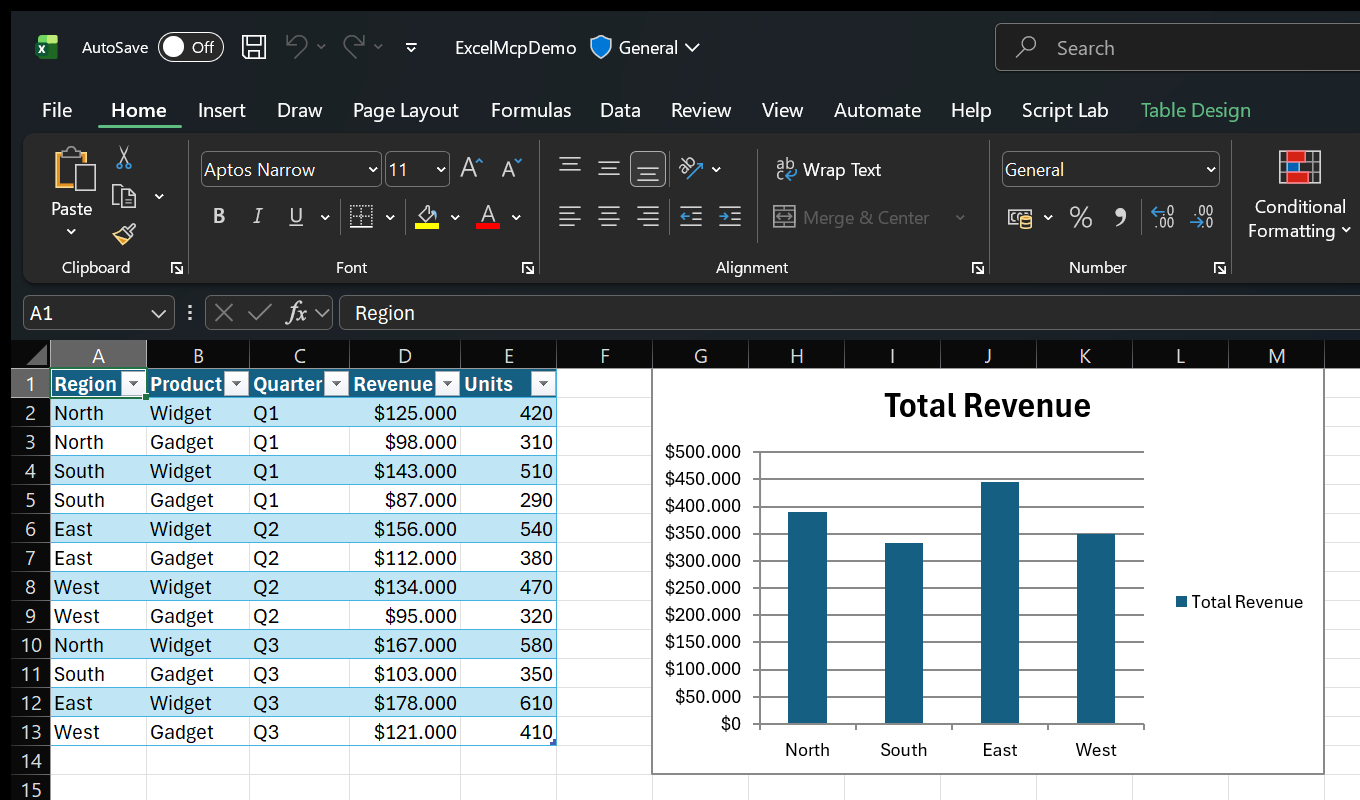{ width="1360" height="800" loading=lazy }
A styled Excel Table, a regional revenue summary and a column chart — created end-to-end in the real Excel application. No manual clicking, no rewriting the .xlsx file.
!!! example "📝 Create & populate data"
**You:** "Create a new Excel file with a table for tracking sales — include
Date, Product, Quantity, Unit Price and Total with sample data and formulas."
The AI creates the workbook, adds headers, enters sample data and builds
formulas automatically.
!!! example "📊 PivotTables & charts"
**You:** "Create a PivotTable showing total sales by Product, then add a bar
chart to visualize the results."
The AI creates the PivotTable with proper field configuration and adds a
linked chart.
!!! example "🔄 Power Query & Data Model"
**You:** "Use Power Query to import products.csv, load it to the Data Model,
and create measures for Total Revenue and Average Rating."
The AI imports the data, adds it to Power Pivot and creates DAX measures
ready for analysis.
!!! example "🎨 Formatting & tables"
**You:** "Format the Price column as currency, highlight values over $500 in
green, and convert this to an Excel Table."
The AI applies number formats, conditional styling, auto-fit and structured
table styling.
And because Excel MCP Server works with the real Excel application, modern
features like **Python in Excel** work too — your AI assistant can write
`=PY()` formulas that run pandas and NumPy directly on your worksheet data:
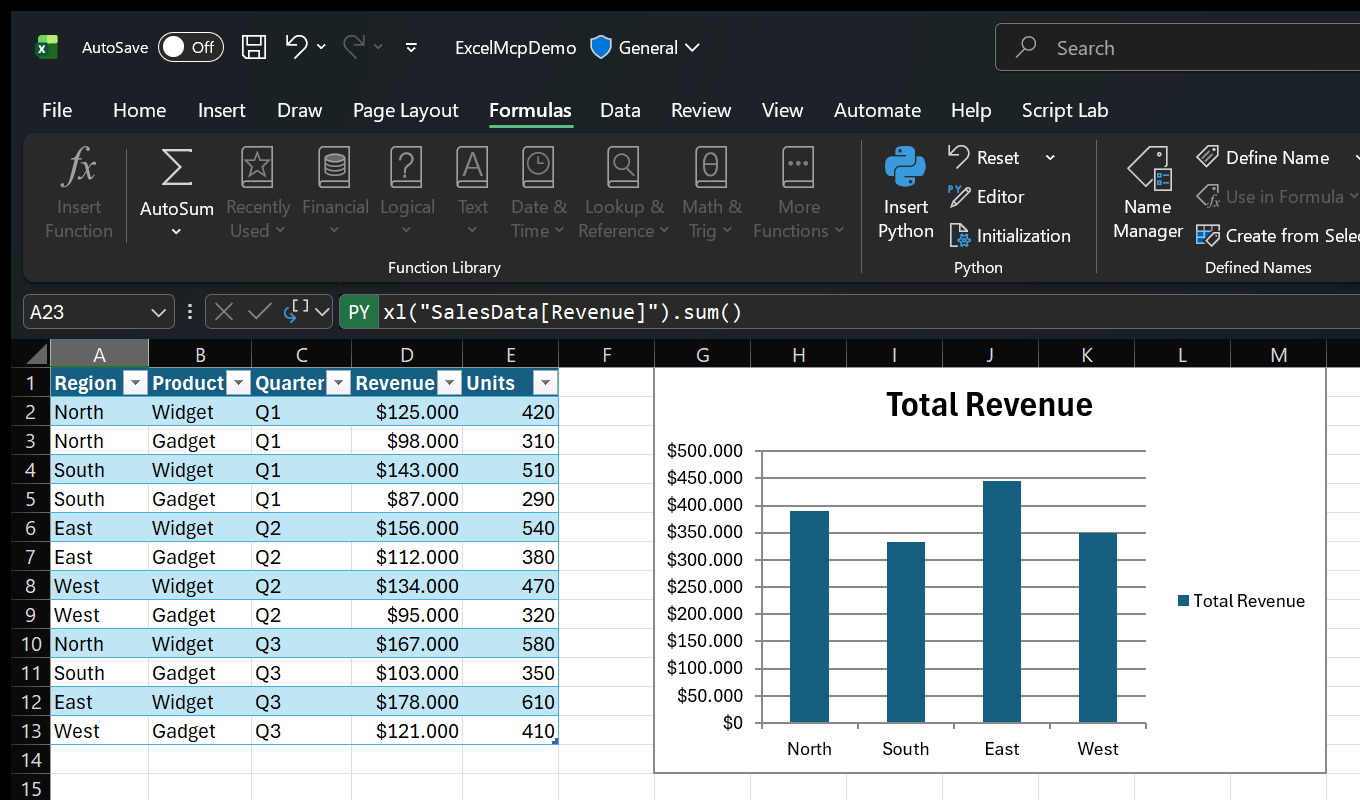{ width="1360" height="392" loading=lazy }
The formula bar with a =PY() formula (note the green PY badge) and Excel's Python ribbon group — summing the SalesData table with pandas, driven from your AI assistant.
## CLI or MCP Server?
This package ships **both** a CLI and an MCP Server. They share the same core,
so every operation behaves identically — pick the entry point that fits your
workflow:
| Interface | Best for | Why |
|-----------|----------|-----|
| **CLI** (`excelcli`) | Coding agents (Copilot, Cursor, Windsurf) | **64% fewer tokens** — single tool, no large schemas. Better for cost-sensitive, high-throughput automation. |
| **MCP Server** | Conversational AI (Claude Desktop, VS Code Chat) | Rich tool discovery and a persistent connection. Better for interactive, exploratory workflows. |
[MCP Server docs](mcp-server.md){ .md-button } [CLI docs](cli.md){ .md-button }
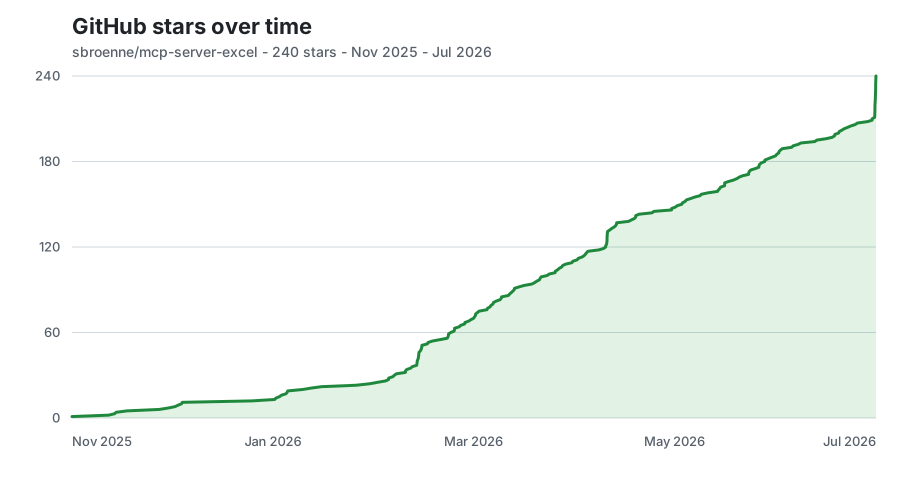
## GitHub star history
{ width="900" height="480" loading=lazy }
Updated daily on the deployed site from exact aggregate snapshots; no stargazer
identities are stored.
---
# Overview
Source: https://excelmcpserver.dev/guides/
# Excel Automation Guides
Task-focused walkthroughs for the things people most often want an AI assistant to
do in Excel. Each guide shows what to ask for, the equivalent CLI commands, how to
verify the result, and the gotchas that bite people.
For the exhaustive operation reference, see the
[feature documentation](/features/).
## Automating data
- **[Refresh Power Query from an AI assistant](/guides/refresh-power-query/)** —
refresh one query or all of them, test M code before committing it, and choose
where the data lands.
- **[Query the Excel Data Model with DAX](/guides/query-data-model-with-dax/)** —
create measures, run DAX queries, inspect the model with DMVs, and manage
relationships.
## Building reports
- **[Build and update PivotTables with an AI assistant](/guides/automate-pivottables/)** —
choose the right source, configure fields, chart the result, and keep everything
refreshed.
## Working with existing workbooks
- **[Run VBA macros from an AI agent](/guides/run-vba-macros/)** — enable VBA trust,
inspect modules, execute macros, and import new code.
## Choosing an approach
- **[Real Excel automation vs. file-parser libraries](/guides/excel-automation-vs-file-parsers/)** —
what COM automation can do that `openpyxl`, `ExcelJS`, and `EPPlus` cannot, and
when a file parser is the better choice.
---
# Refresh Power Query
Source: https://excelmcpserver.dev/guides/refresh-power-query/
# Refresh Power Query from an AI Assistant
Power Query refreshes are the single most common reason people want Excel
automation: the query logic already works, it just needs to run — on a schedule,
after a source file lands, or as part of a larger task an AI assistant is doing.
ExcelMcp refreshes Power Query by driving the **real Excel application** through
its COM API, so the Power Query engine that runs is Excel's own. Credentials,
privacy levels, native connectors, and the Data Model all behave exactly as they
do when you click **Data → Refresh All** yourself.
## What you ask for
Talk to your assistant in plain language:
> Refresh the `SalesData` query in `Q3-report.xlsx` and tell me how many rows it
> loaded.
> Open `budget.xlsx`, refresh every query, then save it.
Behind the scenes the assistant calls the `powerquery` tool. You do not need to
know the operation names — but they are useful when scripting.
## Refresh one query
=== "MCP Server"
The assistant opens a session, refreshes, then closes it:
```text
file(action: 'open', filePath: 'C:\reports\Q3-report.xlsx')
powerquery(action: 'refresh', queryName: 'SalesData', refreshTimeoutSeconds: 300)
file(action: 'close', save: true)
```
=== "CLI"
```powershell
$session = (excelcli -q session open C:\reports\Q3-report.xlsx | ConvertFrom-Json).sessionId
excelcli -q powerquery refresh --session $session --query-name SalesData --timeout 300
excelcli -q session close --session $session --save
```
`refresh` defaults to a **30-minute** timeout when the timeout is omitted or `0`.
For quick queries pass something smaller (60–120 seconds) so a stuck refresh fails
fast instead of holding the session.
## Refresh everything
Use the `refresh-all` action to refresh every query in the workbook:
```powershell
excelcli -q powerquery refresh-all --session $session
```
## Test M code before you save it
The most valuable habit when an AI assistant writes Power Query for you is
**test-then-commit**. The `evaluate` action runs M code and returns a data
preview *without* creating a permanent query:
```text
1. powerquery(action: 'evaluate', mCode: '...') # test - nothing is persisted
2. powerquery(action: 'create', queryName: 'SalesData', mCode: '...')
3. powerquery(action: 'refresh', queryName: 'SalesData')
```
`evaluate` returns the Power Query engine's real error message, which is far more
useful than the COM exception you get from a failed `create`. Skipping it is how
workbooks end up polluted with broken queries.
Use `create` for a new query and `update` for one that already exists — `create`
fails with "Query 'X' already exists", and `update` fails with "not found". Run
`powerquery list` first if you are unsure.
## Verify the refresh worked
Always confirm rather than assuming:
```powershell
excelcli -q powerquery list --session $session # load state per query
excelcli -q powerquery get-load-config --session $session --query-name SalesData
excelcli -q datamodel list-tables --session $session # if loading to the Data Model
```
In `list` output, `IsConnectionOnly = true` means the query has **no** data
destination. A query loaded only to the Data Model is *not* connection-only.
## Choose where the data lands
The load destination controls where refreshed data goes:
| Value | Result |
|---|---|
| `worksheet` | Creates an Excel Table on a worksheet (default) |
| `data-model` | Loads to Power Pivot for DAX analysis |
| `both` | Loads to the worksheet **and** Power Pivot |
| `connection-only` | Imports the query definition without loading data |
To load onto a sheet that already contains data, pass a target cell address (for
example `B5`) so ExcelMcp places the table instead of clearing the sheet. Omit it
on a populated sheet and the tool returns guidance asking for one.
## Known gotchas
**M code validation only happens on execution.** A `connection-only` query is not
validated until something runs it. Use `evaluate` to check code up front.
**Column names with hyphens, spaces, or punctuation must be quoted.**
`[Non-Recurring]` parses as `[Non] - [Recurring]` — subtraction — and fails with a
confusing "The name 'X' wasn't recognized". Write `[#"Non-Recurring"]`. The rule:
anything other than letters, digits, and underscores needs `[#"..."]`.
**Always set column types explicitly.** Include `Table.TransformColumnTypes()` in
your M code. Without it, dates can be stored as numbers and Data Model
relationships silently fail to match.
**`unload` and `delete` also remove Data Model connections**, not just the
worksheet table. `unload` keeps the query definition; `delete` removes everything.
**Refreshing Power Query also refreshes the Data Model.** Tables loaded via Power
Query auto-sync, so PivotTables connected to the Data Model update too. Worksheet
tables edited directly do *not* — see
[Query the Data Model with DAX](/guides/query-data-model-with-dax/).
**Credential and privacy dialogs.** If Excel blocks on a sign-in or privacy prompt,
the operation returns suggested next actions rather than hanging. Surface those to
the user and retry once the prompt is cleared.
**M code is never sent anywhere by default.** `create` and `update` preserve your M
code exactly. Only opting in to remote formatting sends it to the external
powerqueryformatter.com service, and only with explicit consent.
## Related
- [Power Query, DAX and analytics operations](/features/data-analytics/)
- [Query the Data Model with DAX](/guides/query-data-model-with-dax/)
- [Build and update PivotTables with an AI assistant](/guides/automate-pivottables/)
---
# Automate PivotTables
Source: https://excelmcpserver.dev/guides/automate-pivottables/
# Build and Update PivotTables with an AI Assistant
PivotTables are the part of Excel most people want an assistant to handle, and the
part that file-parser libraries handle worst. ExcelMcp creates and refreshes them
through Excel's own PivotTable engine, so the result is a real, interactive
PivotTable — not a static grid of pre-aggregated numbers.
## What you ask for
> In `sales.xlsx`, build a PivotTable of revenue by region and quarter, then chart it.
> The `SalesTable` grew — refresh `SalesPivot` and tell me the new total.
## Pick the right source first
This decision determines what you can do later, so make it deliberately:
| Source | Create action | DAX measures? |
|---|---|---|
| Worksheet Excel Table | `create-from-table` | No |
| Data Model (Power Pivot) | `create-from-datamodel` | **Yes** |
| Range on a sheet | `create` with a source range | No |
**Rule of thumb:** if the analysis needs calculated values, multiple tables, or
reusable measures, build it on the Data Model. Choosing a worksheet table and
discovering later that DAX measures are missing means rebuilding.
## Build one from a worksheet table
```powershell
$session = (excelcli -q session open C:\data\sales.xlsx | ConvertFrom-Json).sessionId
excelcli -q pivottable create-from-table --session $session `
--source-table-name SalesTable --pivot-table-name SalesPivot
excelcli -q pivottablefield add-row-field --session $session --pivot-table-name SalesPivot --field-name Region
excelcli -q pivottablefield add-column-field --session $session --pivot-table-name SalesPivot --field-name Quarter
excelcli -q pivottablefield add-value-field --session $session --pivot-table-name SalesPivot --field-name Amount --aggregation-function Sum
excelcli -q pivottable refresh --session $session --pivot-table-name SalesPivot
excelcli -q session close --session $session --save
```
Configure fields in that order — rows, columns, values, then filters — and
**always finish with `refresh`**. Field operations are structural only: they change
the layout but do not repaint the PivotTable. This matters most for Data Model
(OLAP) PivotTables, where an unrefreshed pivot can look empty.
`pivotTableName` is required for nearly every PivotTable operation. The only
exception is `list`.
## Build one on the Data Model
This is the path that supports DAX, multiple tables, and reusable measures:
```powershell
excelcli -q table add-to-data-model --session $session --table-name SalesTable
excelcli -q datamodel create-measure --session $session `
--table-name SalesTable --measure-name Revenue `
--dax-formula "SUMX(SalesTable, SalesTable[Quantity]*SalesTable[UnitPrice])"
excelcli -q pivottable create-from-datamodel --session $session --pivot-table-name RevenuePivot
```
The measure is automatically available to the PivotTable — no calculated field
needed.
### Calculated field or DAX measure?
| | PivotTable calculated field | DAX measure |
|---|---|---|
| Single-table formula (`=Qty*Price`) | Works | Works |
| Across related tables | Not supported | Works |
| Time intelligence, YTD, running totals | Limited | Works |
| Reusable elsewhere | That PivotTable only | Whole Data Model |
Use a calculated field for something trivial and local. Use DAX for anything else.
## Chart it in one step
Do **not** create a PivotTable and then a separate chart from its cells. Create a
PivotChart directly — it is one object bound to the same cache:
```powershell
excelcli -q chart create-from-pivottable --session $session --pivot-table-name SalesPivot
```
## Verify
```powershell
excelcli -q pivottable list --session $session
excelcli -q screenshot capture-sheet --session $session --sheet-name Analysis
```
A screenshot is the fastest way for an assistant to confirm a layout actually looks
right, rather than inferring it from return values.
## Known gotchas
**PivotTables never auto-refresh.** Changing source data does nothing until you
call `refresh`. After appending rows to a worksheet table you need *two* refreshes
if DAX is involved:
```text
table(action: 'append', ...) # worksheet table updated
datamodel(action: 'refresh') # sync the Data Model copy
pivottable(action: 'refresh') # repaint the PivotTable
```
After a Power Query refresh this is handled for you — Power Query refreshes the
Data Model, and Data Model PivotTables follow.
**Custom formatting does not survive a refresh.** Colours, bold, and borders
applied to PivotTable cells are erased whenever Excel's layout engine reapplies
defaults. Use the PivotTable's own style (`set-style`) instead of formatting
individual cells — styles persist.
**"Unknown field" on a value field** usually means a calculated-field limitation.
Switch to a DAX measure.
**"Table not found"** means the source was never added to the Data Model. Run
`table add-to-data-model` first.
**Manual grouping needs a regular PivotTable** with the field already placed in the
row or column area. Data Model PivotTables must add the grouping column in the
model instead.
**Layout style** is worth setting explicitly: compact (default, nested labels),
tabular (one field per column — best for exports), or outline.
## Related
- [Charts, PivotTables and visual operations](/features/charts-visuals/)
- [Query the Data Model with DAX](/guides/query-data-model-with-dax/)
- [Refresh Power Query from an AI assistant](/guides/refresh-power-query/)
---
# Query the Data Model with DAX
Source: https://excelmcpserver.dev/guides/query-data-model-with-dax/
# Query the Excel Data Model with DAX
Excel's Data Model (Power Pivot) is a real tabular analytics engine living inside
the workbook. ExcelMcp gives an AI assistant direct access to it: create measures,
run DAX queries, inspect metadata with DMVs, and manage relationships.
This is only possible because ExcelMcp drives the actual Excel application. The
Data Model is not something you can read or write by parsing the file.
## What you ask for
> Add a `Total Revenue` measure to the Sales table in `analysis.xlsx` and show me
> revenue by region.
> List every measure in this workbook and its DAX formula.
## Prerequisite for querying: MSOLAP
Creating measures and relationships works out of the box. **Executing DAX queries
and DMVs additionally requires the MSOLAP OLE DB provider**, which is not part of
Excel.
The simplest way to get it is to install **Power BI Desktop** (free), which ships
the provider. Alternatively install the Microsoft Analysis Services OLE DB
provider directly.
Without MSOLAP you can still create, update, and list measures — you just cannot
run `evaluate` or `execute-dmv`.
## Load data into the model
Two routes:
```powershell
## From a worksheet Excel Table
excelcli -q table add-to-data-model --session $session --table-name SalesTable
## Or from Power Query - the preferred route for external data
excelcli -q powerquery create --session $session --query-name Sales `
--m-code-file .\sales.m --load-destination data-model
```
Power Query is preferred: it gives you refreshable, typed, transformable data, and
refreshing the query auto-syncs the model.
## Create measures
```powershell
excelcli -q datamodel create-measure --session $session `
--table-name SalesTable --measure-name "Total Revenue" `
--dax-formula "SUMX(SalesTable, SalesTable[Quantity] * SalesTable[UnitPrice])"
```
Measures are reusable across every PivotTable in the workbook, work across related
tables, and support time intelligence — none of which PivotTable calculated fields
can do.
## Run DAX queries
```powershell
excelcli -q datamodel evaluate --session $session `
--dax-query "EVALUATE SUMMARIZECOLUMNS(SalesTable[Region], \"Revenue\", [Total Revenue])"
```
This is the fastest way to sanity-check a measure before wiring it into a
PivotTable.
## Inspect the model with DMVs
Dynamic Management Views expose the model's own metadata:
```powershell
excelcli -q datamodel execute-dmv --session $session --dmv-query "SELECT * FROM `$SYSTEM.TMSCHEMA_MEASURES"
excelcli -q datamodel execute-dmv --session $session --dmv-query "SELECT * FROM `$SYSTEM.TMSCHEMA_RELATIONSHIPS"
excelcli -q datamodel execute-dmv --session $session --dmv-query "SELECT * FROM `$SYSTEM.TMSCHEMA_COLUMNS"
```
DMVs are the reliable way to discover what is actually in the model, including
objects the COM object model does not expose.
## Relationships
```powershell
excelcli -q datamodel create-relationship --session $session `
--from-table Sales --from-column ProductId `
--to-table Products --to-column Id
```
Relationships require matching data types on both sides. This is the most common
cause of "relationship could not be created" — a date stored as text on one side,
or an ID typed as number on one side and text on the other. Setting explicit types
in Power Query (`Table.TransformColumnTypes`) prevents it.
## Keep the model in sync
The worksheet table and the Data Model table are **separate copies** of the data.
```text
table(action: 'append', ...) # worksheet only
datamodel(action: 'refresh') # now the model matches
pivottable(action: 'refresh') # now the pivot matches
```
Refreshing a Power Query that loads to the model does all of this for you.
## Known limitations
**No calculated tables or calculated columns.** Excel's Power Pivot COM API does
not expose them, so ExcelMcp cannot create them. Do that work in Power Query
instead — add the column there and reload. This is an Excel limitation, not an
ExcelMcp one; Power BI Desktop supports both.
**DMV queries only support `SELECT *`.** Column projection, `WHERE`, and `ORDER BY`
are not supported by the Excel DMV endpoint. Filter the results after retrieval.
**Hidden Data Model objects are invisible to COM.** Objects marked hidden in the
model do not appear through the object model — use DMVs to see them.
**Measure names are case-sensitive in DAX references** and must be unique across
the whole model, not just per table.
## Related
- [Power Query, DAX and analytics operations](/features/data-analytics/)
- [Build and update PivotTables with an AI assistant](/guides/automate-pivottables/)
- [Refresh Power Query from an AI assistant](/guides/refresh-power-query/)
---
# Run VBA macros
Source: https://excelmcpserver.dev/guides/run-vba-macros/
# Run VBA Macros from an AI Agent
Many Excel workbooks carry decades of VBA. ExcelMcp lets an AI assistant read,
write, and **execute** that code inside the real Excel application — so existing
macros keep working instead of being rewritten.
This is something file-parser libraries cannot do at all: `.xlsm` macro code is
only meaningful to Excel's VBA host.
## One-time setup: enable VBA trust
Excel blocks all programmatic access to the VBA project by default. **You must
enable it manually** — ExcelMcp never changes this setting for you, because doing
so silently would be a security problem.
1. Open Excel
2. **File → Options → Trust Center → Trust Center Settings**
3. **Macro Settings**
4. Tick **Trust access to the VBA project object model**
5. Click OK, then restart Excel
Without it, every VBA operation fails with an access error. This is a per-machine,
per-Office-install setting, so remote and CI machines need it too.
!!! warning "Security implication"
Enabling VBA trust allows any program on the machine to read and modify VBA
code in workbooks you open. Enable it only if you actually need VBA
automation, and only on machines you control.
## What you ask for
> List the macros in `report.xlsm` and show me what `Module1` does.
> Run the `GenerateReport` macro in `monthly.xlsm` and save the result.
## Inspect before you run
```powershell
$session = (excelcli -q session open C:\books\report.xlsm | ConvertFrom-Json).sessionId
excelcli -q vba list --session $session
excelcli -q vba view --session $session --module-name Module1
```
`list` returns every module, class module, form, and document module. `view`
returns the full source of one module.
## Run a macro
```powershell
excelcli -q vba run --session $session --procedure-name "Module1.GenerateReport" --timeout 120
```
The procedure name uses `Module.Procedure` form. Pass arguments with
`--parameters` when the macro takes them.
Set a timeout that matches the work. A macro that waits on a dialog will otherwise
hold the session until the default limit expires.
## Add or update code
```powershell
excelcli -q vba update --session $session --module-name Module1 --vba-code $code
excelcli -q vba import --session $session --module-name Helpers --file-path .\Helpers.bas
```
`update` replaces the whole module body. `import` adds a module from a `.bas`
file. `delete` removes a module.
## Save to the right file format
Macro-enabled workbooks must be `.xlsm` (or `.xlsb`). Saving VBA into an `.xlsx`
silently discards it. If you are adding VBA to an `.xlsx`, save-as `.xlsm` first.
## Verify
After running a macro, check the effect rather than trusting a success flag:
```powershell
excelcli -q range get-values --session $session --sheet-name Summary --range-address A1:D20
excelcli -q screenshot capture-sheet --session $session --sheet-name Summary
```
## Known gotchas
**Access denied on every VBA action** means the trust setting above is off. It is
by far the most common cause of VBA failures.
**Macros can display dialogs.** A `MsgBox` inside a macro blocks execution until
someone dismisses it. Prefer macros that write results to cells over ones that
prompt. Always pass a timeout.
**Macros run with full user privileges.** A macro can touch the file system,
network, and other applications. Review code before running it, especially code an
assistant generated or a workbook you did not author.
**Line continuations and quoting.** When passing VBA source on a command line,
prefer `import` from a `.bas` file — it avoids shell-escaping problems entirely.
**Excel must be installed.** VBA execution is not emulated; it runs in Excel's own
VBA host.
## Related
- [Advanced automation operations](/features/automation-advanced/)
- [CLI installation and setup](/installation-cli/)
- [Security policy](/security/)
---
# COM vs. file parsers
Source: https://excelmcpserver.dev/guides/excel-automation-vs-file-parsers/
# Real Excel Automation vs. File-Parser Libraries
There are two fundamentally different ways to automate Excel files, and the choice
determines what is possible. Neither is universally better — they solve different
problems.
## The two approaches
**File parsers** read and write the `.xlsx` package directly. An `.xlsx` file is a
ZIP archive of XML, so a library can open it, edit the XML, and write it back
without Excel being installed. `openpyxl`, `ExcelJS`, `SheetJS`, `EPPlus`, and
`ClosedXML` all work this way.
**COM automation** launches the real Microsoft Excel application and drives it
through Excel's official `Excel.Application` API — the same API VBA uses. ExcelMcp
takes this approach.
## What each can do
| Capability | File parsers | COM automation |
|---|---|---|
| Read and write cell values | Yes | Yes |
| Read and write formulas (as text) | Yes | Yes |
| **Calculate** formula results | No — values are stale until Excel opens the file | Yes, Excel's own engine |
| Cell formatting, styles, number formats | Yes | Yes |
| Create charts | Basic | Full Excel chart engine |
| **Refresh** Power Query | No | Yes |
| **Refresh** PivotTables and the Data Model | No | Yes |
| Evaluate DAX / query the Data Model | No | Yes |
| Run VBA macros | No | Yes |
| Run Python `=PY()` formulas | No | Yes |
| Preserve unknown/complex workbook parts | Varies — some are dropped on rewrite | Yes, Excel owns the file |
| Interactive authentication for protected sources | No | Yes |
| Runs on Linux / macOS / containers | Yes | No — Windows + Excel required |
| Runs without Excel installed | Yes | No |
| Speed for bulk cell writes | Very fast | Slower (process boundary) |
## Why the difference exists
A file parser sees the *stored* state of a workbook. Formula results, PivotTable
caches, and query results are all values Excel wrote the last time it calculated.
A parser can change a formula's text, but it cannot produce the new result — only
Excel's calculation engine can. The same applies to Power Query (an engine inside
Excel), the Data Model (an Analysis Services tabular engine embedded in Excel),
and VBA (a runtime hosted by Excel).
Rewriting a workbook package also risks losing parts the library does not model.
When Excel itself saves the file, everything it does not touch is preserved by
construction.
## Which one should you use?
**Use a file parser when:**
- You need to run on Linux, macOS, or in a container
- Excel is not installed and cannot be
- You are generating simple reports from scratch — values, formatting, basic charts
- You are writing large volumes of cell data and throughput matters
- The workbook has no Power Query, PivotTables, Data Model, or macros
**Use COM automation (ExcelMcp) when:**
- The workbook contains Power Query, PivotTables, the Data Model, or VBA
- You need calculated formula results, not just formula text
- You must preserve an existing complex workbook exactly
- The data source needs interactive sign-in
- You want an AI assistant to work with real business workbooks that already exist
The dividing line in practice: **generating a new simple file** favours parsers;
**operating on an existing real-world workbook** favours COM.
## What ExcelMcp adds on top of COM
Raw COM automation from a script is possible but unpleasant — STA threading, COM
object lifetime, message filters, and Excel process cleanup are all easy to get
wrong and leak `EXCEL.EXE` processes. ExcelMcp handles that layer and exposes 326
operations across 31 tools through two equal entry points:
- an **MCP server** for conversational AI clients (Claude, Copilot, Cursor)
- a **CLI** (`excelcli`) for scripting and coding agents
The CLI additionally avoids loading MCP tool schemas into an agent's context. In a
same-task, same-model benchmark the CLI workflow used about 59K tokens versus 163K
for MCP — a 64% reduction. Actual usage varies by client, model, and workflow.
## Requirements and trade-offs
ExcelMcp is **Windows-only and requires Microsoft Excel desktop (2016 or later)**.
That is the direct cost of using Excel's real engines. If you need
cross-platform execution, a file parser is the right tool and no amount of
architecture changes that.
## Related
- [Architecture](/architecture/)
- [Feature overview](/features/)
- [Installation](/installation/)
---
# Overview
Source: https://excelmcpserver.dev/features/
# Excel Automation Features
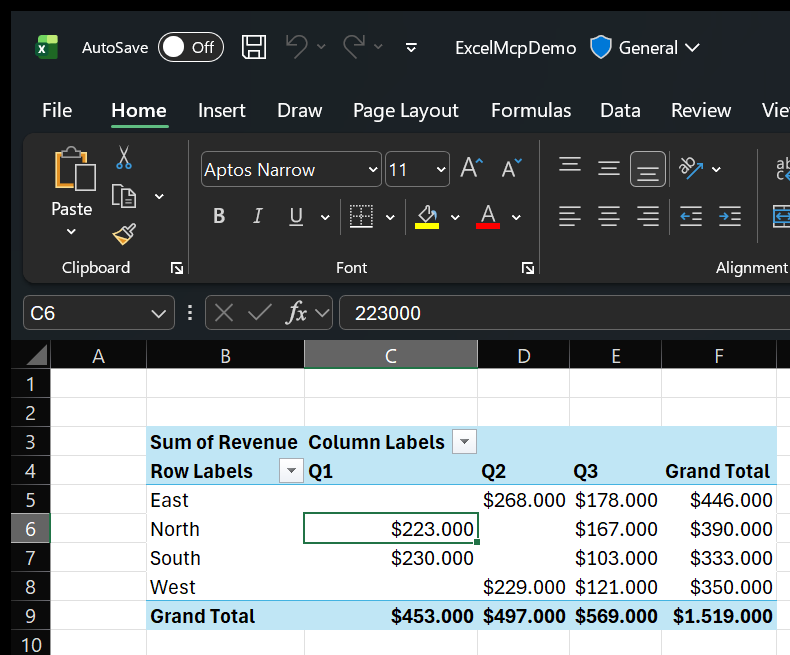{ width="790" height="655" loading=lazy }
A PivotTable — revenue by region and quarter with grand totals — created in the real Excel application from a plain-language request.
Excel MCP Server provides **31 specialized tools and 326 operations** for
automating the real Microsoft Excel application. You can ask your AI assistant
in plain language—the reference pages below are for discovering what is
possible and looking up individual operations.
- :material-database-arrow-down:{ .lg .middle } **Data & analytics**
---
Import and reshape data with Power Query, build DAX models, create Excel
Tables and PivotTables, and manage external connections.
**Includes:** Power Query, Data Model, Excel Tables, PivotTables,
Data Connections, QueryTables
[Explore data and analytics features :material-arrow-right:](features/data-analytics.md)
- :material-table-large:{ .lg .middle } **Cells & workbooks**
---
Read and write ranges, formulas, and formats; manage worksheets, workbook
settings, named ranges, calculation, and files.
**Includes:** File Operations, Calculation, Ranges, Worksheets, Workbook,
Named Ranges
[Explore cells and workbook features :material-arrow-right:](features/cells-workbooks.md)
- :material-chart-box-outline:{ .lg .middle } **Charts & visuals**
---
Turn workbook data into charts, slicers, conditional formatting,
screenshots, drawings, and sparklines.
**Includes:** Charts, Slicers, Conditional Formatting, Screenshots,
Drawing Objects, Sparklines
[Explore chart and visual features :material-arrow-right:](features/charts-visuals.md)
- :material-robot-outline:{ .lg .middle } **Automation & advanced**
---
Run VBA and Python, control Excel windows, solve What-If scenarios, and
work with XML Maps.
**Includes:** VBA, Python in Excel, Window Management, What-If Analysis,
XML Maps
[Explore automation and advanced features :material-arrow-right:](features/automation-advanced.md)
## Popular capabilities
| What you want to do | Feature reference |
|---|---|
| Import or transform data | [Power Query](features/data-analytics.md#power-query-m-code) |
| Build a Power Pivot model | [Data Model & DAX](features/data-analytics.md#data-model-dax-power-pivot) |
| Create a PivotTable | [PivotTables](features/data-analytics.md#pivottables) |
| Read, write, or format cells | [Ranges](features/cells-workbooks.md#ranges) |
| Create a chart | [Charts](features/charts-visuals.md#charts) |
| Run a macro | [VBA Macros](features/automation-advanced.md#vba-macros) |
| Find an input for a target result | [What-If Analysis](features/automation-advanced.md#what-if-analysis) |
!!! tip "You do not need to memorize operation names"
Describe the Excel result you want. Your AI assistant selects the appropriate
tool and operation from the reference automatically.
---
# Data & analytics
Source: https://excelmcpserver.dev/features/data-analytics/
# Data & Analytics Features
Import, transform, model, and summarize data in the real Microsoft Excel
application. These tools cover the full path from an external data source to an
interactive analytical report.
[View all feature categories](../features.md){ .md-button }
## 🔄 Power Query & M Code (12 operations) { #power-query-m-code }
Import, transform, and refresh data with Power Query. Every operation is a single-call atomic workflow.
**Discovery:**
- **List:** List all Power Query queries in workbook
- **View:** View the M code of a Power Query
- **Get Load Config:** Get current load configuration
**Lifecycle:**
- **Create:** Import + load in one operation (atomic workflow), preserving M code by default
- **Update:** Update M code, preserving M code by default, with optional auto-refresh
- **Rename:** Rename a Power Query (trim + case-insensitive uniqueness check)
- **Unload:** Remove data from all destinations (keeps query definition)
- **Delete:** Remove Power Query from workbook
**Loading & Refresh:**
- **Refresh:** Refresh a Power Query with timeout detection
- **Refresh All:** Batch refresh all queries in workbook
- **Load To:** Configure load destination and refresh (atomic)
**Advanced:**
- **Evaluate:** Execute M code directly and return results (without creating a permanent query)
**Notes:**
- **M-code formatting:** M code is preserved exactly by default. Create and Update can opt in to remote formatting with `formatMCode=true`, which sends M code to powerqueryformatter.com and adds network latency. If remote formatting fails, the original M code is saved unchanged.
---
## 📊 Data Model & DAX (Power Pivot) (20 operations) { #data-model-dax-power-pivot }
Build a Power Pivot Data Model — manage tables, DAX measures, and relationships, then query it.
**Tables & Columns:**
- **List Tables:** Discover all tables in the Data Model
- **Read Table:** Get specific table information
- **Rename Table:** Rename a Data Model table (best-effort via Power Query; returns clear error if not supported)
- **Delete Table:** Remove table from Data Model
- **List Columns:** List columns for a table
- **List Workbook Connections:** List Power Query sources available for integration
**Measures:**
- **List Measures:** List all DAX measures with formula previews
- **Create Measure:** Create new DAX measure, preserving DAX by default (format types: Currency, Percentage, Decimal, General)
- **Update Measure:** Modify existing measure, preserving DAX by default
- **Delete Measure:** Remove measure from model
**Relationships:**
- **List Relationships:** View all table relationships
- **Read Relationship:** Get specific relationship info
- **Create Relationship:** Create relationship between tables
- **Update Relationship:** Modify relationship (toggle active/inactive)
- **Delete Relationship:** Remove relationship
**Model & Queries:**
- **Read Info:** Get comprehensive model information
- **Read Connection:** Inspect the embedded model connection, command type, and connected table names
- **Refresh:** Refresh entire Data Model
- **Evaluate:** Execute DAX EVALUATE queries and return tabular results (for ad-hoc analysis)
- **Execute DMV:** Execute SQL-like DMV (Dynamic Management View) queries for metadata discovery
**Notes:**
- **DAX formatting:** DAX formulas are preserved exactly by default, subject to Excel locale separator translation. CreateMeasure and UpdateMeasure can opt in to remote formatting with `formatDax=true`, which sends DAX to daxformatter.com and adds network latency. If remote formatting fails, the original DAX is saved unchanged.
- **Source metadata:** Read Table returns each table's source connection name, description, type, and model-membership flag.
- **COM limitations:** Excel exposes calculated columns as read-only entries but provides no reliable PIA formula/mutation or live refresh-status API. Use Power Query for computed columns.
---
## 📇 Excel Tables (ListObjects) (27 operations) { #excel-tables-listobjects }
Create and manage Excel Tables (ListObjects) — structured ranges with styling, filtering, and sorting.
**Lifecycle:**
- **List:** List Excel Tables in a worksheet or workbook
- **Read:** Get table structure (columns, range, style)
- **Create:** Create a new Excel Table from a range
- **Rename:** Rename an existing table
- **Resize:** Resize table range to match new data bounds
- **Delete:** Remove a table (keeps underlying cell data)
**Styling & Formatting:**
- **Apply Style:** Apply a built-in table style
- **Toggle Totals Row:** Show/hide the totals row
- **Set Column Totals:** Configure per-column total function (Sum, Average, Count, etc.)
**Data Operations:**
- **Append Rows:** Add rows to the end of a table
- **Get Table Data:** Read table data as a 2D array, with optional visible-only filtering
- **Add to Data Model:** Load a table into the Power Pivot Data Model
**DAX-Backed Tables:**
- **Create from DAX:** Create an Excel Table populated by a DAX EVALUATE query
- **Update DAX:** Change the DAX query of an existing DAX-backed table
- **Get DAX:** Retrieve the DAX query info from a table
**Filter Operations:**
- **Apply Filter (Criteria):** Filter a column using comparison criteria
- **Apply Filter (Values):** Filter a column to a specific set of values
- **Clear Filters:** Remove all active filters
- **Get Filter State:** Read current filter criteria
**Column Management:**
- **Add Column:** Insert a new column
- **Remove Column:** Delete a column
- **Rename Column:** Rename a column header
**Structured References:**
- **Get Structured Reference:** Get formula syntax for a table column or range
**Sorting:**
- **Sort (Single Column):** Sort by one column
- **Sort (Multi-Column):** Sort by up to 3 columns/levels
**Number Formatting:**
- **Get Column Number Formats:** Read number formats applied to columns
- **Set Column Number Formats:** Apply number formats to columns
---
## 📈 PivotTables (35 operations) { #pivottables }
Create and configure PivotTables from ranges, Excel Tables, or the Data Model.
**Creation:**
- **Create from Range:** Build a PivotTable from a cell range
- **Create from Excel Table:** Build a PivotTable from an Excel Table
- **Create from Data Model:** Build an OLAP PivotTable from the Data Model
**Field Management:**
- **List Fields:** List all fields across row, column, value, and filter areas
- **Add Row Field / Column Field / Value Field / Filter Field:** Add a field to the given area
- **Remove Field:** Remove a field from the PivotTable
**Field Configuration:**
- **Set Field Function:** Set aggregation function (Sum, Average, Count, Min, Max, etc.)
- **Set Field Name:** Set a custom display name for a field
- **Set Field Number Format:** Apply a number format to a value field
- **Set Field Filter:** Apply filter criteria to a field
- **Sort Field:** Sort a field ascending/descending
**Grouping:**
- **Group by Date / Number:** Build automatic date hierarchies or numeric bands
- **Group Items:** Combine selected visible items into a named manual group
- **Ungroup Field:** Remove manual grouping and restore the original field
**Calculated Fields (Regular PivotTables):**
- **List Calculated Fields:** List calculated fields on a regular PivotTable
- **Create Calculated Field:** Add a calculated field
- **Delete Calculated Field:** Remove a calculated field
**Calculated Members (OLAP/Data Model PivotTables):**
- **List Calculated Members:** List calculated members on an OLAP PivotTable
- **Create Calculated Member:** Add a calculated member
- **Delete Calculated Member:** Remove a calculated member
**Layout & Formatting:**
- **Set Layout:** Switch between table and outline layout
- **Set Subtotals Display:** Show/hide subtotals
- **Set Grand Totals Display:** Show/hide grand totals
**Data Operations:**
- **Get PivotTable Data:** Read PivotTable data as a 2D array
- **Refresh:** Refresh the PivotTable from its source
- **Drill Through:** Expand a regular PivotTable value cell into its underlying source rows
**PivotCache Configuration:**
- **Get Cache Options:** Read refresh, retained-item, optimization, and saved-source settings
- **Set Cache Options:** Configure supported regular-cache options; unsupported OLAP/OLE DB mutations are rejected
**Lifecycle:**
- **List:** List PivotTables in a worksheet or workbook
- **Read:** Get PivotTable info
- **Delete:** Remove a PivotTable
---
## 🔌 Data Connections (11 operations) { #data-connections }
Create and refresh external OLEDB/ODBC data connections.
**Operations:**
- **List:** View all data connections
- **View:** Get connection details
- **Create:** Create OLEDB/ODBC connections (requires provider installed)
- **Test:** Verify connection validity
- **Refresh:** Refresh connection data
- **Get Refresh Status:** Report whether a typed OLEDB/ODBC refresh is active
- **Cancel Refresh:** Cancel an active typed OLEDB/ODBC refresh
- **Delete:** Remove connection
- **Load To:** Load connection data to worksheet (when supported)
- **Get Properties:** Get connection string and metadata
- **Set Properties:** Update connection string, command text, and settings
**Notes:**
- **Supported types:** OLEDB (requires Microsoft.ACE.OLEDB.16.0 or similar), ODBC (requires ODBC driver installed), and Power Query connections (atomic redirect to `powerquery`).
- **Text/web imports:** Use `querytable` for direct local text/CSV or legacy HTML imports; use `powerquery` for transformations and modern connectors.
---
## 🌐 QueryTables (9 operations) { #querytables }
Manage local worksheet QueryTables through the typed Excel PIA.
**Operations:**
- **List / View:** Discover QueryTables and read destination, source type, and refresh configuration
- **Create Text:** Import text or CSV files with delimiter, qualifier, encoding, and header settings
- **Create Web:** Import legacy HTML pages or selected tables through Excel's web-query engine
- **Set Properties:** Configure background refresh, refresh-on-open, refresh period, sizing, and formatting preservation
- **Refresh / Get Refresh Status / Cancel Refresh:** Control and inspect refresh execution
- **Delete:** Remove a QueryTable
**Boundaries:** QueryTables do not expose Power Query M, modern cloud connectors, sharing, presence, mentions, reactions, or coauthoring state.
---
## Related feature areas
- [Cells & workbooks](/features/cells-workbooks/) — prepare ranges, formulas, worksheets, and files for analysis
- [Charts & visualization](/features/charts-visuals/) — present analytical results with charts, slicers, and formatting
- [Automation & advanced](/features/automation-advanced/) — extend workflows with VBA, Python, and What-If Analysis
- [Example workflows](/use-cases/) — see these capabilities combined in practical requests
- [Installation](/installation/) — choose and configure the MCP Server or CLI
## Task guides
- [Refresh Power Query from an AI assistant](/guides/refresh-power-query/)
- [Query the Excel Data Model with DAX](/guides/query-data-model-with-dax/)
- [Build and update PivotTables with an AI assistant](/guides/automate-pivottables/)
---
# Cells & workbooks
Source: https://excelmcpserver.dev/features/cells-workbooks/
# Cells & Workbook Features
Work directly with cells, formulas, formatting, worksheets, and workbook
settings. These tools handle the core editing and lifecycle operations used in
most Excel automation workflows.
[View all feature categories](../features.md){ .md-button }
## 📁 File Operations (6 operations) { #file-operations }
Open, create, and close Excel workbooks. Every other tool works on a session opened here.
**Operations:**
- **List Sessions:** View all active Excel sessions
- **Open:** Open workbook and create session (returns session ID for all subsequent operations). IRM/AIP-protected files are automatically detected and opened read-only with Excel visible for credential authentication — no extra parameters needed.
- **Close:** Close session with optional save
- **Close Workbook:** Close workbook without closing Excel
- **Create Empty:** Create new .xlsx or .xlsm workbook
- **Test:** Verify workbook can be opened and is accessible. Returns `isIrmProtected` flag for IRM/AIP-protected files.
---
## 🧮 Calculation Mode (3 operations) { #calculation-mode }
Control when and how Excel recalculates formulas — useful for speeding up bulk edits.
**Operations:**
- **Get Mode:** Query current calculation mode and calculation state
- **Set Mode:** Switch between automatic, manual, and semi-automatic modes
- **Calculate:** Explicitly recalculate workbook, sheet, or range
---
## 📋 Ranges (51 operations) { #ranges }
Read and write cell values, formulas, and formatting across any range of cells.
**Formatting split:** use `range` for number display formats such as dates, currency, percentages, and text display. Use `range_format` for visual styling, validation, auto-fit, and size/layout changes.
**Data Operations:**
- **Get/Set Values:** Read or write cell values
- **Get/Set/Validate Formulas:** Read, write, or validate formula syntax across ranges
- **Clear All/Contents/Formats:** Clear a range's contents, formats, or both
- **Copy / Copy Values / Copy Formulas:** Copy a range, or just its values/formulas
- **Insert/Delete Cells:** Shift cells to insert or remove space
- **Insert/Delete Rows:** Insert or delete entire rows
- **Insert/Delete Columns:** Insert or delete entire columns
- **Find:** Search a range for matching values
- **Replace:** Find and replace values in a range
- **Sort:** Sort a range by one or more columns
**Discovery & Utilities:**
- **Get Used Range:** Get the worksheet's used range
- **Get Current Region:** Get the contiguous data region around a cell
- **Get Range Info:** Get a range's address and dimensions
**Hyperlinks:**
- **Add Hyperlink:** Add a hyperlink to a cell
- **Update Hyperlink:** Change an external/internal target, display text, or tooltip
- **Remove Hyperlink:** Remove a hyperlink
- **List Hyperlinks:** List all hyperlinks in a range
- **Get Hyperlink:** Get a specific hyperlink's target
**Threaded Comments:**
- **Add Threaded Comment:** Add a top-level modern comment to one cell
- **List Threaded Comments:** Read a cell's comment and replies
- **Add Threaded Comment Reply:** Reply to an existing cell comment
- **Delete Threaded Comment:** Delete a comment thread and its replies
**Number Formatting (`range`):**
- **Get Number Formats:** Read number formats as a 2D array
- **Set Number Format:** Apply one number format uniformly
- **Set Number Formats:** Apply individual per-cell number formats
**Visual Formatting (`range_format`):**
- **Get Style:** Read the applied cell style
- **Set Style:** Apply a built-in Excel style
- **Format Range:** Set font, color, borders, alignment, orientation
- **Format Ranges:** Apply one shared formatting payload to multiple ranges
**Data Validation (`range_format`):**
- **Add Validation:** Add dropdown, number/date/text validation rules
- **Get Validation:** Read current validation info
- **Remove Validation:** Remove validation rules
**Merge Operations (`range_format`):**
- **Merge Cells:** Merge a range into one cell
- **Unmerge Cells:** Undo a merge
- **Get Merge Info:** Read current merge state
**Cell Protection:**
- **Set Lock Status:** Lock/unlock cells (effective once the sheet is protected)
- **Get Lock Status:** Read current cell lock status
**Sizing & Auto-Fitting (`range_format`):**
- **Auto-Fit Columns / Rows:** Resize columns or rows to fit content
- **Set Column Width / Row Height:** Set explicit column widths or row heights
---
## 📄 Worksheets (33 operations) { #worksheets }
Add, rename, move, and manage worksheets — including tab colors, visibility, protection, legacy cell notes, inline images, shapes, and page setup.
**Lifecycle:**
- **List:** List worksheets in the workbook
- **Create:** Add a new worksheet
- **Rename:** Rename a worksheet
- **Copy:** Copy a worksheet within the workbook
- **Move:** Move a worksheet within the workbook
- **Delete:** Remove a worksheet
**Cross-Workbook Operations:**
- **Copy to File:** Copy a worksheet to another workbook (atomic)
- **Move to File:** Move a worksheet to another workbook (atomic)
**Tab Colors:**
- **Set Tab Color:** Set a worksheet tab's RGB color
- **Get Tab Color:** Read the current tab color
- **Clear Tab Color:** Reset the tab to its default color
**Visibility:**
- **Show:** Make a worksheet visible
- **Hide:** Hide a worksheet (still shown in the Unhide dialog)
- **Very Hide:** Hide a worksheet from the Excel UI entirely
- **Get Visibility:** Read the current visibility status
- **Set Visibility:** Set visibility status directly
**Protection:**
- **Set Protection:** Protect or unprotect a worksheet
- **Get Protection:** Read the current protection state
**Cell Notes:**
- **Set Comment:** Create or update a legacy cell note through Excel's Comment COM API
- **Get Comment:** Read the current legacy cell note text
- **Clear Comment:** Remove a legacy cell note
**Images:**
- **Add Image:** Insert an image from disk and anchor it to a cell
- **Get Image Count:** Read how many images are currently on a worksheet
**Shapes:**
- **Add Shape:** Insert a basic rectangle shape and anchor it to a cell
- **Get Shape Count:** Read how many shapes are currently on a worksheet
**Page Setup:**
- **Set Page Setup:** Configure orientation, fit-to-page settings, and centering
- **Get Page Setup:** Read worksheet page setup values
**Outlines:**
- **Group / Ungroup:** Group complete row or column ranges and remove one grouping level
- **Get Outline Info:** Read outline level, hidden state, summary positions, and automatic styles
- **Set Outline Settings:** Configure summary rows/columns and automatic styles
- **Show Outline Levels:** Expand or collapse row and column groups to requested levels
- **Clear Outline:** Remove all row and column groups
---
## 📘 Workbook (15 operations) { #workbook }
Manage workbook metadata, protection, document properties, file variants, exports, and external links.
**Operations:**
- **Set Protection:** Protect or unprotect the current workbook, optionally with a password
- **Get Protection:** Determine whether the current workbook is protected
- **Set View Options:** Toggle workbook window gridlines and headings on or off
- **Get View Options:** Read back workbook window gridlines and headings state
- **Get Info:** Read workbook name, path, format, saved/read-only state, and protection metadata
- **List/Get/Set/Delete Document Properties:** Manage built-in and custom workbook properties
- **Save As:** Save as `.xlsx`, `.xlsm`, `.xlsb`, or `.xls` and move the active session to the new path
- **Save Copy As:** Create a same-format copy without changing the active workbook
- **Export Fixed Format:** Publish PDF or XPS with quality, page-range, and print-area controls
- **List/Update/Break External Links:** Inspect, refresh, or permanently replace linked-workbook formulas
> Printing and print preview are intentionally excluded because physical printer output and modal preview are unsafe for unattended automation.
---
## 🏷️ Named Ranges (Parameters) (6 operations) { #named-ranges-parameters }
Manage named ranges — ideal for driving workbook parameters that Power Query and formulas react to.
**Operations:**
- **List:** List visible user-defined named ranges with references; hidden/internal Excel names (including Power Query `ExternalData_*` and AutoFilter names) are omitted before value inspection, and large ranges return metadata without materializing values
- **Read:** Get value of a named range
- **Write:** Set value of a named range (ideal for parameter automation)
- **Create:** Create new named range
- **Update:** Modify existing named range
- **Delete:** Remove named range
**Notes:**
- **Use cases:** Manage workbook parameters without touching worksheets. Ideal for automation — update a parameter and Power Query refreshes automatically.
---
## Related feature areas
- [Data & analytics](/features/data-analytics/) — transform ranges and tables with Power Query, DAX, and PivotTables
- [Charts & visualization](/features/charts-visuals/) — turn workbook data into charts and visual reports
- [Automation & advanced](/features/automation-advanced/) — automate workbooks with VBA, Python, and What-If Analysis
- [Example workflows](/use-cases/) — see these capabilities combined in practical requests
- [Installation](/installation/) — choose and configure the MCP Server or CLI
## Task guides
- [Real Excel automation vs. file-parser libraries](/guides/excel-automation-vs-file-parsers/)
- [Refresh Power Query from an AI assistant](/guides/refresh-power-query/)
---
# Charts & visuals
Source: https://excelmcpserver.dev/features/charts-visuals/
# Charts & Visualization Features
Create presentation-ready workbook visuals from your data. These tools build
and format charts, add interactive filtering, apply visual rules, and capture
or annotate workbook content.
[View all feature categories](../features.md){ .md-button }
## 📉 Charts (33 operations) { #charts }
Create and format charts and PivotCharts, with full control over series, axes, labels, and trendlines.
**Creation:**
- **Create from Range:** Build a chart from a cell range
- **Create from Excel Table:** Build a chart from an Excel Table
- **Create from PivotTable:** Build a chart from a PivotTable
**Series Management:**
- **Add Series:** Add a data series to a chart
- **Remove Series:** Remove a data series
- **Update Series Data:** Change the data range for a series
- **Set Series Chart Type:** Build combo charts by assigning a type to one series
**Configuration:**
- **Set Data Source:** Change the chart's source range
- **Set Chart Type:** Change the chart type (bar, line, pie, etc.)
- **Get/Set Plot Options:** Control row/column orientation, blank cells, and hidden-cell plotting
- **Show/Hide Legend:** Toggle the legend
- **Set Style:** Apply a built-in chart style
**Formatting:**
- **Set Chart Title:** Set or clear the chart title
- **Set Axis Title:** Set or clear an axis title
- **Set Axis Number Format:** Apply a number format to an axis
- **Get Axis Number Format:** Read the current axis number format
**Data Labels:**
- **Configure Data Labels:** Show values, percentages, category names, etc.
- **Set Label Position:** Position labels (Center, InsideEnd, OutsideEnd, etc.)
- **Apply to Series:** Apply label config to all series or a specific one
**Axis Scale:**
- **Get Axis Scale:** Read current min/max/unit settings
- **Set Min/Max Scale:** Set axis minimum/maximum
- **Set Major/Minor Units:** Set axis tick unit spacing
**Gridlines:**
- **Get Gridlines Config:** Read current gridline visibility
- **Set Gridlines:** Toggle major/minor gridline visibility
**Series Formatting:**
- **Set Marker Style:** Set marker shape (Circle, Square, Diamond, Triangle, etc.)
- **Set Marker Size:** Set marker size
- **Set Marker Colors:** Set marker fill/line colors
- **Set Series Fill/Line:** Set material fill, transparency, line color, and line weight
**Area Formatting:**
- **Set Area Format:** Format chart-area or plot-area fill, transparency, and border
**Trendlines:**
- **Add Trendline:** Add a trendline (Linear, Exponential, Logarithmic, Polynomial, Power, MovingAverage)
- **List Trendlines:** List trendlines on a series
- **Delete Trendline:** Remove a trendline
- **Configure Trendline:** Set forecast forward/backward, display equation, display R²
**Placement & Positioning:**
- **Set Placement:** Configure cell anchoring, printing, locking, and rounded corners
- **Fit to Range:** Position and size a chart to match a range
**Lifecycle:**
- **List:** List charts in a worksheet or workbook
- **Read:** Get chart info
- **Move:** Move a chart to a different worksheet or a new sheet
- **Delete:** Remove a chart
---
## 🔪 Slicers (8 operations) { #slicers }
Add interactive slicers to filter PivotTables and Excel Tables visually.
**PivotTable Slicers:**
- **Create Slicer:** Add slicer for PivotTable field with optional position
- **List Slicers:** List all PivotTable slicers in workbook
- **Set Selection:** Filter PivotTable by slicer selection (single or multi-select)
- **Delete Slicer:** Remove PivotTable slicer
**Table Slicers:**
- **Create Table Slicer:** Add slicer for Excel Table column
- **List Table Slicers:** List all Table slicers in workbook
- **Set Table Selection:** Filter Table by slicer selection
- **Delete Table Slicer:** Remove Table slicer
**Notes:**
- **Use cases:** Interactive data filtering without modifying PivotTable/Table structure, dashboard creation with visual filter controls, and multi-slicer filtering for complex data analysis.
---
## 🌈 Conditional Formatting (4 operations) { #conditional-formatting }
Apply rule-based formatting that highlights cells based on their values.
**Operations:**
- **Add Rule:** Create a conditional formatting rule — cell value comparison (>, <, =, etc.), expression-based formula (custom DAX/Excel formula), or color scale/data bar/icon set
- **Clear Rules:** Remove formatting from ranges
- **List Rules:** Read existing conditional formatting rules for a range — returns rule type, operator, formulas, applies-to range, priority, and formatting (interior/font/borders) with colors as #RRGGBB hex
- **List Worksheet Rules:** Read all conditional formatting rules across an entire worksheet, each with its applies-to range, in priority order
---
## 📸 Screenshot (2 operations) { #screenshot }
Capture ranges or worksheets as PNG images using Excel's own rendering.
**Operations:**
- **Capture Range:** Capture a specific range as a PNG image
- **Capture Sheet:** Capture the entire used area of a worksheet as a PNG image, using Excel's built-in rendering (CopyPicture) — captures formatting, charts, and conditional formatting. MCP returns the image directly as `ImageContent` (base64 PNG); CLI returns JSON with base64-encoded image data.
---
## 🖼️ Drawing Objects & Sparklines (14 operations) { #drawing-objects-sparklines }
Create and manage worksheet visuals without replacing the workbook file.
- **List / Get / Update / Delete Objects:** Manage geometry, text, colors, placement, accessibility text, and safe control bindings
- **Add Image / Shape / Text Box / Connector:** Create and format worksheet drawing objects
- **Add Form Control:** Add safe Forms controls such as buttons, check boxes, option buttons, lists, and drop-downs
- **List / Get / Add / Update / Delete Sparklines:** Manage line, column, and win/loss sparkline groups
ActiveX/OLE controls and macro assignment are intentionally excluded because they cannot be automated safely and reliably across Excel security configurations.
---
## Related feature areas
- [Data & analytics](/features/data-analytics/) — build the tables, PivotTables, and models behind visual reports
- [Cells & workbooks](/features/cells-workbooks/) — prepare and format worksheet data before visualization
- [Automation & advanced](/features/automation-advanced/) — generate reports with VBA, Python, and reusable automation
- [Example workflows](/use-cases/) — see these capabilities combined in practical requests
- [Installation](/installation/) — choose and configure the MCP Server or CLI
## Task guides
- [Build and update PivotTables with an AI assistant](/guides/automate-pivottables/)
- [Refresh Power Query from an AI assistant](/guides/refresh-power-query/)
---
# Automation & advanced
Source: https://excelmcpserver.dev/features/automation-advanced/
# Automation & Advanced Features
Extend Excel workflows with code and specialized automation. Run macros and
Python, solve scenarios with Goal Seek and data tables, control windows, and
integrate structured XML data.
[View all feature categories](../features.md){ .md-button }
## 📝 VBA Macros (6 operations) { #vba-macros }
View, import, edit, and run VBA code in `.xlsm` workbooks.
**Operations:**
- **List:** List VBA components and discovered procedures
- **View:** Display component code without exporting
- **Import:** Create a new standard module from code or file input
- **Update:** Replace code in an existing VBA component
- **Delete:** Remove a VBA component by name
- **Run:** Execute a procedure with optional string parameters
**Notes:**
- Procedural/module-focused VBA support for `.xlsm` workbooks.
- Requires the manual VBA trust prerequisite in Excel (no trust-configuration command).
- Import creates standard modules; list/view also cover class, form, and document components.
**CLI example:**
```powershell
excelcli session create macros.xlsm
# Use the returned session ID
excelcli vba import --session --module-name MyModule --vba-code-file code.vba
excelcli session close --session --save
```
---
## 🐍 Python in Excel (2 operations) { #python-in-excel }
Write and read `=PY()` formulas that run in Excel's cloud Python engine.
**Operations:**
- **Set Formula:** Write a `=PY("", returnType)` formula via `Range.Formula2`. `returnType` 0 = "Excel Value" (a plain value/array), 1 = "Python Object" (a rich data type card, e.g. a DataFrame). Must always be passed explicitly. If Excel immediately evaluates the formula as `#NAME?`, the operation reports that Python in Excel is unavailable instead of claiming success.
- **Get Result:** Read back the computed value, polling until Excel's calculation state and the cell's transient marker show that cloud execution has finished. If the deadline is reached, the operation reports the observed transient state rather than guessing at a stale value. A settled `#NAME?` on a `PY()` formula is reported as Python in Excel being unavailable.
**Notes:**
- **Requires:** a real Excel session signed into a licensed Microsoft 365 account with Python in Excel enabled, plus internet access — the Python code executes in a Microsoft-hosted cloud sandbox, not locally. Not available offline or with perpetual-license Excel.
- **Unavailable vs. transient:** `#NAME?` means this Excel session cannot use Python in Excel. `#BUSY!`, `#CONNECT!`, and `#BLOCKED!` remain transient cloud states and keep their existing retry behavior.
- **Data binding:** Reference live worksheet data inside the Python code with `xl("A1:A6")`, `xl("Sheet1!A1:A6")`, or a named range `xl("MyRange")` — works the same as if typed interactively.
---
## 🪧 Window Management (15 operations) { #window-management }
Show, position, and arrange the Excel window — great for watching the AI work in real time.
**Visibility & Focus:**
- **Show:** Make Excel visible and bring it to the foreground
- **Hide:** Hide the Excel window
- **Bring to Front:** Bring Excel to the foreground without changing visibility
**Window State & Layout:**
- **Get Info:** Get current window state (visibility, position, size, foreground status)
- **Set State:** Set window state to normal, minimized, or maximized
- **Set Position:** Set window position and size in points (left, top, width, height)
- **Arrange:** Arrange the Excel window using preset layouts
**Workbook View & Panes:**
- **Get View:** Read view type, zoom, pane state, and display options
- **Freeze / Unfreeze Panes:** Freeze rows/columns at a worksheet boundary or remove frozen panes
- **Set Split:** Configure movable horizontal and vertical panes
- **Set Zoom:** Change worksheet zoom
- **Set Display Options:** Toggle gridlines, headings, formula display, and related window options
**Status Bar:**
- **Set Status Bar:** Display custom text in Excel's status bar for real-time feedback
- **Clear Status Bar:** Restore the default status bar text
**Notes:**
- **Arrange presets:** `left-half` / `right-half` (side-by-side with other applications), `top-half` / `bottom-half` (stacked view), `center` (centered window, 60% of screen), and `full-screen` (maximized).
- **Use cases:** Interactive "agent mode" where users watch Excel respond to AI commands in real time, side-by-side layouts (Excel on one half, AI assistant on the other), and visibility changes that are reflected in session metadata.
---
## 🔬 What-If Analysis (8 operations) { #what-if-analysis }
Run Excel's native sensitivity analysis against live workbook formulas and input cells.
- **Goal Seek:** Adjust one changing cell until a formula reaches a numeric goal
- **List / Create / Update / Show / Delete Scenarios:** Manage named sets of changing-cell values
- **Create Scenario Summary:** Produce a standard summary worksheet or Scenario PivotTable report
- **Create Data Table:** Build one- or two-variable Excel data tables
Solver is intentionally excluded because Microsoft implements it as an optional VBA add-in requiring user enablement and macro-security configuration.
---
## 🧩 XML Maps (6 operations) { #xml-maps }
Manage workbook XML schemas, XPath mappings, and in-memory XML data exchange.
- **List / Add / Delete:** Manage workbook XML maps
- **Map Range:** Bind a cell or single-column range to an XPath
- **Import / Export XML:** Exchange mapped XML in memory without dialogs
DTDs, external XSD dependencies, and XSI schema-location attributes are rejected before Excel COM can resolve external resources.
---
## Related feature areas
- [Data & analytics](/features/data-analytics/) — combine VBA and Python with Power Query, DAX, and PivotTables
- [Cells & workbooks](/features/cells-workbooks/) — manipulate the ranges, formulas, worksheets, and files used by automation
- [Charts & visualization](/features/charts-visuals/) — create polished visual output from automated workflows
- [Example workflows](/use-cases/) — see these capabilities combined in practical requests
- [Installation](/installation/) — choose and configure the MCP Server or CLI
## Task guides
- [Run VBA macros from an AI agent](/guides/run-vba-macros/)
- [Real Excel automation vs. file-parser libraries](/guides/excel-automation-vs-file-parsers/)
---
# Overview
Source: https://excelmcpserver.dev/installation/
# Installation Guide
ExcelMcp ships two **equal entry points** — the **MCP Server** for AI assistants and the **CLI** for scripting, RPA, and CI/CD. Pick the guide that matches how you'll use it (or read both, they're independent):
| Guide | Best For |
|-------|----------|
| 📖 **[Installing the MCP Server](/installation-mcp-server/)** | AI assistants — GitHub Copilot, Claude Desktop, Cursor, Windsurf, and any other MCP client |
| 📖 **[Installing the CLI](/installation-cli/)** | Scripting, RPA, CI/CD pipelines, and coding agents that prefer a token-efficient single tool |
Both require **Windows OS** and **Microsoft Excel 2016+** — no .NET runtime needed for the standalone exe distributions.
> **Tip:** The **VS Code Extension** bundles the MCP Server only (install the CLI separately if you need it for scripting). The **GitHub Copilot plugins** are separate — install `excel-mcp` and/or `excel-cli` depending on which entry point you need — see the MCP Server guide's Quick Start for the one-click paths.
---
## Agent Skills Installation (Cross-Platform)
**Best for:** Adding AI guidance to coding agents (Copilot, Cursor, Windsurf, Claude Code, Gemini, Codex, etc.)
The VS Code extension auto-installs the `excel-mcp` skill only. Plugins and skills are different things: plugins are packaged surface integrations, while skills are reusable AI guidance. For the `excel-cli` skill, or for environments where you want skills directly, use the commands below:
```powershell
## CLI skill (for coding agents - token-efficient workflows)
npx skills add sbroenne/mcp-server-excel --skill excel-cli
## MCP skill (for conversational AI - rich tool schemas)
npx skills add sbroenne/mcp-server-excel --skill excel-mcp
## Interactive install - prompts to select excel-cli, excel-mcp, or both
npx skills add sbroenne/mcp-server-excel
## Install for specific agents
npx skills add sbroenne/mcp-server-excel --skill excel-cli -a cursor
npx skills add sbroenne/mcp-server-excel --skill excel-mcp -a claude-code
## Install both skills
npx skills add sbroenne/mcp-server-excel --skill '*'
## Install globally (user-wide)
npx skills add sbroenne/mcp-server-excel --skill excel-cli --global
```
**Supports 43+ agents** including claude-code, github-copilot, cursor, windsurf, gemini-cli, codex, goose, cline, continue, replit, and more.
**Manual Installation:**
1. Download `excel-skills-v{version}.zip` from [GitHub Releases](https://github.com/sbroenne/mcp-server-excel/releases/latest)
2. The package contains both skills:
- `skills/excel-cli/` - for coding agents (Copilot, Cursor, Windsurf)
- `skills/excel-mcp/` - for conversational AI (Claude Desktop, VS Code Chat)
3. Extract the skill(s) you need to your AI assistant's skills directory:
- Copilot: `~/.copilot/skills/excel-cli/` or `~/.copilot/skills/excel-mcp/`
- Claude Code: `.claude/skills/excel-cli/` or `.claude/skills/excel-mcp/`
- Cursor: `.cursor/skills/excel-cli/` or `.cursor/skills/excel-mcp/`
**See:** [Agent Skills Documentation](/skills/)
---
## Getting Help
- **Documentation:** [GitHub Repository](https://github.com/sbroenne/mcp-server-excel)
- **Issues:** [GitHub Issues](https://github.com/sbroenne/mcp-server-excel/issues)
- **Contributing:** [Contributing Guide](/contributing/)
**Happy automating! 🚀**
---
# MCP Server
Source: https://excelmcpserver.dev/installation-mcp-server/
# Installing the MCP Server
Installation instructions for the ExcelMcp **MCP Server** — the entry point for AI assistants like GitHub Copilot, Claude Desktop, Cursor, and any other MCP client. Looking for the CLI instead? See the [CLI Installation Guide](/installation-cli/).
## System Requirements
### Required
- **Windows OS** (Windows 10 or later)
- **Microsoft Excel 2016 or later** (Desktop version - Office 365, Professional Plus, or Standalone)
> **.NET runtime is NOT required** for any installation method — all distributions are self-contained.
### Optional (for specific features)
- **Microsoft Analysis Services OLE DB Provider (MSOLAP)** - Required for DAX query execution (`evaluate`, `execute-dmv` actions)
- Easiest: Install [Power BI Desktop](https://powerbi.microsoft.com/desktop) (includes MSOLAP)
- Alternative: [Microsoft OLE DB Driver for Analysis Services](https://learn.microsoft.com/analysis-services/client-libraries)
- **Node.js** - Only required for `npx` commands (`add-mcp` auto-configuration, agent skills). Install with `winget install OpenJS.NodeJS.LTS` or from [nodejs.org](https://nodejs.org/)
---
## Quick Start (Recommended)
Use this order to avoid setup confusion:
1. **Choose one primary setup path**:
- **VS Code Extension** (GitHub Copilot users) — auto-configures everything
- **Claude Desktop MCPB** — one-click MCP installation
- **GitHub Copilot Plugin** (Copilot CLI users) — marketplace installation
- **Manual MCP setup** (other MCP clients like Cursor, Windsurf)
2. **Validate MCP setup** (run the quick test prompt in Step 4 of manual setup, or test in your client after extension/MCPB/plugin install)
3. **Optional:** also install the [CLI](/installation-cli/) (`excelcli`) for scripting/RPA
### VS Code Extension (Easiest - One-Click Setup)
1. **Install the Extension**
- Open VS Code
- Press `Ctrl+Shift+X` (Extensions)
- Search for **"ExcelMcp"**
- Click **Install**
2. **That's It!**
- Bundles a self-contained MCP server (no .NET runtime needed) — the CLI is not included; install it separately if needed
- Auto-configures GitHub Copilot
- Registers the `excel-mcp` agent skill via `chatSkills`
- Shows quick start guide on first launch
**Marketplace Link:** [Excel MCP VS Code Extension](https://marketplace.visualstudio.com/items?itemName=sbroenne.excel-mcp)
---
### Claude Desktop (One-Click Install)
**Best for:** Claude Desktop users who want the simplest installation
1. Download `excel-mcp-{version}.mcpb` from the [latest release](https://github.com/sbroenne/mcp-server-excel/releases/latest)
2. Double-click the `.mcpb` file (or drag-and-drop onto Claude Desktop)
3. Restart Claude Desktop
That's it! The MCPB bundle includes everything needed - no .NET installation required.
---
### GitHub Copilot Plugin
**Best for:** GitHub Copilot CLI users who want plugin marketplace installation
```powershell
## Register the plugin marketplace (one-time)
copilot plugin marketplace add sbroenne/mcp-server-excel-plugins
## Install the MCP Server plugin
copilot plugin install excel-mcp@mcp-server-excel-plugins
```
**Note:** After each release, there may be a short delay before the plugin appears in the marketplace.
---
## Manual MCP Setup (All MCP Clients)
**Best for:** Other MCP clients (Cursor, Windsurf, Cline, Claude Code, Codex), advanced users
### Step 1: Download MCP Server
1. Go to the [latest release](https://github.com/sbroenne/mcp-server-excel/releases/latest)
2. Download **`ExcelMcp-MCP-Server-{version}-windows.zip`**
3. Extract the ZIP to a permanent location (e.g., `C:\Tools\ExcelMcp\`)
```powershell
## Example extraction
Expand-Archive "ExcelMcp-MCP-Server-1.x.x-windows.zip" -DestinationPath "C:\Tools\ExcelMcp"
```
The ZIP contains `mcp-excel.exe` — a fully self-contained executable (no .NET runtime needed).
### Step 2: Add to PATH (Recommended)
To use `mcp-excel` as a command without specifying the full path:
```powershell
## Add to user PATH (persistent)
$toolsDir = "C:\Tools\ExcelMcp"
$userPath = [Environment]::GetEnvironmentVariable("PATH", "User")
if ($userPath -notlike "*$toolsDir*") {
[Environment]::SetEnvironmentVariable("PATH", "$userPath;$toolsDir", "User")
Write-Host "Added $toolsDir to user PATH. Restart your terminal to apply."
}
```
Or manually: **Settings → System → About → Advanced system settings → Environment Variables → User variables → Path → Edit → New** → add `C:\Tools\ExcelMcp`
### Step 3: Configure Your MCP Client
#### Option A: Auto-Configure All Agents (Recommended)
Use [`add-mcp`](https://github.com/neondatabase/add-mcp) to configure all detected coding agents with a single command:
```powershell
npx add-mcp "mcp-excel" --name excel-mcp
```
This auto-detects and configures **Cursor, VS Code, Claude Code, Claude Desktop, Codex, Zed, Gemini CLI**, and more. Use flags to customize:
```powershell
## Configure specific agents only
npx add-mcp "mcp-excel" --name excel-mcp -a cursor -a claude-code
## Configure globally (user-wide, all projects)
npx add-mcp "mcp-excel" --name excel-mcp -g
## Non-interactive (skip prompts)
npx add-mcp "mcp-excel" --name excel-mcp --all -y
```
> **Requires:** [Node.js](https://nodejs.org/) for `npx`. Install with `winget install OpenJS.NodeJS.LTS` if not already available. No permanent `add-mcp` installation needed — `npx` downloads, runs, and cleans up automatically.
> **Note:** If `mcp-excel` is not on your PATH, use the full path instead: `npx add-mcp "C:\Tools\ExcelMcp\mcp-excel.exe" --name excel-mcp`
#### Option B: Manual Configuration
**Quick Start:** Ready-to-use config files for all clients are available in [`examples/mcp-configs/`](https://github.com/sbroenne/mcp-server-excel/tree/main/examples/mcp-configs)
**For GitHub Copilot (VS Code):**
Create `.vscode/mcp.json` in your workspace:
```json
{
"servers": {
"excel-mcp": {
"command": "mcp-excel"
}
}
}
```
> If `mcp-excel` is not on PATH, use the full path: `"command": "C:\\Tools\\ExcelMcp\\mcp-excel.exe"`
**For GitHub Copilot (Visual Studio):**
Create `.mcp.json` in your solution directory or `%USERPROFILE%\.mcp.json`:
```json
{
"servers": {
"excel-mcp": {
"command": "mcp-excel"
}
}
}
```
**For Claude Desktop:**
1. Locate config file: `%APPDATA%\Claude\claude_desktop_config.json`
2. If file doesn't exist, create it with the content below
3. If file exists, merge the `excel-mcp` entry into your existing `mcpServers` section
```json
{
"mcpServers": {
"excel-mcp": {
"command": "mcp-excel",
"args": [],
"env": {}
}
}
}
```
4. Save and restart Claude Desktop
**For Cursor:**
1. Open Cursor Settings (Ctrl+,)
2. Search for "MCP" in settings
3. Click "Edit in settings.json" or create config at: `%APPDATA%\Cursor\User\globalStorage\mcp\mcp.json`
4. Add this configuration:
```json
{
"mcpServers": {
"excel-mcp": {
"command": "mcp-excel",
"args": [],
"env": {}
}
}
}
```
5. Save and restart Cursor
**For Cline (VS Code Extension):**
1. Install Cline extension in VS Code
2. Open Cline panel and click the MCP settings gear icon
3. Add this configuration:
```json
{
"mcpServers": {
"excel-mcp": {
"command": "mcp-excel",
"args": [],
"env": {}
}
}
}
```
4. Save and restart VS Code
**For Windsurf:**
1. Open Windsurf Settings
2. Navigate to MCP Servers configuration
3. Add this configuration:
```json
{
"mcpServers": {
"excel-mcp": {
"command": "mcp-excel",
"args": [],
"env": {}
}
}
}
```
4. Save and restart Windsurf
### Step 4: Validate MCP Setup
Restart your MCP client, then ask:
```
Create an empty Excel file called "test.xlsx"
```
If it works, you're all set! 🎉
**💡 Tip:** Want to watch the AI work? Ask:
```
Show me Excel while you work on test.xlsx
```
This opens Excel visibly so you can see every change in real-time - great for debugging and demos!
---
## Alternative: NuGet .NET Tool Installation (Secondary)
**For users who prefer package managers or already have .NET installed**
NuGet is a secondary distribution channel. It requires the **.NET 10 Runtime or SDK** to be installed.
```powershell
## Requires .NET 10 Runtime or SDK
dotnet tool install --global Sbroenne.ExcelMcp.McpServer
```
After installation, configure your MCP client with `"command": "mcp-excel"` (same as standalone exe).
**Update via NuGet:**
```powershell
dotnet tool update --global Sbroenne.ExcelMcp.McpServer
```
**Uninstall:**
```powershell
dotnet tool uninstall --global Sbroenne.ExcelMcp.McpServer
```
> **Why NuGet is secondary:** The standalone exe distribution requires no .NET runtime, making it easier to install for most users. NuGet is available as an alternative for users who prefer package managers or already have .NET installed in their workflow.
---
## Updating the MCP Server
### Check Current Version
```powershell
mcp-excel --version
```
### Update to New Version
**Standalone exe (primary):**
1. Go to the [latest release](https://github.com/sbroenne/mcp-server-excel/releases/latest)
2. Download the new ZIP: `ExcelMcp-MCP-Server-{version}-windows.zip`
3. Extract and overwrite the existing files in your installation directory
```powershell
## Example update
Expand-Archive "ExcelMcp-MCP-Server-1.x.x-windows.zip" -DestinationPath "C:\Tools\ExcelMcp" -Force
```
4. Restart your MCP client (VS Code, Claude Desktop, Cursor, etc.)
**NuGet (secondary):**
```powershell
dotnet tool update --global Sbroenne.ExcelMcp.McpServer
```
### Check What's New
Before updating, check the [changelog](/changelog/) or [GitHub Releases](https://github.com/sbroenne/mcp-server-excel/releases).
---
## Troubleshooting
### 1. "mcp-excel is not recognized as an internal or external command"
**Solution:** `mcp-excel.exe` is not on your PATH.
Either:
- Add the directory containing `mcp-excel.exe` to your PATH (see Step 2 above)
- Or use the full path in your MCP client config: `"command": "C:\\Tools\\ExcelMcp\\mcp-excel.exe"`
### 2. MCP Server Not Responding
**Check if the exe exists:**
```powershell
where.exe mcp-excel
## Or with full path:
Test-Path "C:\Tools\ExcelMcp\mcp-excel.exe"
```
**Verify it runs:**
```powershell
mcp-excel --version
```
### 3. "Workbook is locked" or "Cannot open file"
**Solution:** Close all Excel windows before running ExcelMcp
ExcelMcp requires exclusive access to workbooks (Excel COM limitation).
### 4. MCP Server Still Running Old Version
**Solution:** Fully restart your MCP client
- Close VS Code completely (including terminal windows)
- Close Claude Desktop completely
- Reopen the application
---
## Uninstallation
```powershell
## Standalone exe: simply delete the extracted files
Remove-Item "C:\Tools\ExcelMcp\mcp-excel.exe" -Force
## Remove from PATH if you added it
## Settings → System → About → Advanced system settings → Environment Variables
## Edit PATH and remove the ExcelMcp directory
## NuGet (if installed via dotnet tool):
dotnet tool uninstall --global Sbroenne.ExcelMcp.McpServer
```
---
## Getting Help
- **Troubleshooting:** [Troubleshooting & FAQ](https://excelmcpserver.dev/troubleshooting/)
- **Documentation:** [GitHub Repository](https://github.com/sbroenne/mcp-server-excel)
- **Issues:** [GitHub Issues](https://github.com/sbroenne/mcp-server-excel/issues)
- **Contributing:** [Contributing Guide](/contributing/)
---
## Next Steps
After installation:
1. **Learn the basics:** Try simple commands like creating worksheets, setting values
2. **Explore features:** See the [Feature Reference](/features/) for the complete tool list
3. **Read the guides:**
- [CLI Installation Guide](/installation-cli/) - for scripting, RPA, and CI/CD
- [Agent Skills](https://github.com/sbroenne/mcp-server-excel/blob/main/skills/excel-mcp/SKILL.md) - cross-platform AI guidance
4. **Join the community:** Star the repo, report issues, contribute improvements
**Happy automating! 🚀**
---
# CLI
Source: https://excelmcpserver.dev/installation-cli/
# Installing the CLI
Installation instructions for the ExcelMcp **CLI** (`excelcli`) — the entry point for scripting, RPA, CI/CD pipelines, and coding agents that prefer a token-efficient single-tool interface. Looking for the MCP Server instead? See the [MCP Server Installation Guide](/installation-mcp-server/).
## System Requirements
### Required
- **Windows OS** (Windows 10 or later)
- **Microsoft Excel 2016 or later** (Desktop version - Office 365, Professional Plus, or Standalone)
> **.NET runtime is NOT required** for the standalone exe — it's fully self-contained.
### Optional (for specific features)
- **Microsoft Analysis Services OLE DB Provider (MSOLAP)** - Required for DAX query execution (`evaluate`, `execute-dmv` actions)
- Easiest: Install [Power BI Desktop](https://powerbi.microsoft.com/desktop) (includes MSOLAP)
- Alternative: [Microsoft OLE DB Driver for Analysis Services](https://learn.microsoft.com/analysis-services/client-libraries)
---
## Quick Start (Recommended)
The **excel-cli GitHub Copilot plugin** bootstraps `excelcli.exe` automatically on first use (downloads and caches the latest release — no separate install needed for plugin-driven flows). The **VS Code extension** does *not* include the CLI (it only bundles the MCP server); install the CLI separately if you need it for scripting outside the plugin. For a direct installation:
1. Download and extract the standalone CLI (below)
2. Add it to your PATH
3. Run the quick test to validate
### Standalone Executable (Primary)
1. Go to the [latest release](https://github.com/sbroenne/mcp-server-excel/releases/latest)
2. Download **`ExcelMcp-CLI-{version}-windows.zip`**
3. Extract to a permanent location (e.g., `C:\Tools\ExcelMcp\`)
```powershell
Expand-Archive "ExcelMcp-CLI-1.x.x-windows.zip" -DestinationPath "C:\Tools\ExcelMcp"
```
### Add CLI to PATH
```powershell
$toolsDir = "C:\Tools\ExcelMcp"
$userPath = [Environment]::GetEnvironmentVariable("PATH", "User")
if ($userPath -notlike "*$toolsDir*") {
[Environment]::SetEnvironmentVariable("PATH", "$userPath;$toolsDir", "User")
Write-Host "Added $toolsDir to user PATH. Restart your terminal to apply."
}
```
Or manually: **Settings → System → About → Advanced system settings → Environment Variables → User variables → Path → Edit → New** → add `C:\Tools\ExcelMcp`
### Quick Test
```powershell
excelcli --version
excelcli --help
## Test with an existing workbook
excelcli -q session open "C:\Data\Test.xlsx"
excelcli -q session list
excelcli -q session close --session
```
---
## GitHub Copilot Plugin
**Best for:** GitHub Copilot CLI users who want token-efficient scripting/skill guidance through the plugin marketplace
```powershell
## Register the plugin marketplace (one-time)
copilot plugin marketplace add sbroenne/mcp-server-excel-plugins
## Install the CLI plugin
copilot plugin install excel-cli@mcp-server-excel-plugins
```
**After installation:** The plugin downloads, caches, and runs `excelcli`
automatically. If you also need `excelcli` directly on your PATH, use the
standalone executable above or install the secondary NuGet tool when .NET 10 is
available:
```powershell
dotnet tool install --global Sbroenne.ExcelMcp.CLI
excelcli --version
```
> **Note:** The Copilot CLI install command above is specific to the GitHub Copilot plugin marketplace. VS Code and Claude have their own plugin systems with separate installation flows.
Plugins are published automatically after each ExcelMcp release, though you may need to wait a few moments for the update to appear in the marketplace.
---
## Alternative: NuGet .NET Tool Installation (Secondary)
**For users who prefer package managers or already have .NET installed**
NuGet is a secondary distribution channel. It requires the **.NET 10 Runtime or SDK** to be installed.
```powershell
## Requires .NET 10 Runtime or SDK
dotnet tool install --global Sbroenne.ExcelMcp.CLI
```
**Update via NuGet:**
```powershell
dotnet tool update --global Sbroenne.ExcelMcp.CLI
```
**Uninstall:**
```powershell
dotnet tool uninstall --global Sbroenne.ExcelMcp.CLI
```
> **Why NuGet is secondary:** The standalone exe distribution requires no .NET runtime, making it easier to install for most users. NuGet is available as an alternative for users who prefer package managers or already have .NET installed in their workflow.
---
## Updating the CLI
### Check Current Version
```powershell
excelcli --version
```
### Update to New Version
**Standalone exe (primary):**
1. Go to the [latest release](https://github.com/sbroenne/mcp-server-excel/releases/latest)
2. Download the new ZIP: `ExcelMcp-CLI-{version}-windows.zip`
3. Extract and overwrite the existing files in your installation directory
```powershell
Expand-Archive "ExcelMcp-CLI-1.x.x-windows.zip" -DestinationPath "C:\Tools\ExcelMcp" -Force
```
**NuGet (secondary):**
```powershell
dotnet tool update --global Sbroenne.ExcelMcp.CLI
```
### Check What's New
Before updating, check the [changelog](/changelog/) or [GitHub Releases](https://github.com/sbroenne/mcp-server-excel/releases).
---
## Troubleshooting
### Command Not Found After Installation
```powershell
## Check excelcli.exe location
where.exe excelcli
## If not found, ensure the directory containing excelcli.exe is in your PATH
## The default location after extraction might be: C:\Tools\ExcelMcp\
```
### Excel Not Found
```powershell
## Error: "Microsoft Excel is not installed"
## Solution: Install Microsoft Excel (any version 2016+)
```
### VBA Access Denied
VBA commands require **"Trust access to the VBA project object model"** to be enabled manually in Excel:
1. Open Excel
2. Go to **File → Options → Trust Center**
3. Click **"Trust Center Settings"**
4. Select **"Macro Settings"**
5. Check **"✓ Trust access to the VBA project object model"**
6. Click **OK** twice
This is a security setting that must be enabled manually. ExcelMcp does not provide a `setup-vba-trust` or `check-vba-trust` command and never modifies Trust Center settings automatically.
Current VBA support is procedural and module-focused:
- `vba list` and `vba view` inspect existing VBA components and procedures
- `vba import` creates a new standard module from inline code or `--vba-code-file`
- `vba update`, `vba delete`, and `vba run` work against existing component/procedure names
For complete VBA command usage and a macro-enabled workbook example, see
[Automation & Advanced Features](/features/automation-advanced/).
### "Workbook is locked" or "Cannot open file"
**Solution:** Close all Excel windows before running ExcelMcp. ExcelMcp requires exclusive access to workbooks (Excel COM limitation).
### Permission Issues
```powershell
## Run PowerShell/CMD as Administrator if you encounter permission errors
## excelcli.exe is a standalone exe - no installation needed
```
---
## Uninstallation
```powershell
## Standalone exe:
Remove-Item "C:\Tools\ExcelMcp\excelcli.exe" -Force
## NuGet (if installed via dotnet tool):
dotnet tool uninstall --global Sbroenne.ExcelMcp.CLI
```
---
## Getting Help
- **Troubleshooting:** [Troubleshooting & FAQ](https://excelmcpserver.dev/troubleshooting/)
- **Documentation:** [GitHub Repository](https://github.com/sbroenne/mcp-server-excel)
- **Issues:** [GitHub Issues](https://github.com/sbroenne/mcp-server-excel/issues)
- **Contributing:** [Contributing Guide](/contributing/)
---
## Next Steps
After installation:
1. **Learn the basics:** Try `excelcli --help` and open a session against a test workbook
2. **Explore commands:** See the [Feature Reference](/features/) for all 31 feature command categories
3. **Read the guides:**
- [MCP Server Installation Guide](/installation-mcp-server/) - for AI assistants like Claude Desktop and Copilot Chat
- [Agent Skills](https://github.com/sbroenne/mcp-server-excel/blob/main/skills/excel-cli/SKILL.md) - token-efficient AI guidance for coding agents
4. **Join the community:** Star the repo, report issues, contribute improvements
**Happy automating! 🚀**
---
# MCP Server
Source: https://excelmcpserver.dev/mcp-server/
# MCP Server Documentation
mcp-name: io.github.sbroenne/mcp-server-excel
[](https://github.com/sbroenne/mcp-server-excel/releases/latest)
[](https://github.com/sbroenne/mcp-server-excel/releases)
[](https://www.nuget.org/packages/Sbroenne.ExcelMcp.McpServer)
[](https://github.com/sbroenne/mcp-server-excel)
**Control Excel with Natural Language** through AI assistants like GitHub Copilot, Claude, and ChatGPT. This MCP server enables AI-powered Excel automation for Power Query, DAX measures, VBA macros, PivotTables, Charts, and more.
➡️ **[Learn more and see examples](https://excelmcpserver.dev/)**
**⚡ Powered by the Real Excel Engine**
Unlike file-parser libraries that rewrite `.xlsx` files directly, ExcelMcp drives the **actual Excel application** through its official COM API. That means it can run live operations file-based tools can't — refresh Power Query, recalculate, refresh PivotTables and the Data Model, evaluate DAX, run VBA and Python `=PY()` — and edit your existing workbooks with formulas, PivotTables, charts, macros and formatting left intact. Watch it happen in real time.
**🔗 In-Process Service Architecture** - The MCP Server hosts the ExcelMcp Service in-process and calls it directly (no pipe), for low-latency Excel automation. The CLI is an equal entry point that runs the same service as a background daemon.
**CLI also available:** `mcp-excel.exe` (MCP Server) and `excelcli.exe` (CLI) are distributed as standalone self-contained executables — no .NET runtime required.
**Requirements:** Windows OS + Excel 2016+
## 🚀 Installation
**Quick Setup Options:**
1. **VS Code Extension** - [One-click install](https://marketplace.visualstudio.com/items?itemName=sbroenne.excel-mcp) for GitHub Copilot
2. **Standalone exe** - Works with Claude Desktop, Cursor, Cline, Windsurf, and other MCP clients
3. **MCP Registry** - Find us at [registry.modelcontextprotocol.io](https://registry.modelcontextprotocol.io/servers/io.github.sbroenne/mcp-server-excel)
**Manual Installation (All MCP Clients):**
**Primary — Standalone exe (no .NET runtime required):**
```powershell
## Download from latest release:
## https://github.com/sbroenne/mcp-server-excel/releases/latest
## ExcelMcp-MCP-Server-{version}-windows.zip → extract mcp-excel.exe
## Add to PATH, then configure your MCP client:
## { "command": "mcp-excel" }
```
**Secondary — .NET Global Tool (requires .NET 10 runtime):**
```powershell
dotnet tool install --global Sbroenne.ExcelMcp.McpServer
```
**Supported AI Assistants:**
- ✅ GitHub Copilot (VS Code, Visual Studio)
- ✅ Claude Desktop
- ✅ Cursor
- ✅ Cline (VS Code Extension)
- ✅ Windsurf
- ✅ Any MCP-compatible client
📖 **Detailed setup instructions:** [MCP Server Installation Guide](/installation-mcp-server/)
🎯 **Quick config examples:** [examples/mcp-configs/](https://github.com/sbroenne/mcp-server-excel/tree/main/examples/mcp-configs)
## 🛠️ What You Can Do
**31 specialized tools with 326 operations** covering Power Query, Data Model/DAX, What-If Analysis, PivotTables, Excel Tables, Charts, Drawings, VBA, Ranges, Worksheets, Workbooks, QueryTables, XML Maps, Connections, Named Ranges, File/Session management, Calculation Mode, Slicers, Conditional Formatting, Screenshots, and Window Management.
📚 **[Complete Feature Reference →](/features/)** - Detailed documentation of all 326 operations, grouped by category
**AI-Powered Workflows:**
- 💬 Natural language Excel commands through GitHub Copilot, Claude, or ChatGPT
- 🔄 Optimize Power Query M code for performance and readability
- 📊 Build complex DAX measures with AI guidance
- 📋 Automate repetitive data transformations and formatting
- 👀 **Show Excel Mode** - Say "Show me Excel while you work" to watch changes live
---
## 💡 Example Use Cases
**"Create a sales tracker with Date, Product, Quantity, Unit Price, and Total columns"**
→ AI creates the workbook, adds headers, enters sample data, and builds formulas
**"Create a PivotTable from this data showing total sales by Product, then add a chart"**
→ AI creates PivotTable, configures fields, and adds a linked visualization
**"Import products.csv with Power Query, load to Data Model, create a Total Revenue measure"**
→ AI imports data, adds to Power Pivot, and creates DAX measures for analysis
**"Create a slicer for the Region field so I can filter interactively"**
→ AI adds slicers connected to PivotTables or Tables for point-and-click filtering
**"Put this data in A1: Name, Age / Alice, 30 / Bob, 25"**
→ AI writes data directly to cells using natural delimiters you provide
---
## 📋 Additional Resources
- **[GitHub Repository](https://github.com/sbroenne/mcp-server-excel)** - Source code, issues, discussions
- **[MCP Server Installation Guide](/installation-mcp-server/)** - Detailed setup for all platforms
- **[VS Code Extension](https://marketplace.visualstudio.com/items?itemName=sbroenne.excel-mcp)** - One-click installation
- **[CLI Documentation](/cli/)** - Comprehensive commands for RPA and CI/CD automation
**License:** MIT
**Privacy:** [PRIVACY.md](/privacy/)
**Platform:** Windows only (requires Excel 2016+)
**Support:** [GitHub Issues](https://github.com/sbroenne/mcp-server-excel/issues)
---
# CLI
Source: https://excelmcpserver.dev/cli/
# CLI Documentation
[](https://github.com/sbroenne/mcp-server-excel/releases/latest)
[](https://github.com/sbroenne/mcp-server-excel/releases)
[](https://www.nuget.org/packages/Sbroenne.ExcelMcp.CLI)
[](https://opensource.org/licenses/MIT)
**Command-line interface for Excel automation — preferred by coding agents.**
> **Primary distribution: Standalone executable** — Download `excelcli.exe` from the [latest release](https://github.com/sbroenne/mcp-server-excel/releases/latest). No .NET runtime required.
> **Secondary distribution: NuGet .NET tool** — `dotnet tool install --global Sbroenne.ExcelMcp.CLI` (requires .NET 10 runtime).
The CLI provides 31 feature command categories with 326 operations matching the MCP Server, plus `session`, `service`, and `batch` commands — the same capabilities without loading 31 tool schemas into context.
| Interface | Best For | Why |
|-----------|----------|-----|
| **CLI** (`excelcli`) | Coding agents (Copilot, Cursor, Windsurf) | **64% fewer tokens** - single tool, no large schemas |
| **MCP Server** | Conversational AI (Claude Desktop, VS Code Chat) | Rich tool discovery, persistent connection |
Also perfect for RPA workflows, CI/CD pipelines, batch processing, and automated testing.
➡️ **[Learn more and see examples](https://excelmcpserver.dev/)**
---
## 🚀 Quick Start
### Primary Installation: Standalone Executable
1. Download **`ExcelMcp-CLI-{version}-windows.zip`** from the [latest release](https://github.com/sbroenne/mcp-server-excel/releases/latest)
2. Extract `excelcli.exe` to a permanent location (e.g., `C:\Tools\ExcelMcp\`) and add the directory to your PATH
3. Verify: `excelcli --version` and `excelcli --help`
### Secondary Installation: .NET Global Tool
```powershell
## Requires .NET 10 Runtime or SDK
dotnet tool install --global Sbroenne.ExcelMcp.CLI
```
📖 **[Full Installation Guide](/installation-cli/)** - PATH setup, GitHub Copilot plugin, updating, uninstalling, and troubleshooting
📚 **CLI usage guide:** See the session workflow, troubleshooting, advanced usage, and CI/CD examples below.
> 🔁 **Session Workflow:** Always start with `excelcli session open ` (captures the session id), pass `--session ` to other commands, then `excelcli session close --session --save` when finished. Add `--show` when Excel must stay visible for IRM/AIP sign-in or other authentication prompts.
---
## 📋 What You Can Do
ExcelMcp.CLI provides **326 operations** across 31 feature command categories including Power Query, Python in Excel, Data Model/DAX, What-If Analysis, PivotTables, Excel Tables, Charts, Drawings, VBA, Ranges, Worksheets, Workbooks, QueryTables, XML Maps, Connections, and Window Management.
Drives the **actual Excel application** via COM — not a file-format parser — so live operations (Power Query refresh, recalculation, DAX evaluation, VBA execution) run for real and existing workbooks stay intact.
📚 **[Complete Feature Reference →](/features/)** - Full documentation with all operations, grouped by category
---
## ⚙️ System Requirements
- **Windows OS** (Windows 10/11 or Server 2016+) + **Microsoft Excel 2016 or later** — COM interop is Windows-specific and requires Excel to be installed
- **.NET 10 Runtime** only if using the NuGet .NET tool install path (not required for the standalone exe)
📖 **[Full System Requirements & Optional Components](/installation-cli/)** - including DAX/MSOLAP prerequisites
---
## 📖 Complete Documentation
- **[GitHub Releases](https://github.com/sbroenne/mcp-server-excel/releases/latest)** - Download latest standalone exe (primary)
- **[NuGet Package](https://www.nuget.org/packages/Sbroenne.ExcelMcp.CLI)** - .NET Global Tool (secondary)
- **[GitHub Repository](https://github.com/sbroenne/mcp-server-excel)** - Source code and issues
- **[Release Notes](https://github.com/sbroenne/mcp-server-excel/releases)** - Latest updates
---
## 🚧 Troubleshooting
### Command Not Found After Installation
```powershell
## Check excelcli.exe location
where.exe excelcli
## If not found, ensure the directory containing excelcli.exe is in your PATH
## The default location after extraction might be: C:\Tools\ExcelMcp\
```
### Excel Not Found
```powershell
## Error: "Microsoft Excel is not installed"
## Solution: Install Microsoft Excel (any version 2016+)
```
### VBA Access Denied
```powershell
## Error: "Programmatic access to Visual Basic Project is not trusted"
## Solution: In Excel, enable File → Options → Trust Center → Trust Center Settings
## → Macro Settings → "Trust access to the VBA project object model"
```
### Permission Issues
```powershell
## Run PowerShell/CMD as Administrator if you encounter permission errors
## excelcli.exe is a standalone exe - no installation needed
```
### IRM / AIP Protected Workbooks
```powershell
## Keep Excel visible so authentication or policy prompts can surface
excelcli session open "D:\Docs\Protected.xlsx" --show --timeout 120
```
Use `--show` whenever hidden automation would block on a sign-in, consent, or information-protection prompt.
---
## 🛠️ Advanced Usage
### Scripting & Automation
```powershell
## PowerShell script example
$files = Get-ChildItem *.xlsx
foreach ($file in $files) {
$sessionId = (excelcli -q session open $file.FullName | ConvertFrom-Json).sessionId
excelcli -q powerquery refresh --session $sessionId --query-name "Sales Data"
excelcli -q datamodel refresh --session $sessionId
excelcli -q session close --session $sessionId --save
}
```
### CI/CD Integration
Excel COM requires a self-hosted Windows runner with desktop Excel installed; GitHub-hosted runners do not include Excel.
```yaml
## GitHub Actions example
jobs:
process-excel:
runs-on: [self-hosted, Windows, excel]
steps:
- name: Download ExcelMcp CLI
shell: pwsh
run: |
$version = (Invoke-RestMethod "https://api.github.com/repos/sbroenne/mcp-server-excel/releases/latest").tag_name.TrimStart('v')
Invoke-WebRequest "https://github.com/sbroenne/mcp-server-excel/releases/download/v$version/ExcelMcp-CLI-$version-windows.zip" -OutFile cli.zip
Expand-Archive cli.zip -DestinationPath C:\Tools\ExcelMcp
"C:\Tools\ExcelMcp" >> $env:GITHUB_PATH
- name: Process Excel Files
shell: pwsh
run: |
$sessionId = (excelcli -q session open data.xlsx | ConvertFrom-Json).sessionId
excelcli -q powerquery create --session $sessionId --query-name "Query1" --m-code-file queries\query1.pq
excelcli -q powerquery refresh --session $sessionId --query-name "Query1"
excelcli -q session close --session $sessionId --save
```
## ✅ Tested Scenarios
The CLI ships with real Excel-backed integration tests that exercise the session lifecycle plus worksheet creation/listing flows through the same commands you run locally. Execute them with:
```powershell
dotnet test tests\ExcelMcp.CLI.Tests\ExcelMcp.CLI.Tests.csproj --filter "Layer=CLI"
```
These tests open actual workbooks, issue `session open/list/close`, and call `excelcli sheet` actions to ensure the command pipeline stays healthy.
---
## 🤝 Related Tools
- **[MCP Server](/mcp-server/)** - For conversational AI (Claude Desktop, VS Code Chat) — distributed as `mcp-excel.exe`
- **[VS Code Extension](https://marketplace.visualstudio.com/items?itemName=sbroenne.excel-mcp)** - One-click Excel automation in VS Code
- **Issues & Discussions**: [GitHub](https://github.com/sbroenne/mcp-server-excel)
- **Full docs**: [excelmcpserver.dev](https://excelmcpserver.dev/)
---
## 📄 License
MIT License - see [LICENSE](https://github.com/sbroenne/mcp-server-excel/blob/main/LICENSE) for details.
---
**Built with ❤️ for Excel developers and automation engineers**
---
# Overview
Source: https://excelmcpserver.dev/reference/
# Excel Automation Reference
This is the reference corpus that ships inside the
[Excel MCP Server agent skills](../skills.md) and as MCP prompts. It is written as
instruction for an AI agent — terse, imperative, and specific about what Excel
actually does rather than what its documentation implies.
It is published here because the same material is useful to anyone automating
Excel, whether through this project or not.
For task walkthroughs, start with the [guides](../guides/index.md). For the
complete operation catalogue, see the [features reference](../features.md).
## Working with agents
- [Key Constraints & Sequencing](workflows.md) — what must happen before what
- [Behavioral Rules](behavioral-rules.md) — verification and destructive-operation safety
- [Anti-Patterns to Avoid](anti-patterns.md) — common mistakes and the correct approach
- [Gotchas & Known Limits](gotchas.md) — surprising Excel behaviour and workarounds
- [Agent Mode in Excel](agent-mode.md) — watching an agent drive the visible Excel window
## Workbooks, sheets and cells
- [Workbook Lifecycle](workbook.md)
- [Worksheet Operations](worksheet.md)
- [Ranges, Number Formats & Formatting](range.md)
- [Excel Tables](table.md)
- [Window Management](window.md)
## Data and the model
- [Power Query](powerquery.md)
- [M Code Syntax](m-code-syntax.md)
- [Data Model & DAX](datamodel.md)
- [DMV Query Reference](dmv-reference.md)
- [PivotTables](pivottable.md)
- [QueryTables](querytable.md)
- [What-If Analysis](analysis.md)
- [XML Maps](xmlmap.md)
## Visuals and output
- [Charts](chart.md)
- [Conditional Formatting](conditionalformat.md)
- [Slicers](slicer.md)
- [Drawing Objects](drawing.md)
- [Screenshots & Visual Verification](screenshot.md)
- [Dashboards & Reports](dashboard.md)
---
# Key constraints & sequencing
Source: https://excelmcpserver.dev/reference/workflows/
# Key Constraints & Sequencing
These are the critical constraints and workarounds specific to Excel automation via COM.
## Excel Power Pivot Limitations
Excel's Power Pivot has key limitations compared to Power BI/SSAS:
| Feature | Availability | Workaround |
|---------|--------------|------------|
| Calculated Tables | NOT SUPPORTED | Create table in Power Query |
| Calculated Columns | No COM API | Use Power Query or DAX measures |
| Measures | Full support | - |
| Relationships | Full support | - |
**Implication**: Design your architecture to put computed columns in Power Query, not DAX.
## Architecture: Power Query vs DAX
| Layer | Use For | Update Frequency |
|-------|---------|------------------|
| Power Query | Data loading, transformations, computed columns | When source changes |
| Relationships | Star schema structure | Rarely |
| DAX | Business calculations, aggregations | Frequently |
**Why separate?** DAX measures recalculate on refresh without re-running Power Query. Useful when lookup/rate tables change often.
## Tool Sequencing
### Data Model Prerequisites
```
1. Load table (powerquery refresh loadDestination="data-model")
2. THEN create relationships (datamodel_relationship with create-relationship action)
3. THEN create measures (datamodel create-measure)
```
Skipping step 1 causes "table not found" errors.
### Power Query Development Lifecycle
```
1. powerquery evaluate (test M code without persisting - catches errors early)
2. powerquery create/update (store validated query in workbook)
3. powerquery refresh/load-to (load data to destination)
```
Skipping step 1 causes broken queries in workbook and cryptic COM errors.
### Parameter Setup for Power Query
```
1. worksheet create (e.g., "_Setup")
2. range set-values (parameter values)
3. namedrange create (named reference)
```
Power Query reads via `Excel.CurrentWorkbook(){[Name = "..."]}`
## Verification Commands
```
After Power Query: powerquery list, powerquery view
After refresh: datamodel list-tables
After measure: datamodel list-measures, datamodel evaluate
After relationship: datamodel_relationship list-relationships
After chart/layout: screenshot(capture, rangeAddress='A1:M50') (visual verification)
```
---
# Behavioral rules
Source: https://excelmcpserver.dev/reference/behavioral-rules/
# Behavioral Rules
These rules ensure efficient and reliable Excel automation. AI assistants should follow these guidelines when executing Excel operations.
## System Prompt Rules (LLM-Validated)
These rules are validated by automated LLM tests and MUST be followed:
- **Execute tasks immediately without asking for confirmation**
- **Never ask clarifying questions - make reasonable assumptions and proceed**
- Ask the user whether they want Excel visible or hidden when starting multi-step tasks
- When the user asks to "show Excel" or "watch" the work, use `window(show)` + `window(arrange)` to position it
- Format Excel files professionally (proper column widths, headers, number formats)
- Always format data ranges as Excel Tables (not plain ranges)
- **Always end with a text summary** - never end on just a tool call or command
## CRITICAL: No Clarification Questions
**STOP.** If you are about to ask "Which file?", "What table?", "Where should I put this?" - DON'T.
**Instead, discover the information yourself:**
| Bad (Asking) | Good (Discovering) |
|--------------|-------------------|
| "Which Excel file should I use?" | `file(list)` → use the open session |
| "What's the table name?" | `table(list)` → discover tables |
| "Which sheet has the data?" | `worksheet(list)` → check all sheets |
| "Should I create a PivotTable?" | YES - create it on a new sheet |
| "What values should I filter?" | Read the data first, then filter appropriately |
**You have tools to answer your own questions. USE THEM.**
## Core Execution Rules
### Execute Immediately
Do NOT ask clarifying questions for standard operations. Proceed with reasonable defaults:
- **File creation**: Create the file and report the path
- **Data operations**: Execute the operation and report results
- **Formatting**: Apply formatting and confirm completion
**When to ask**: Only when the request is genuinely ambiguous (e.g., "update the data" without specifying what data or which file).
### Ask About Excel Visibility
When starting a multi-step task, **ask the user** whether they want Excel visible or hidden. Present two clear action card choices:
> **Watch me work** — Show Excel side-by-side so you see every change live. Operations run slightly slower because Excel renders each update on screen.
>
> **Work in background** — Keep Excel hidden for maximum speed. You won't see changes until the task is done, but operations complete faster.
**Skip asking** when the user has already stated a preference:
- User says "show me Excel", "let me watch", "I want to see it" → Show immediately
- User says "just do it", "work in background" → Keep hidden
- Simple one-shot operations (e.g., "what's in A1?") → Keep hidden, no need to ask
**If the user doesn't respond**, keep Excel hidden.
**How to show Excel:**
```
1. window(action: 'show') → Make visible
2. window(action: 'arrange', preset: 'left-half') → Position for side-by-side
```
Do NOT:
- Show Excel without the user choosing to see it
- Tell users to look at Excel windows unless Excel is visible
- Reference Excel UI elements when Excel is hidden
- Suggest manual Excel interactions
### Format Professionally
When creating or modifying Excel files:
- Set appropriate column widths for content
- Apply header formatting (bold, filters)
- Use proper number formats (currency, dates, percentages) with `range set-number-format`
- Auto-fit variable-width data with `range_format auto-fit-columns` or `range_format auto-fit-rows`
- Format data as Excel Tables (not plain ranges)
- When the same visual styling applies to multiple disjoint ranges on one sheet, use `range_format format-ranges`
**Tool split to remember:**
- `range` owns number display formats such as dates, currency, percentages, and text display
- `range_format` owns visual styling, validation, auto-fit, and explicit width/height changes
**Use `set-style` for semantic status labels and document structure:**
- `Good` / `Bad` / `Neutral` — colour-coded status cells (green/red/yellow fills, theme-aware)
- `Heading 1` / `Heading 2` / `Title` — document hierarchy
- `Normal` — reset all formatting
**Use `format-range` for visual layout (header rows, custom colours) — ALL properties in ONE call:**
- `set-style('Heading 1')` does NOT apply a fill colour; if you want a coloured header row use `format-range`
- Pass bold, fillColor, fontColor, and alignment together in a single call — do not call `format-range` multiple times for the same range
- If the same formatting payload repeats across multiple non-contiguous ranges, prefer one `format-ranges` call over repeated `format-range` calls
**Apply each formatting operation once** — do not reapply the same properties to the same range unless a later step explicitly changes them.
### Format Cells by Data Type (CRITICAL)
Always apply number formats after setting values. Without formatting:
- Dates appear as serial numbers (45678 instead of 2025-01-22)
- Currency appears as plain numbers (1234.56 instead of $1,234.56)
- Percentages appear as decimals (0.15 instead of 15%)
**Common format codes (US locale, auto-translated):**
| Data Type | Format Code | Result |
|-----------|-------------|--------|
| USD | `$#,##0.00` | $1,234.56 |
| EUR | `€#,##0.00` | €1,234.56 |
| Number | `#,##0.00` | 1,234.56 |
| Percent | `0.00%` | 15.00% |
| Date (ISO) | `yyyy-mm-dd` | 2025-01-22 |
| Date (US) | `mm/dd/yyyy` | 01/22/2025 |
**Workflow:**
```
1. range set-values (data is now in cells)
2. range set-number-format (apply format to range)
3. range_format auto-fit-columns (when content would clip at default width)
```
### Format Tabular Data as Excel Tables
Always convert tabular data to Excel Tables (ListObjects):
```
1. range set-values (write data including headers)
2. table create tableName="SalesData" rangeAddress="A1:D100"
```
**Why Tables over plain ranges:**
- Structured references: `=SUM(Sales[Amount])` instead of `=SUM(B2:B100)`
- Auto-expand when rows are added
- Built-in filtering, sorting, and banded rows
- Required for `add-to-data-model` action (Data Model/DAX)
- Named reference for Power Query: `Excel.CurrentWorkbook(){[Name="SalesData"]}`
**When NOT to use Tables:**
- Single-cell parameters (use named ranges instead)
- Layout areas with merged cells
- Print-formatted reports with specific spacing
**Named range listing:** `namedrange list` returns visible user-defined names. Hidden/internal Excel names, including Power Query `ExternalData_*` and AutoFilter names, are omitted before value inspection. Large named ranges return metadata without a value preview; use `namedrange read` or `range get-values` when the actual value is needed.
### Report Results
After completing operations, report:
- What was created/modified
- File path (for new files)
- Any relevant statistics (row counts, etc.)
### CRITICAL: Always End With a Text Response
**NEVER end your turn with only a tool call or command execution.** After all operations are complete, you MUST provide a text message summarizing what was accomplished.
| Bad (Silent completion) | Good (Text summary) |
|------------------------|--------------------|
| *(tool call with no text)* | "Created PivotTable 'SalesPivot' with tabular layout on the Analysis sheet." |
| *(just runs a command)* | "Set the PivotTable to compact layout (row fields in a single indented column)." |
**Why**: Users and automation expect a text confirmation. A silent tool call or command with no follow-up text is an incomplete response.
### Session Lifecycle
Always close sessions when done:
```
1. file(action: 'open', path: '...') → sessionId
2. All operations use sessionId
3. file(action: 'close', sessionId: '...', save: true) → saves and closes
```
**Why**: Unclosed sessions leave Excel processes running, consuming memory and locking files.
### Format Results as Tables
When presenting data to users, format as Markdown tables:
```markdown
| Column A | Column B | Column C |
|----------|----------|----------|
| Value 1 | Value 2 | Value 3 |
```
NOT as raw JSON arrays: `[["Column A","Column B"],["Value 1","Value 2"]]`
## Data Model Output Rules
### Choose the Right Display Method
When displaying Data Model data:
| Scenario | Use | NOT |
|----------|-----|-----|
| Show DAX query results | `table create-from-dax` | PivotTable |
| Static report/snapshot | `table create-from-dax` | PivotTable |
| Data needed in formulas | `table create-from-dax` | PivotTable |
| User needs interactive filtering | `pivottable` | DAX table |
| Cross-tabulation layout | `pivottable` | DAX table |
**Why**: PivotTables add UI complexity (field panes, refresh prompts) that's unnecessary for simple data display. DAX-backed tables are cleaner for presenting query results.
### Chart Data Model Data Directly
When creating charts from Data Model:
- **Use**: `chart create-from-pivottable` (creates PivotChart)
- **NOT**: Create PivotTable → Create separate Chart from the PivotTable
**Why**: A PivotChart is a single object connected to the Data Model. Creating PivotTable + Chart is redundant - two objects instead of one.
## Data Modification Rules
### Verify Before Delete
Before deleting tables, worksheets, or named ranges:
1. List existing items first
2. Confirm the exact name exists
3. Delete the specified item
**Why**: Delete operations cannot be undone. Verification prevents accidental data loss.
### Targeted Updates Over Wholesale Replace
When updating data:
- **Prefer**: `set-values` on specific range (e.g., `A5:C5` for row 5)
- **Avoid**: Deleting and recreating entire structures
**Why**: Targeted updates preserve formatting, formulas, and references that wholesale replacement destroys.
### Save Explicitly
Call `file(action: 'close', save: true)` to persist changes:
- Operations modify the in-memory workbook
- Changes are NOT automatically saved to disk
- Session termination WITHOUT save loses all changes
## Workflow Sequencing Rules
### Data Model Prerequisites
DAX operations require tables in the Data Model:
```
Step 1: Create or import data → Table exists
Step 2: table(action: 'add-to-data-model') → Table in Data Model
Step 3: datamodel(action: 'create-measure') → NOW this works
```
Skipping Step 2 causes DAX operations to fail with "table not found".
### Power Query Load Destinations
Choose load destination based on workflow:
| Destination | When to Use |
|-------------|-------------|
| `worksheet` | View data, simple analysis |
| `data-model` | DAX measures, PivotTables, relationships |
| `both` | View data AND use in DAX |
| `connection-only` | Data staging, intermediate queries |
### Refresh After Create
`powerquery(action: 'create')` imports the M code but does NOT execute it:
```
Step 1: powerquery(action: 'create', ...) → Query created
Step 2: powerquery(action: 'refresh', queryName: '...') → Data loaded
```
Without refresh, the query exists but contains no data.
## Error Handling Rules
### Interpret Error Messages
Excel MCP errors include actionable context:
```json
{
"success": false,
"errorMessage": "Table 'Sales' not found in Data Model",
"suggestedNextActions": ["table(action: 'add-to-data-model', tableName: 'Sales')"]
}
```
Follow `suggestedNextActions` when provided.
### Retry with Corrections
If an operation fails:
1. Read the error message carefully
2. Check prerequisites (session, table in Data Model, etc.)
3. Retry with corrected parameters
Do NOT immediately re-run the same failing command.
### Report Failures Clearly
When operations fail:
- State what was attempted
- Explain what went wrong
- Suggest the corrective action
**Good**: "Failed to add DAX measure: Table 'Sales' is not in the Data Model. Use `table(action: 'add-to-data-model')` first."
**Bad**: "An error occurred."
---
# Anti-patterns
Source: https://excelmcpserver.dev/reference/anti-patterns/
# Anti-Patterns to Avoid
These patterns cause data loss, poor performance, or user frustration. Avoid them.
## Redundant Formatting Anti-Pattern
### The Problem
Applying the same formatting to the same range more than once in a workflow:
```
WRONG: Applying bold repeatedly
range_format(action: 'format-range', rangeAddress: 'A1:D1', bold: true)
// ... other operations ...
range_format(action: 'format-range', rangeAddress: 'A1:D1', bold: true, fillColor: '#4472C4')
// Bold was already applied - the second call re-applies it unnecessarily
```
Also wrong: calling `format-range` separately for each property instead of combining:
```
WRONG: Separate calls for each property
range_format(action: 'format-range', rangeAddress: 'A1:D1', bold: true)
range_format(action: 'format-range', rangeAddress: 'A1:D1', fillColor: '#4472C4')
range_format(action: 'format-range', rangeAddress: 'A1:D1', fontColor: '#FFFFFF')
range_format(action: 'format-range', rangeAddress: 'A1:D1', horizontalAlignment: 'center')
```
### The Solution
Apply all formatting properties for a range in **one** `format-range` call:
```
CORRECT: One call per range
range_format(action: 'format-range', rangeAddress: 'A1:D1',
bold: true, fillColor: '#4472C4', fontColor: '#FFFFFF', horizontalAlignment: 'center')
```
Apply each formatting operation **once**. If a subsequent step explicitly changes a property (e.g., "now make the title red"), apply it again — otherwise don't.
If the same formatting applies to multiple disjoint ranges, do not repeat `format-range` for each target:
```
WRONG: Repeating the same shared formatting payload
range_format(action: 'format-range', rangeAddress: 'A1:D1', bold: true, fillColor: '#4472C4', fontColor: '#FFFFFF')
range_format(action: 'format-range', rangeAddress: 'A12:D12', bold: true, fillColor: '#4472C4', fontColor: '#FFFFFF')
range_format(action: 'format-range', rangeAddress: 'A24:D24', bold: true, fillColor: '#4472C4', fontColor: '#FFFFFF')
```
```
CORRECT: One shared multi-range formatting call
range_format(action: 'format-ranges',
rangeAddresses: ['A1:D1', 'A12:D12', 'A24:D24'],
bold: true, fillColor: '#4472C4', fontColor: '#FFFFFF')
```
### When Multiple Calls ARE Appropriate
- Applying different formatting to different ranges
- A later step explicitly overrides a previously set property
- Applying a style (`set-style`) on top of individual properties (different actions)
## Wrong Style System Anti-Pattern
### The Problem
Applying `range_format` to cells that belong to an object with its own style system:
```
WRONG: Formatting a table header row with range_format
table(action: 'create', tableName: 'Sales', rangeAddress: 'A1:D10')
range_format(action: 'format-range', rangeAddress: 'A1:D1', bold: true, fillColor: '#4472C4')
// The table style already controls header appearance — this creates an inconsistent override
```
```
WRONG: Formatting PivotTable cells
pivottable(action: 'create-from-table', ...)
range_format(action: 'format-range', rangeAddress: 'B3:B20', fillColor: '#E2EFDA')
// Formatting is wiped on the next pivottable(refresh)
```
### The Solution
Use the style system that belongs to each object type:
```
CORRECT: Table visual styling — one call at creation or via set-style
table(action: 'create', tableName: 'Sales', rangeAddress: 'A1:D10',
tableStyle: 'TableStyleMedium2')
```
| Object | Correct style approach | Do NOT use |
|--------|----------------------|------------|
| Excel Tables | `table(action:'set-style')` or `tableStyle` on create | `range_format` on header/data rows |
| PivotTables | Not supported — leave default | `range_format` (wiped on refresh) |
| Charts | `chart_config(action:'set-style', styleNumber: 1-48)` | `range_format` |
| Plain cells/ranges | `range_format` | — |
## Delete-and-Rebuild Anti-Pattern
### The Problem
Deleting entire structures to make small changes:
```
WRONG: User wants to update cell B5
table(action: 'delete', tableName: 'SalesData')
range(action: 'set-values', values: [[entire dataset with B5 fixed]])
table(action: 'create', tableName: 'SalesData', ...)
```
This destroys:
- Cell formatting
- Conditional formatting rules
- Data validation
- Named ranges pointing to the table
- PivotTable connections
- DAX measures referencing the table
### The Solution
Use targeted modifications:
```
CORRECT: Update only the changed cell
range(action: 'set-values', rangeAddress: 'B5', values: [[newValue]])
```
### When Rebuild IS Appropriate
- Fundamentally restructuring data (different columns)
- Converting between table types
- User explicitly requests replacement
## Discovery Loop Anti-Pattern
### The Problem
Repeating `file(list)`, `worksheet(list)`, or `table(list)` multiple times without taking action:
```
WRONG: Looping on discovery after an error
worksheet(action: 'list') → gets sheet list
worksheet(action: 'list') → gets same sheet list again
file(action: 'list') → gets session list
worksheet(action: 'list') → gets same sheet list again
... (dozens of repetitions)
```
This burns tokens, costs money, and never completes the task.
### The Solution
If you already have a sessionId, use it. Do not rediscover:
```
CORRECT: Use the sessionId you already have
Error: "session expired"
→ file(action: 'open', path: original_path) ← Re-open once, get new sessionId
→ Continue with the new sessionId immediately
```
### The Rule
- **Max 2 retries** for any session or file operation
- After 2 failures: stop retrying, report the error, end your response
- **Never call `list`, `worksheet(list)`, or `table(list)` more than twice in a row** without doing something with the result
## Confirmation Loop Anti-Pattern
### The Problem
Asking for confirmation on every operation:
```
WRONG:
User: "Create a sales report"
AI: "Would you like me to create a new Excel file for the sales report?"
User: "Yes"
AI: "What would you like to name the file?"
User: "sales_report.xlsx"
AI: "Should I create it in your Documents folder?"
User: "Yes"
AI: "The file has been created. Would you like me to add headers?"
... (10 more questions)
```
### The Solution
Execute with reasonable defaults, report results:
```
CORRECT:
User: "Create a sales report"
AI: "Created sales report at C:\Users\You\Documents\sales_report.xlsx with the following structure:
- Sheet 'Summary' with headers: Date, Product, Region, Sales
- Ready for data entry
What data would you like to add?"
```
### When to Ask
- Genuinely ambiguous requests
- Destructive operations on existing data
- User explicitly asked for options
## Wrong Cell Update Anti-Pattern
### The Problem
Reading entire range, modifying in memory, writing entire range back:
```
WRONG: Update one cell by rewriting thousands
data = range(action: 'get-values', rangeAddress: 'A1:Z1000')
data[4][1] = "new value" // Modify row 5, column B
range(action: 'set-values', rangeAddress: 'A1', values: data)
```
This:
- Transfers megabytes unnecessarily
- Risks data corruption if interrupted
- Destroys formulas (values only, not formulas)
- Loses cell formatting
### The Solution
Write only the changed cells:
```
CORRECT: Direct cell update
range(action: 'set-values', rangeAddress: 'B5', values: [["new value"]])
```
## Session Leak Anti-Pattern
### The Problem
Opening files without closing them:
```
WRONG: Session accumulation
file(action: 'open', filePath: 'file1.xlsx') // Session 1
file(action: 'open', filePath: 'file2.xlsx') // Session 2
file(action: 'open', filePath: 'file3.xlsx') // Session 3
// ... never closed
```
Results:
- Excel processes accumulate
- Memory usage grows
- File locks prevent other access
- System becomes unresponsive
### The Solution
Always close sessions:
```
CORRECT: Proper lifecycle
session1 = file(action: 'open', path: 'file1.xlsx')
// ... work with file1 ...
file(action: 'close', sessionId: session1, save: true)
session2 = file(action: 'open', path: 'file2.xlsx')
// ... work with file2 ...
file(action: 'close', sessionId: session2, save: true)
```
## Ignoring Error Context Anti-Pattern
### The Problem
Retrying failed operations without reading the error:
```
WRONG: Blind retry
datamodel(action: 'create-measure', ...) → Error: Table not in Data Model
datamodel(action: 'create-measure', ...) → Error: Table not in Data Model
datamodel(action: 'create-measure', ...) → Error: Table not in Data Model
```
### The Solution
Read and act on error context:
```
CORRECT: Error-driven correction
datamodel(action: 'create-measure', ...)
→ Error: Table 'Sales' not in Data Model
→ Suggested: table(action: 'add-to-data-model', tableName: 'Sales')
table(action: 'add-to-data-model', tableName: 'Sales') // Fix prerequisite
datamodel(action: 'create-measure', ...) // Now succeeds
```
## Number Format Locale Anti-Pattern
### The Problem
Using locale-specific format codes:
```
WRONG: German/European format
range(action: 'set-number-format', formatCode: '#.##0,00') // German
range(action: 'set-number-format', formatCode: '# ##0,00') // French
```
### The Solution
Always use US format codes (Excel translates automatically):
```
CORRECT: US format codes (universal)
range(action: 'set-number-format', formatCode: '#,##0.00')
```
Excel displays the result in the user's locale setting, but the API requires US format input.
## Load Destination Mismatch Anti-Pattern
### The Problem
Wrong load destination for the workflow:
```
WRONG: Loading to worksheet when DAX is needed
powerquery(action: 'create', loadDestination: 'worksheet', ...)
datamodel(action: 'create-measure', ...) // FAILS: table not in Data Model
```
### The Solution
Match load destination to workflow:
```
CORRECT: Load to Data Model for DAX workflows
powerquery(action: 'create', loadDestination: 'data-model', ...)
powerquery(action: 'refresh', ...)
datamodel(action: 'create-measure', ...) // Works
```
| Workflow Goal | Load Destination |
|---------------|------------------|
| View data in cells | `worksheet` |
| Use in DAX/PivotTables | `data-model` |
| Both viewing and DAX | `both` |
| Intermediate staging | `connection-only` |
## Skipping Power Query Evaluate Anti-Pattern
### The Problem
Creating or updating Power Query queries without testing M code first:
```
WRONG: Creating permanent query with untested M code
powerquery(action: 'create', mCode: '...', ...)
// M code has syntax error → COM exception with cryptic message
// Now workbook is polluted with broken query
```
This causes:
- Broken queries persisted in workbook
- Cryptic COM exceptions instead of helpful M error messages
- Need manual Excel cleanup to remove broken queries
- Wasted time debugging in wrong layer
### The Solution
Always evaluate M code BEFORE creating permanent queries:
```
CORRECT: Test-first development workflow
// Step 1: Test M code without persisting
powerquery(action: 'evaluate', mCode: '...')
// → Returns actual data preview with columns and rows
// → Better error messages if M code has issues
// Step 2: Create permanent query with validated code
powerquery(action: 'create', mCode: '...', ...)
// Step 3: Load data to destination
powerquery(action: 'refresh', ...)
```
**Benefits:**
- Catch syntax errors and missing sources BEFORE persisting
- See actual data preview (columns, sample rows)
- Better error messages than COM exceptions
- No cleanup needed - temporary objects auto-deleted
- Like a REPL for M code
### When Evaluate IS Optional
- Trivial literal tables: `#table({"Column1"}, {{123}})`
- M code already validated in previous evaluate call
- Copying known-working query from another workbook
### When to Retry With Evaluate
If create/update fails with COM error, use evaluate to get detailed Power Query error message:
```
powerquery(action: 'create', ...) // → COM exception
powerquery(action: 'evaluate', mCode: '...') // → Detailed M error
// Fix M code based on error
powerquery(action: 'create', ...) // → Success
```
---
# Gotchas & known limits
Source: https://excelmcpserver.dev/reference/gotchas/
# Gotchas & Known Limits
Real architectural and behavioral limits you'll encounter. Knowing these saves debugging time.
## PivotTable Custom Formatting Doesn't Persist
User formatting (colors, bold, borders, etc.) on PivotTables is erased on refresh or when the workbook recalculates.
**Why:** PivotTables are generated by Excel's layout engine, which reapplies default formatting on every refresh.
**Workaround:** Use `pivottable(action: 'set-style')` to apply table-level styles. Styles are persisted across refreshes. Avoid `range_format()` on PivotTable cells.
## Data Model Hidden Objects Invisible to COM
Columns, relationships, and measures marked **"Hidden from client tools"** in Power Pivot cannot be detected, listed, or accessed via Excel COM API. No workaround.
**Why:** Microsoft intentionally hides these objects from automation to prevent breaking dependent calculations.
**What this means:**
- You cannot enumerate ALL columns in a Data Model table (hidden ones don't appear)
- You cannot detect relationships that are marked hidden
- You cannot list all measures (hidden measures are invisible)
- If an expected object doesn't appear in `datamodel` list calls, check Power Pivot UI (right-click table → check "Hidden from client tools" status)
**Mitigation:** If you need to work with hidden objects, ask the user to unhide them in Power Pivot first.
## Large Power Query Refreshes Timeout
Default timeout for `powerquery(action: 'refresh')` is **5 minutes**. Power Query operations querying large datasets often exceed this.
**Symptoms:** Operation appears to succeed but data doesn't load, or timeout error after 5 minutes.
**Fix:** Increase timeout when opening the session:
```json
{
"action": "open",
"filePath": "C:\\path\\to\\workbook.xlsx",
"timeoutSeconds": 900
}
```
Set `timeoutSeconds` to match your expected query duration (900 = 15 min, 1800 = 30 min).
## Session Concurrency Requires STA Thread
Multiple Excel sessions on non-STA (Single-Threaded Apartment) threads can deadlock during initialization. The COM engine requires all sessions to run on the same STA thread pool.
**When this matters:** Only if you're building your own multi-threaded host. MCP Server and CLI handle this automatically.
**What you need to know:** If implementing custom session management, ensure all Excel COM calls happen on a single dedicated STA thread.
## Connection Strings Are Case-Sensitive
OLEDB and ODBC connection strings require exact case for parameter keys (Provider, Data Source, User ID, Password, etc.). Excel does NOT validate syntax when creating the connection — failures appear at **refresh time**, not create time.
**Example that fails at refresh:**
```
provider=SQLOLEDB;data source=server;Initial Catalog=db;
```
Should be:
```
Provider=SQLOLEDB;Data Source=server;Initial Catalog=db;
```
**Fix:** Always validate connection string syntax before creating connections. Test with `connection(action: 'test-connection')` after creation.
## Formulas Return 0 Until Calculation Completes
When you write formulas with `range(action: 'set-formulas')`, they don't automatically calculate. If you read them back immediately with `range(action: 'get-values')`, you'll see 0 (or #VALUE!) instead of the calculated result.
**Why:** Excel calculates formulas in background or on-demand depending on calculation mode.
**Fix:** After writing formulas, call `calculation_mode(action: 'calculate', scope: 'workbook')` before reading values back:
```
1. range(action: 'set-formulas', ...) → Formula written, not calculated
2. calculation_mode(action: 'calculate') → Now recalculate
3. range(action: 'get-values', ...) → Read calculated results
```
## Python in Excel Requires Microsoft 365 Entitlement
`pythoninexcel` runs code in Microsoft's cloud sandbox. It requires a licensed Microsoft 365 account with Python in Excel enabled and internet access; perpetual-license Excel and offline sessions cannot run `=PY()` formulas.
When Excel evaluates a `PY()` formula as `#NAME?`, both `set-formula` and `get-result` return a clear unavailable-feature error. Do not retry that condition as if calculation were pending. `#BUSY!`, `#CONNECT!`, and `#BLOCKED!` are transient cloud states and retain retry semantics.
Python cloud startup can take several minutes. Prefer an asynchronous workflow: set the formula, continue other workbook work, then call `get-result` later. For the CLI, `--max-wait-seconds` must be at least 1 and shorter than the session's operation timeout; do not use a polling wait equal to or longer than the session timeout.
## File Locking Across Sessions
If multiple Excel sessions have the same workbook open, operations on one session can lock the file and timeout on other sessions (30-second timeout).
**Prevention:** Only open each file in one session at a time. Use `file(action: 'list')` to check if a file is already open before opening it again.
## Excel Visible/Hidden State is Session-Global
When you call `window(action: 'show')` or `window(action: 'hide')`, it affects the entire Excel application, not just your session. If multiple sessions are open, this will show/hide Excel for all of them.
**What you need to know:** If you have multiple sessions open and need one visible while others work silently, call `window(action: 'show')` only when needed and call `window(action: 'hide')` to clean up.
## Power Query Doesn't Support External Data Refresh on Save
Power Query connections that reference external files or URLs have a "refresh on open" setting, but changes to external files won't be detected until you manually refresh or the user opens the file in Excel.
**Workaround:** Always call `powerquery(action: 'refresh')` explicitly after updating external data sources.
## Special Characters in Range Addresses
Range addresses in M1 notation (e.g., `A1:D10`) work fine, but range names with spaces, hyphens, or special characters must be enclosed in single quotes or backticks:
```
rangeAddress: 'Sales Data' ← Correct (with spaces)
rangeAddress: Sales Data ← WRONG (fails)
rangeAddress: `Sales Data` ← Also correct (backticks)
```
Same rule applies for sheet names: `'Sheet Name'!A1:D10`.
## DATE Conversion from Power Query
When Power Query returns dates, they come back as **OLE date numbers** (e.g., 45300 for 2024-01-01). Excel handles conversion automatically in cells, but if you're reading these values programmatically, parse them as:
```
actual_date = datetime.fromordinal(int(ole_date_value) + 1) # Python example
```
This is rarely an issue in normal workflows but matters if you're doing calculations with the dates outside Excel.
---
# Agent mode in Excel
Source: https://excelmcpserver.dev/reference/agent-mode/
# Agent Mode in Excel
Excel MCP's Agent Mode lets users watch AI operations happen in real-time. Instead of hidden automation, users see Excel respond to commands live — like Microsoft's Agent Mode in Excel, but with the full power of 225 COM-level operations.
> **MCP Server feature only.** Agent Mode uses conversational UI to ask about visibility preferences.
## When to Offer Agent Mode
**Always ask the user** at session start whether they want Excel visible or hidden. Present two clear choices using action cards:
> **Watch me work** — Show Excel side-by-side so you see every change live. Operations run slightly slower because Excel renders each update on screen.
>
> **Work in background** — Keep Excel hidden for maximum speed. You won't see changes until the task is done, but operations complete faster.
**Skip asking** only when the user has already stated a preference:
- User says "show me", "let me watch", "I want to see" → Show immediately
- User says "just do it", "work in background" → Keep hidden
- Simple one-shot operations (e.g., "what's in A1?") → Keep hidden, no need to ask
## Three Workflows
### 1. Agent Mode — Interactive Side-by-Side
User watches AI build a spreadsheet in real-time, side-by-side with the AI assistant.
```
1. file(open, path='report.xlsx')
2. window(show) → Make visible
3. window(arrange, preset='right-half') → Excel on right, AI on left
4. window(set-status-bar, text='Creating headers...') → Live feedback
5. range(set-values, ...) → User sees data appear
6. window(set-status-bar, text='Building PivotTable...')
7. pivottable(create, ...) → User sees PivotTable form
8. window(set-status-bar, text='Adding chart...')
9. chart(create-from-range, ...) → User sees chart render
10. window(clear-status-bar) → Clean up status bar
11. ASK: "I've finished the report. Would you like me to save and close, or keep it open?"
```
**Key behaviors:**
- Status bar shows what operation is in progress
- Ask before closing — user may want to inspect or make manual changes
- Narrate findings alongside visual changes
### 2. Presentation Mode — Guided Walkthrough
AI navigates through a completed workbook, explaining findings while the user watches.
```
1. file(open, path='analysis.xlsx')
2. window(show)
3. window(set-state, windowState='maximized') → Full screen for best visibility
4. window(set-status-bar, text='Reviewing Sales sheet...')
5. "On the Sales sheet, you can see quarterly revenue trending up 15%..."
6. worksheet(activate, name='Analysis') → Switch to next sheet
7. window(set-status-bar, text='Reviewing Analysis sheet...')
8. "The Analysis sheet shows the PivotTable breakdown by region..."
9. screenshot(capture-sheet) → Capture for AI context
10. window(clear-status-bar)
11. "Here's what I found: [summary with insights]"
```
**Key behaviors:**
- Maximized for full visibility
- Navigate sheets while narrating
- Screenshots at key points for AI context
- End with comprehensive summary
### 3. Debug Mode — Step-by-Step Inspection
AI performs operations one at a time, showing results between each step for troubleshooting.
```
1. file(open, path='broken.xlsx')
2. window(show)
3. window(arrange, preset='right-half')
4. window(set-status-bar, text='Inspecting Power Query...')
5. powerquery(list)
6. "Found 3 queries. Let me check each one..."
7. powerquery(view, queryName='Sales')
8. window(set-status-bar, text='Refreshing Sales query...')
9. powerquery(refresh, queryName='Sales')
10. screenshot(capture-sheet) → Show result
11. "Sales query refreshed successfully. 150 rows loaded. Moving to next..."
12. window(set-status-bar, text='Refreshing Products query...')
13. powerquery(refresh, queryName='Products')
14. "Products query failed: [error]. Let me fix the M code..."
15. window(clear-status-bar)
```
**Key behaviors:**
- Pause between operations to show intermediate state
- Screenshot after each significant step
- Narrate what's happening and what was found
- Ideal for diagnosing query failures, formula errors, data issues
## Status Bar Best Practices
Use `window(set-status-bar)` to show operation progress in Excel's status bar:
| Operation | Status Bar Text |
|-----------|----------------|
| Writing data | `"ExcelMcp: Writing 500 rows to Sales sheet..."` |
| Building PivotTable | `"ExcelMcp: Building PivotTable from Sales data..."` |
| Refreshing query | `"ExcelMcp: Refreshing Power Query 'Revenue'..."` |
| Creating chart | `"ExcelMcp: Creating bar chart from sales data..."` |
| Formatting | `"ExcelMcp: Applying currency formatting..."` |
**Always clear** with `window(clear-status-bar)` when the workflow completes.
**Only set when visible**: Status bar text is only useful when Excel is visible. Skip status bar calls when Excel is hidden.
## Asking About Visibility
When starting a session, present the visibility choice as action cards so the user can pick with one click:
> **Watch me work** — Show Excel side-by-side so you see every change live. Operations run slightly slower because Excel renders each update on screen.
>
> **Work in background** — Keep Excel hidden for maximum speed. You won't see changes until the task is done, but operations complete faster.
If the user picks "Watch me work":
1. `window(show)` → Make Excel visible
2. `window(arrange, preset='right-half')` → Position for side-by-side
3. Use `window(set-status-bar)` throughout the workflow for live progress
If the user picks "Work in background" or doesn't respond, keep Excel hidden and skip all status bar calls.
---
# Workbook lifecycle
Source: https://excelmcpserver.dev/reference/workbook/
# Workbook Lifecycle
Use the `workbook` tool or CLI command group for workbook-level metadata, file variants, publishing, and external links. Use `file` only for opening, creating, listing, and closing sessions.
## Metadata and document properties
- `get-info` returns the active workbook name, path, Excel file format, saved/read-only state, and password/write-reservation flags.
- `list-document-properties` can include built-in properties, custom properties, or both.
- `get-document-property` and `set-document-property` require `scope`: `built-in` or `custom`.
- Built-in properties can be read and updated but not deleted.
- Missing custom properties are created as string properties by `set-document-property`; `delete-document-property` removes custom properties only.
## Save and publish
- `save-as` supports `auto`, `xlsx`, `xlsm`, `xlsb`, and `xls`. The file extension must match the selected format, and the active session follows the new path.
- `save-copy-as` preserves the current format and leaves the active workbook/session unchanged. Its target extension must match the active workbook.
- `export-fixed-format` publishes PDF or XPS. Keep `open_after_publish=false` for unattended workflows.
- Output directories must already exist. Existing files require `overwrite=true`.
Changing formats can remove unsupported workbook features. In particular, saving a macro-enabled workbook as `.xlsx` removes VBA content after Excel's format conversion.
## External Excel links
1. Call `list-external-links` and use the exact returned `source`.
2. Call `update-external-link` to refresh one source.
3. Call `break-external-link` only with explicit user intent: it permanently replaces linked formulas with their current values.
Printing and print preview are not exposed. Printing can send output to a physical default printer, and preview is modal and can block unattended Excel sessions.
---
# Worksheet operations
Source: https://excelmcpserver.dev/reference/worksheet/
# Worksheet Operations
## Same-File Session Operations
Use session-based actions for worksheet lifecycle within the same workbook:
| Action | Parameters |
|--------|------------|
| `create` | `sheet_name` |
| `rename` | `old_name`, `new_name` |
| `delete` | `sheet_name` |
| `move` | `sheet_name`, `before_sheet`/`after_sheet` |
| `copy` | `source_name`, `target_name` |
**Rename example:**
```
action: rename
old_name: Sheet1
new_name: Summary
```
Rename requires `old_name` + `new_name`.
## Atomic Cross-File Operations
**copy-to-file** and **move-to-file** are the simplest way to transfer sheets between files.
| Action | Description | Key Parameters |
|--------|-------------|----------------|
| `copy-to-file` | Copy sheet to another file | `source_file`, `source_sheet`, `target_file` |
| `move-to-file` | Move sheet to another file | `source_file`, `source_sheet`, `target_file` |
**Benefits:**
- No session management required
- Files are opened, modified, saved, and closed automatically
- Single atomic operation - no cleanup needed
**Example - Copy sheet to another file:**
```
action: copy-to-file
source_file: C:\Reports\Q1.xlsx
source_sheet: Summary
target_file: C:\Reports\Annual.xlsx
target_sheet_name: Q1 Summary # Optional: rename during copy
```
**Example - Move sheet to another file:**
```
action: move-to-file
source_file: C:\Drafts\Data.xlsx
source_sheet: FinalData
target_file: C:\Published\Report.xlsx
before_sheet: Sheet1 # Optional: position in target
```
## Positioning Parameters
Use `before_sheet` OR `after_sheet` (not both) to control where the sheet appears in the target file:
- `before_sheet: "Sheet1"` - Insert before Sheet1
- `after_sheet: "Sheet1"` - Insert after Sheet1
- Neither specified - Append to end
## When to Use Session-Based Operations
For same-file operations (copy within same workbook, rename, delete, tab colors, visibility, protection, legacy cell notes, images, shapes, and page setup), use session-based actions with `session_id`. The worksheet-style `set-comment`, `get-comment`, and `clear-comment` actions operate on legacy notes, not threaded comments.
## Row and Column Outlines
Use `worksheet_style` for grouping and outline controls:
| Action | Purpose | Key Parameters |
|--------|---------|----------------|
| `group` | Group complete rows or columns | `sheet_name`, `range_address`, `axis` (`Rows`/`Columns`) |
| `ungroup` | Remove one grouping level | `sheet_name`, `range_address`, `axis` |
| `get-outline-info` | Read outline level, hidden state, and settings | `sheet_name`, `range_address`, `axis` |
| `set-outline-settings` | Configure summary positions and automatic styles | `summary_row`, `summary_column`, `automatic_styles` |
| `show-outline-levels` | Expand/collapse to selected levels | `row_levels`, `column_levels` |
| `clear-outline` | Remove all row and column groups | `sheet_name` |
Use row ranges such as `2:10` with `axis: Rows` and column ranges such as `B:F` with `axis: Columns`. Summary rows accept `above` or `below`; summary columns accept `left` or `right`.
## Rename Parameters
For `rename`, use `old_name` and `new_name`.
- MCP rename requires `old_name` + `new_name`
- CLI uses `--old-name` + `--new-name`
- Copy and cross-file parameters such as `sheet_name`, `source_name`, `source_sheet`, `target_name`, and `target_sheet_name` are not rename aliases
## Common Errors
| Error | Cause | Solution |
|-------|-------|----------|
| "Source and target files must be different" | Same file for both | Use `copy` action instead |
| "Source file not found" | File doesn't exist | Verify file path |
| "Sheet not found" | Typo in sheet name | Use `list` action to see available sheets |
---
# Ranges & formatting
Source: https://excelmcpserver.dev/reference/range/
# Ranges, Number Formats & Formatting
**IMPORTANT: Always use US format codes.** The server automatically translates to the user's locale.
**Discoverability note:** number display formats live on `range`; visual styling and auto-fit live on `range_format`.
## Formatting Split Across Two Tools
| Use | Tool | Action | When |
|-----|------|--------|------|
| Semantic status / document hierarchy | `range_format` | `set-style` | `Good`/`Bad`/`Neutral` (have fills, theme-aware); `Heading 1/2/3`; `Normal` to reset |
| Coloured header rows / custom branding | `range_format` | `format-range` | Any fill colour, custom font colour, alignment — Heading styles have NO fill |
| Repeated shared styling across disjoint ranges | `range_format` | `format-ranges` | Same worksheet, same formatting payload, fewer round-trips |
| Number display format | `range` | `set-number-format` / `set-number-formats` | Dates, currency, percentages, text display |
| Auto-fit layout | `range_format` | `auto-fit-columns` / `auto-fit-rows` | After writing variable-width data or wrapped text |
If you are looking for percentage, currency, date, or text display formatting, use `range`, not `range_format`.
If you are looking for auto-fit, width, height, borders, fill, or font styling, use `range_format`.
If you need the same styling on multiple non-contiguous ranges, use `format-ranges` instead of repeating `format-range`.
## Quick Pattern: Write, Format, Auto-Fit
```
range(action: 'set-values', rangeAddress: 'A1:D4', values: [[...], [...]])
range(action: 'set-number-format', rangeAddress: 'C2:D4', formatCode: '$#,##0.00')
range_format(action: 'auto-fit-columns', rangeAddress: 'A:D')
```
## Quick Pattern: Repeated Section Headers
Use `format-ranges` when the same header or section style repeats across disjoint ranges on one sheet:
```
range_format(action: 'format-ranges',
rangeAddresses: ['A1:G1', 'A12:G12', 'A24:G24'],
bold: true,
fillColor: '#243F60',
fontColor: '#FFFFFF',
horizontalAlignment: 'center')
```
All target ranges are validated before formatting begins. If any target range is invalid, nothing is formatted.
## Quick Pattern: Header Row With Fill Colour
`set-style('Heading 1')` does **not** apply a fill — use `format-range` for coloured headers.
Pass ALL properties in **one call**:
```
range_format(action: 'format-range', rangeAddress: 'A1:D1',
bold: true,
fillColor: '#4472C4',
fontColor: '#FFFFFF',
horizontalAlignment: 'center')
```
## Quick Pattern: Semantic Status Cells
Use `set-style` when the meaning (Good/Bad/Neutral) matters and theme-awareness is useful:
```
range_format(action: 'set-style', rangeAddress: 'B2:B10', styleName: 'Good')
range_format(action: 'set-style', rangeAddress: 'C2:C10', styleName: 'Bad')
```
## format-range Properties
| Property | Type | Example |
|----------|------|---------|
| `bold` | bool | `true` |
| `italic` | bool | `true` |
| `underline` | bool | `true` |
| `fontSize` | number | `14` |
| `fontName` | string | `"Calibri"` |
| `fontColor` | hex color | `"#FFFFFF"` |
| `fillColor` | hex color | `"#4472C4"` |
| `horizontalAlignment` | string | `"center"`, `"left"`, `"right"` |
| `verticalAlignment` | string | `"middle"`, `"top"`, `"bottom"` |
| `wrapText` | bool | `true` |
| `borderStyle` | string | `"thin"`, `"medium"`, `"thick"` |
| `borderColor` | hex color | `"#000000"` |
| `orientation` | int | `-90` to `90` (degrees) |
## set-style Presets
Built-in style names: `Normal`, `Heading 1`, `Heading 2`, `Heading 3`, `Heading 4`, `Title`, `Good`, `Bad`, `Neutral`, `Currency`, `Percent`, `Comma`
```
range_format(action: 'set-style', rangeAddress: 'A1:D1', styleName: 'Heading 1')
```
## Format Codes
| Type | Code | Example |
|------|------|---------|
| Number | `#,##0.00` | 1,234.56 |
| Dollar | `$#,##0.00` | $1,234.56 |
| Euro | `€#,##0.00` | €1,234.56 |
| Pound | `£#,##0.00` | £1,234.56 |
| Yen | `¥#,##0` | ¥1,235 |
| Percent | `0.00%` | 12.34% |
| Date (ISO) | `yyyy-mm-dd` | 2023-03-15 |
| Date (US) | `mm/dd/yyyy` | 03/15/2023 |
| Date (EU) | `dd/mm/yyyy` | 15/03/2023 |
| Time | `h:mm AM/PM` | 2:30 PM |
| Time (24h) | `hh:mm:ss` | 14:30:00 |
| Text | `@` | (as-is) |
All format codes are auto-translated to the user's locale. Use US codes (d/m/y for dates, . for decimal, , for thousands).
## Actions
**SetNumberFormat**: Apply one format to entire range.
- `formatCode`: Format code from table above
**SetNumberFormats**: Apply different formats per cell.
- `formats`: 2D array matching range dimensions
- Example: `[["$#,##0.00", "0.00%"], ["mm/dd/yyyy", "General"]]`
## Threaded Comments (`range_link`)
Use modern threaded comments only when the installed desktop Excel build exposes them:
```text
range_link(action: 'add-threaded-comment', sheetName: 'Review', cellAddress: 'B2', text: 'Check this value')
range_link(action: 'add-threaded-comment-reply', sheetName: 'Review', cellAddress: 'B2', text: 'Confirmed')
range_link(action: 'list-threaded-comments', sheetName: 'Review', cellAddress: 'B2')
range_link(action: 'delete-threaded-comment', sheetName: 'Review', cellAddress: 'B2')
```
These actions expose local Excel PIA comment text, author, date, and replies. Microsoft 365 service features such as @mentions, assignments, reactions, presence, sharing, and coauthoring state are not available through local Excel COM.
## Related `range_format` Actions
- `auto-fit-columns`: Fit column widths to content after writing data
- `auto-fit-rows`: Fit row heights to wrapped or multi-line content
- `format-range`: Apply fills, fonts, borders, and alignment
- `format-ranges`: Apply one shared formatting payload to multiple ranges on the same worksheet
- `set-style`: Apply named Excel styles such as `Good`, `Bad`, or `Heading 1`
## Hyperlink Lifecycle
Use `range_link` for cell hyperlinks:
| Action | Purpose |
|--------|---------|
| `add-hyperlink` | Add an external URL/file link or an internal workbook target |
| `update-hyperlink` | Change an existing target, display text, or tooltip |
| `get-hyperlink` | Read the hyperlink in one cell |
| `list-hyperlinks` | List all hyperlinks on a worksheet |
| `remove-hyperlink` | Remove hyperlinks while preserving cell content |
For an internal link, omit `url` and pass a `sub_address` such as `'Summary'!A1`. For partial updates, omitted values remain unchanged; pass an empty string to clear the URL, sub-address, or tooltip.
---
# Excel Tables
Source: https://excelmcpserver.dev/reference/table/
# Excel Tables
**Data Model workflow (CRITICAL)**:
Excel Tables on worksheets are NOT automatically in the Data Model (Power Pivot).
To analyze worksheet data with DAX measures:
1. Ensure data is formatted as an Excel Table (use create action if needed)
2. Use `add-to-data-model` action to add the table to Power Pivot
3. Then use `datamodel` to create DAX measures on it
**Action disambiguation**:
- create: Create NEW table from a range (requires sheetName, tableName, rangeAddress). Pass `tableStyle` here to style at creation time.
- read: Get table metadata (range, columns, style, row counts)
- get-data: Get actual table DATA as 2D array (use visibleOnly=true for filtered data)
- rename: Rename an existing table
- delete: Remove table (keeps data, removes table formatting)
- resize: Change table range (expand/contract)
- set-style: Change table visual style (TableStyleLight1-21, TableStyleMedium1-28, TableStyleDark1-11). Default is TableStyleMedium2.
- toggle-totals: Show or hide the totals row (showTotals: true/false)
- set-column-total: Set the aggregate function on a totals-row column (Sum, Count, Average, Min, Max, None)
- add-to-data-model: Add an existing worksheet table to Power Pivot for DAX analysis
- append: Add rows to existing table (requires rows or rowsFile parameter)
- **create-from-dax**: Create table populated by a DAX EVALUATE query from Data Model
- **update-dax**: Update an existing DAX-backed table's query
- **get-dax**: Get the DAX query behind a DAX-backed table
**Table styling — always use table styles, not range_format**:
Excel Tables manage their own header/row/totals formatting through table styles. Never use `range_format(action: 'format-range')` on table header rows — it conflicts with the table style and produces inconsistent formatting.
| Goal | Correct approach |
|------|-----------------|
| Style a table | `table(action: 'set-style', tableStyle: 'TableStyleMedium2')` |
| Style at creation | `table(action: 'create', tableStyle: 'TableStyleMedium2', ...)` |
| Custom branding on table | Use a Medium/Dark table style that matches your palette — avoid overriding individual cells |
Common table style choices:
- `TableStyleMedium2` — standard blue, most widely used
- `TableStyleMedium9` — orange accent
- `TableStyleLight1` — minimal borders, no header fill
- `TableStyleDark1` — dark header with white text
**DAX-backed tables** (NEW):
Create worksheet tables populated by DAX EVALUATE queries against the Data Model.
Perfect for creating summary/report tables with aggregated data.
```
Workflow:
1. Have data in Data Model (via table add-to-data-model or powerquery)
2. Use create-from-dax with a DAX EVALUATE query
3. Table is created on worksheet with query results
4. Use update-dax to change the query, get-dax to inspect it
```
Example DAX queries for create-from-dax:
- `EVALUATE SUMMARIZE('Sales', 'Sales'[Region], "Total", SUM('Sales'[Amount]))`
- `EVALUATE TOPN(10, 'Products', 'Products'[Revenue], DESC)`
- `EVALUATE FILTER('Customers', 'Customers'[Country] = "USA")`
**add-to-data-model behavior**:
- Only works on Excel Tables (ListObjects), not plain ranges
- Table appears in Power Pivot with same name
- After adding, use datamodel to create DAX measures
- Idempotent: calling on already-added table is a no-op
**When to use which tool**:
| Goal | Tool |
|------|------|
| Create/manage worksheet tables | table |
| Add worksheet table to Power Pivot | table (add-to-data-model) |
| Import external data to Data Model | powerquery (loadDestination='data-model') |
| Create DAX measures | datamodel |
| Create PivotTables from Data Model | pivottable |
**Common mistakes**:
- Trying to create DAX measures without first adding table to Data Model
- Using datamodel to add tables (it only manages existing Data Model tables)
- Confusing get-data (returns cell values) with read (returns metadata)
- Forgetting hasHeaders parameter when creating tables from headerless data
**Server-specific quirks**:
- Style parameter is overloaded: table style name OR total function (context-dependent)
- csvData parameter: dedicated parameter for append action (CSV format: comma-separated, newline-separated rows)
- visibleOnly parameter only applies to get-data action
- Table names must be unique within workbook (Excel requirement)
---
# Window management
Source: https://excelmcpserver.dev/reference/window/
# Window Management
## Tools
- **`window`**: Control Excel window visibility, position, state, and worksheet-specific views
## Actions
| Action | Purpose | Parameters |
|--------|---------|------------|
| `show` | Make Excel visible and bring to front | *(none)* |
| `hide` | Hide the Excel window | *(none)* |
| `bring-to-front` | Bring Excel to foreground | *(none)* |
| `get-info` | Get window state information | *(none)* |
| `set-state` | Set window state | `window_state` (normal, minimized, maximized) |
| `set-position` | Set position and size | `left`, `top`, `width`, `height` (all optional, in points) |
| `arrange` | Apply preset layout | `preset` (left-half, right-half, top-half, bottom-half, center, full-screen) |
| `set-status-bar` | Show text in Excel status bar | `text` (required — e.g. "Building PivotTable...") |
| `clear-status-bar` | Restore default status bar | *(none)* |
| `get-view` | Read panes, zoom, and display options | `sheet_name` |
| `freeze-panes` | Freeze top rows and/or left columns | `sheet_name`, `frozen_rows`, `frozen_columns` |
| `unfreeze-panes` | Remove frozen panes and splits | `sheet_name` |
| `set-split` | Create movable pane splits | `sheet_name`, `split_rows`, `split_columns` |
| `set-zoom` | Set worksheet zoom (10-400%) | `sheet_name`, `zoom` |
| `set-display-options` | Show/hide gridlines, headings, outline symbols | `sheet_name`, optional display flags |
## Worksheet View Controls
View settings belong to a workbook window and apply to the named active worksheet. Always pass `sheet_name`.
```text
1. window(freeze-panes, sheet_name='Summary', frozen_rows=1, frozen_columns=1)
2. window(set-zoom, sheet_name='Summary', zoom=125)
3. window(set-display-options, sheet_name='Summary', show_gridlines=false)
4. window(get-view, sheet_name='Summary')
```
`freeze-panes` interprets values as the number of rows above and columns left of the boundary. At least one count must be greater than zero. `set-split` disables frozen panes; pass zero for both counts to remove splits.
Movable splits are stored by Excel as window geometry. Set zoom and display options before `set-split` when exact row or column counts must remain stable.
## When to Use Window Management
### Interactive "Agent Mode" — User Watches AI Work in Excel
```
1. window(show) → Excel becomes visible
2. window(arrange, preset='right-half') → Position Excel on right side of screen
3. ... perform Excel operations ... → User watches changes live
4. window(hide) → Hide when done (optional)
```
### Side-by-Side Layout
```
1. window(show)
2. window(arrange, preset='left-half') → Excel takes left half of screen
→ User's AI assistant occupies the right half
```
### Check Current State
```
1. window(get-info) → Returns visibility, position, size, window state, foreground status
```
## Arrange Presets
| Preset | Position | Use Case |
|--------|----------|----------|
| `left-half` | Left 50% of screen | Side-by-side with AI assistant |
| `right-half` | Right 50% of screen | Side-by-side with AI assistant |
| `top-half` | Top 50% of screen | Stacked view |
| `bottom-half` | Bottom 50% of screen | Stacked view |
| `center` | Centered, 60% of screen | Focused work |
| `full-screen` | Maximized | Full visibility |
## Best Practices
1. **Show before operating visually**: If the user wants to watch operations, call `show` + `arrange` before starting the workflow
2. **Visibility syncs with session**: Show/hide updates session metadata — `file(list)` reflects the current visibility state
3. **Arrange makes visible**: `arrange` automatically shows Excel if it's hidden
4. **set-state makes visible**: Setting state to normal/maximized automatically shows Excel
5. **set-position ensures normal state**: Setting position switches from maximized/minimized to normal automatically
6. **Use get-info to check state**: Before positioning, check if Excel is already visible and where it is
## Common Patterns
### Demo Mode — Show User the Work
```
1. file(open, path='report.xlsx')
2. window(show)
3. window(arrange, preset='left-half')
4. ... create tables, charts, formatting ...
5. file(close, save=true)
→ Excel hidden automatically on close
```
### Quick Peek — Show Result Then Hide
```
1. ... perform operations while hidden ...
2. window(show) → Show the result
3. screenshot(capture-sheet) → Also capture for chat
4. window(hide) → Hide again
```
### Status Bar Feedback — Live Progress
```
1. window(show)
2. window(arrange, preset='right-half')
3. window(set-status-bar, text='Writing 500 rows...') → User sees progress
4. range(set-values, ...)
5. window(set-status-bar, text='Building chart...')
6. chart(create-from-range, ...)
7. window(clear-status-bar) → Clean up when done
```
---
# Power Query
Source: https://excelmcpserver.dev/reference/powerquery/
# Power Query
## RECOMMENDED DEVELOPMENT WORKFLOW (ALWAYS USE THIS)
**Test BEFORE persisting - avoid polluting workbooks with broken queries:**
```
Step 1: evaluate → Test M code, verify results (catches syntax errors, missing sources)
Step 2: create/update → Store VALIDATED query in workbook
Step 3: refresh/load-to → Load data to destination (worksheet/data-model)
```
**Why this workflow:**
- `evaluate` executes M code WITHOUT creating permanent query (test-then-commit)
- Returns actual data preview with columns and rows in JSON
- Better error messages than COM exceptions from create/update
- No cleanup needed - temporary objects auto-deleted
- Skip evaluate only for trivial literal tables (`#table` with hardcoded values)
**IF CREATE/UPDATE FAILS**: Use `evaluate` to get detailed Power Query error message, fix code, retry.
**Additional evaluate use cases:**
- Execute one-off queries without creating permanent queries
- Ad-hoc data exploration or debugging M code transformations
- Quick testing during development (like REPL for M code)
---
**M-Code Formatting**:
- Create and Update preserve M code exactly by default and do not call remote services
- Set `formatMCode=true` only with explicit user consent; it sends M code to powerqueryformatter.com
- Remote formatting adds ~100-500ms network latency per call
- Graceful fallback: saves original M code if the formatting service is unavailable
- Read operations (List, View) return M code as stored (no formatting on read)
**Data Model workflow**:
Power Query can load data to different destinations:
- `worksheet` (default): Creates an Excel Table on a worksheet
- `data-model`: Loads directly to Power Pivot for DAX analysis
- `both`: Loads to worksheet AND Power Pivot
- `connection-only`: Imports query definition without loading data
To create DAX measures on Power Query data:
1. Use powerquery create/load-to with `loadDestination='data-model'`
2. Then use datamodel to create DAX measures
Alternative path (for existing worksheet tables):
1. Use table with `add-to-data-model` action
2. Then use datamodel to create DAX measures
**Action disambiguation**:
- **evaluate**: **CRITICAL - USE THIS FIRST** - Execute M code directly, return results WITHOUT creating a permanent query (test before create/update!)
- create: Import NEW query using inline `mCode` (FAILS if query already exists - use update instead)
- update: Update EXISTING query M code + refresh data (use this if query exists)
- rename: Change query name (requires both `queryName` and `newName` parameters)
- load-to: Loads to worksheet or data model or both (not just config change) - CHECKS for sheet conflicts
- unload: Removes data from ALL destinations (worksheet AND Data Model) - keeps query definition
- delete: Completely removes query AND all associated data (worksheet, Data Model connections)
**Rename behavior**:
- Names are trimmed and compared case-insensitively for uniqueness
- Renaming "Query1" to "query1" is allowed (case-only change, no conflict)
- Renaming "Query1" to " Query1 " is a no-op (trimmed names match)
- No-op (same normalized name) → success with `oldName` = `newName`
- Conflict with existing query → error with `errorMessage`
- M code content is unchanged - only the name changes
- No auto-save: workbook must be saved separately to persist the rename
**When to use create vs update**:
- Query doesn't exist? → Use create
- Query already exists? → Use update (create will error "already exists")
- Not sure? → Check with list action first, then use update if exists or create if new
- **ALWAYS evaluate M code FIRST** to catch errors before persisting
**List action and IsConnectionOnly**:
- `IsConnectionOnly=true` means query has NO data destination (not in worksheet, not in Data Model)
- `IsConnectionOnly=false` means query loads data SOMEWHERE (worksheet OR Data Model OR both)
- A query loaded ONLY to Data Model is NOT connection-only
**Inline M code**:
- Provide raw M code directly via `mCode`
- Keep `.pq` files only for GIT workflows
**Create/LoadTo with existing sheets**:
- Use `targetCellAddress` to place the table on an existing worksheet without deleting other content
- Applies to BOTH create and load-to
- If the worksheet already has data and you omit `targetCellAddress`, the tool returns guidance telling you to provide one
- Existing tables are refreshed in-place; specifying a different `targetCellAddress` requires unload + reload
- Worksheets that exist but are empty behave like new sheets (default destination = A1)
**Common mistakes**:
- **WARNING: Skipping evaluate** → Create/update with untested M code (ERROR: pollutes workbook with broken queries)
- Using create on existing query → ERROR "Query 'X' already exists" (should use update)
- Using update on new query → ERROR "Query 'X' not found" (should use create)
- Calling LoadTo without checking if sheet exists (will error if sheet exists)
- Assuming unload only removes worksheet data → Also removes Data Model connections
- Calling rename without trimming newName → Server trims automatically, " Query " becomes "Query"
- Renaming to conflicting name → Check list first if unsure about existing names
**Server-specific quirks**:
- Validation = execution: M code only validated when data loads/refreshes
- connection-only queries: NOT validated until first execution
- refresh with loadDestination: Applies load config + refreshes (2-in-1)
- Single cell returns [[value]] not scalar
- refresh defaults to 30-minute timeout if `refreshTimeoutSeconds` is 0 or omitted. Any positive value is accepted. For quick queries use a smaller value (e.g., 60-120 seconds).
- load-to uses the same 30-minute timeout as refresh. If Excel is blocked by privacy dialogs/credentials, you'll get `SuggestedNextActions` instead of a hang—surface them to the user before retrying.
**Data Model connection cleanup**:
- Unload removes BOTH worksheet ListObjects AND Data Model connections
- Delete removes query, worksheet ListObjects, AND Data Model connections
- Connection naming pattern: "Query - {queryName}" or "Query - {queryName} - suffix"
## M Code - Server-Specific Notes
> For full M code language syntax, see [m-code-syntax reference](/reference/m-code-syntax/).
### Column/Field Name Quoting (CRITICAL)
M code requires special syntax for identifiers containing hyphens, spaces, or special characters:
| Column Name | Syntax | Notes |
|-------------|--------|-------|
| `Amount` | `[Amount]` | Simple names work without quotes |
| `Non-Recurring` | `[#"Non-Recurring"]` | **Hyphen requires `#"..."` quoting** |
| `List Price (USD)` | `[#"List Price (USD)"]` | Spaces/parens require quoting |
| `Service Level 1` | `[#"Service Level 1"]` | Spaces require quoting |
**Common mistake:** `[Non-Recurring]` parses as `[Non] - [Recurring]` (subtraction!) and fails with cryptic "The name 'X' wasn't recognized" errors.
**Rule:** If a column name contains anything other than letters, numbers, and underscores, use `[#"Column Name"]` syntax.
### Reading Named Ranges (parameters)
```m
Excel.CurrentWorkbook(){[Name = "Param_Name"]}[Content]{0}[Column1]
```
### Query Chaining
Reference other queries by name directly: `Source = OtherQueryName`
### Source Control Pattern
1. Store M code in `.pq` files
2. `powerquery create` or `update` with inline `mCode`
3. `refresh` to validate
4. File name MUST match query name
Query naming: File name MUST match Excel query name exactly.
---
# M code syntax
Source: https://excelmcpserver.dev/reference/m-code-syntax/
# M Code Syntax
## Column/Field Name Quoting (CRITICAL)
M code requires `#"..."` quoting for identifiers with hyphens, spaces, or special characters:
| Column Name | Syntax | Notes |
|-------------|--------|-------|
| `Amount` | `[Amount]` | Simple alphanumeric names work without quotes |
| `Non-Recurring` | `[#"Non-Recurring"]` | **Hyphen requires quoting** — without it, M parses as subtraction! |
| `List Price (USD)` | `[#"List Price (USD)"]` | Spaces/parens require quoting |
**Common mistake:** `[Non-Recurring]` parses as `[Non] - [Recurring]` (subtraction!) and fails with cryptic "The name 'X' wasn't recognized" errors.
**Rule:** If a column name contains anything other than letters, numbers, and underscores, use `[#"Column Name"]` syntax.
## Reading Named Ranges (parameters)
```m
Excel.CurrentWorkbook(){[Name = "Param_Name"]}[Content]{0}[Column1]
```
## Query Chaining
Reference other queries by name directly: `Source = OtherQueryName`
---
# Data Model & DAX
Source: https://excelmcpserver.dev/reference/datamodel/
# Data Model & DAX
**PREREQUISITE: Tables must be added to Data Model first!**
The Data Model (Power Pivot) only contains tables that were explicitly added.
You CANNOT create DAX measures on tables that aren't in the Data Model.
## MSOLAP Prerequisite (for evaluate/execute-dmv)
**The `evaluate` and `execute-dmv` actions require Microsoft Analysis Services OLE DB Provider (MSOLAP).**
If you see "Class not registered" (0x80040154) error, install one of:
1. **Power BI Desktop** (recommended - includes MSOLAP): https://powerbi.microsoft.com/desktop
2. **Microsoft OLE DB Driver for Analysis Services**: https://learn.microsoft.com/analysis-services/client-libraries
3. **SQL Server Analysis Services client tools**
After installation, restart Excel and try again.
## CRITICAL: Data Model Sync (Worksheet Tables)
**Worksheet tables and Data Model tables are SEPARATE copies!**
When you append/modify a worksheet table, the Data Model does NOT auto-update.
You MUST explicitly refresh the Data Model to sync changes.
```
## WRONG: Data still shows old values
table(append, tableName="Sales", csvData="...") # Worksheet updated
datamodel(evaluate, daxQuery="...") # Returns OLD values!
## CORRECT: Refresh Data Model after worksheet changes
table(append, tableName="Sales", csvData="...") # Worksheet updated
datamodel(refresh) # Sync to Data Model
datamodel(evaluate, daxQuery="...") # Returns NEW values!
```
**When refresh is automatic:**
- `powerquery(refresh)` refreshes BOTH Power Query AND Data Model
- Tables loaded via Power Query auto-sync on Power Query refresh
**When refresh is REQUIRED:**
- After `table(append)` to worksheet table
- After `range(set-values)` that modifies table data
- After any manual/direct worksheet edits
## Excel Power Pivot Limitations (vs SSAS/Power BI)
| Feature | Power BI/SSAS | Excel Power Pivot | Workaround |
|---------|---------------|-------------------|------------|
| Calculated Tables | DAX: `MyTable = FILTER(...)` | NOT SUPPORTED | Use Power Query to create the table |
| Calculated Columns | DAX: `Table[Col] = ...` | Read-only names/types; no COM formula or mutation API | Use Power Query or DAX measures |
| Measures | Full support | Full support | - |
| Relationships | Full support | Full support | - |
**Key Insight**: `ModelTableColumn` exposes only `Name`, `DataType`, and `Parent` in Excel's PIA. `list-columns` and `read-table` return both the raw `XlParameterDataType` value and its readable name. Excel's COM API cannot read a calculated-column formula or create, modify, or delete calculated columns. If you need computed columns:
1. **Preferred**: Add the column in Power Query (computed at refresh time)
2. **Alternative**: Use a DAX measure instead (computed at query time)
**How to add tables to the Data Model**:
| Source | Method |
|--------|--------|
| Worksheet Excel Table | table with add-to-data-model action |
| External file (CSV, etc.) | powerquery with loadDestination='data-model' |
| Database/web source | powerquery with loadDestination='data-model' |
**DAX Formatting**:
DAX formulas are preserved exactly by default on WRITE operations (create-measure, update-measure), subject to Excel locale separator translation. Set `formatDax=true` only with explicit user consent; it sends DAX to daxformatter.com. Remote formatting adds ~100-500ms network latency per write operation. If formatting fails (network issues, API errors), the original DAX is saved unchanged - operations never fail due to formatting.
**Action disambiguation**:
- list-tables: List all tables currently in the Data Model
- list-measures: List all DAX measures (returns raw DAX from Excel)
- create-measure: Create a new DAX measure (DAX preserved by default; `formatDax=true` opts into remote formatting)
- update-measure: Modify existing measure's formula/format/description (DAX preserved by default; `formatDax=true` opts into remote formatting)
- delete-measure: Remove a measure
- delete-table: Remove table AND ALL its measures (DESTRUCTIVE!)
- read-info: Get Data Model metadata (culture, compatibility level)
- read-connection: Get the embedded model connection name/type, ModelConnection command metadata, and connected table names
- read-table: Get table columns and source connection metadata
- refresh: Refresh all Data Model data from sources
- **evaluate**: Execute DAX EVALUATE queries and return tabular results (read-only, no side effects)
- **execute-dmv**: Execute DMV queries for metadata discovery (SELECT * FROM $SYSTEM.*)
**evaluate action**:
Execute any DAX EVALUATE query against the Data Model and return results as JSON.
Useful for ad-hoc analysis, testing DAX expressions, or extracting aggregated data.
```dax
// Examples of valid EVALUATE queries:
EVALUATE 'SalesTable' // Return entire table
EVALUATE TOPN(10, 'Sales', 'Sales'[Amount], DESC) // Top 10 by amount
EVALUATE SUMMARIZE('Sales', 'Sales'[Region], "Total", SUM('Sales'[Amount])) // Aggregation
EVALUATE FILTER('Products', 'Products'[Category] = "Electronics") // Filtered
EVALUATE ROW("TotalRevenue", SUM('Sales'[Amount])) // Single row result
```
**execute-dmv action** (DMV = Dynamic Management Views):
Execute SQL-like DMV queries to discover Data Model metadata.
DMVs are schema rowsets that expose Analysis Services internal information.
SYNTAX: `SELECT * FROM $SYSTEM.`
IMPORTANT LIMITATIONS (Excel's embedded Analysis Services):
- ONLY `SELECT *` works - specific column selection (SELECT col1, col2) fails
- Some TMSCHEMA views return empty results despite Data Model having data
- Excel's embedded AS has limited support compared to full SQL Server Analysis Services
**Working DMV queries (verified in Excel):**
| DMV Query | Returns |
|-----------|---------|
| `SELECT * FROM $SYSTEM.TMSCHEMA_MEASURES` | All DAX measures with formulas |
| `SELECT * FROM $SYSTEM.TMSCHEMA_RELATIONSHIPS` | All relationships between tables |
| `SELECT * FROM $SYSTEM.DISCOVER_CALC_DEPENDENCY` | Calculation dependencies (useful for impact analysis) |
| `SELECT * FROM $SYSTEM.DBSCHEMA_CATALOGS` | Database/catalog metadata |
| `SELECT * FROM $SYSTEM.DISCOVER_SCHEMA_ROWSETS` | List all available DMVs |
**DMV queries that execute but may return empty in Excel:**
| DMV Query | Notes |
|-----------|-------|
| `SELECT * FROM $SYSTEM.TMSCHEMA_TABLES` | May return 0 rows in Excel's embedded AS |
| `SELECT * FROM $SYSTEM.TMSCHEMA_COLUMNS` | May return 0 rows in Excel's embedded AS |
| `SELECT * FROM $SYSTEM.TMSCHEMA_PARTITIONS` | May return 0 rows in Excel's embedded AS |
**Full list of TMSCHEMA DMVs** (from MS-SSAS-T protocol):
| Category | DMVs |
|----------|------|
| Model Structure | TMSCHEMA_MODEL, TMSCHEMA_TABLES, TMSCHEMA_COLUMNS, TMSCHEMA_HIERARCHIES, TMSCHEMA_LEVELS |
| Measures/KPIs | TMSCHEMA_MEASURES, TMSCHEMA_KPIS, TMSCHEMA_FORMAT_STRING_DEFINITIONS |
| Relationships | TMSCHEMA_RELATIONSHIPS |
| Security | TMSCHEMA_ROLES, TMSCHEMA_ROLE_MEMBERSHIPS, TMSCHEMA_TABLE_PERMISSIONS, TMSCHEMA_COLUMN_PERMISSIONS |
| Partitions | TMSCHEMA_PARTITIONS, TMSCHEMA_DATA_SOURCES |
| Metadata | TMSCHEMA_ANNOTATIONS, TMSCHEMA_EXTENDED_PROPERTIES, TMSCHEMA_CULTURES, TMSCHEMA_OBJECT_TRANSLATIONS |
| Perspectives | TMSCHEMA_PERSPECTIVES, TMSCHEMA_PERSPECTIVE_TABLES, TMSCHEMA_PERSPECTIVE_COLUMNS, TMSCHEMA_PERSPECTIVE_MEASURES |
| Calculations | TMSCHEMA_CALCULATION_GROUPS, TMSCHEMA_CALCULATION_ITEMS, TMSCHEMA_EXPRESSIONS |
**DISCOVER DMVs** (server/analysis metadata):
| DMV | Description |
|-----|-------------|
| DISCOVER_CALC_DEPENDENCY | Dependencies between objects (great for impact analysis) |
| DISCOVER_SCHEMA_ROWSETS | List all available schema rowsets |
| DISCOVER_PROPERTIES | Server properties |
| DISCOVER_KEYWORDS | Reserved keywords |
| DISCOVER_LITERALS | Supported literals |
**Example use cases:**
```sql
-- Find all measures and their DAX formulas
SELECT * FROM $SYSTEM.TMSCHEMA_MEASURES
-- Discover what objects a measure depends on
SELECT * FROM $SYSTEM.DISCOVER_CALC_DEPENDENCY
-- List all relationships
SELECT * FROM $SYSTEM.TMSCHEMA_RELATIONSHIPS
-- Get catalog information
SELECT * FROM $SYSTEM.DBSCHEMA_CATALOGS
```
Reference: [Microsoft DMV Documentation](https://learn.microsoft.com/en-us/analysis-services/instances/use-dynamic-management-views-dmvs-to-monitor-analysis-services)
**DAX measure creation**:
- tableName: Which table the measure belongs to (for organization)
- measureName: Display name for the measure
- daxFormula: DAX expression (e.g., "SUM(Sales[Revenue])")
- formatString: Optional number format (#,##0.00, 0%, $#,##0, etc.)
**Common DAX patterns**:
```dax
// Sum
SUM(TableName[ColumnName])
// Average
AVERAGE(TableName[ColumnName])
// Count rows
COUNTROWS(TableName)
// Calculated ratio
DIVIDE(SUM(Sales[Revenue]), SUM(Sales[Units]), 0)
```
## Displaying Data Model Data - Choose the Right Output
| Goal | Best Tool | Why |
|------|-----------|-----|
| **Flat query results** | `table create-from-dax` | Clean tabular display, no PivotTable UI |
| **Static reports/snapshots** | `table create-from-dax` | DAX does aggregation, table just displays |
| **Data for formulas** | `table create-from-dax` | Use structured references like `=SUM(Sales[Amount])` |
| **Interactive drill-down** | `pivottable` | User can regroup, filter, expand/collapse |
| **Cross-tabulation (rows × columns)** | `pivottable` | Matrix layout with row/column fields |
**Rule**: Prefer `table create-from-dax` for displaying query results.
Use `pivottable` only when the user needs interactive analysis capabilities.
## Charting Data Model Data - Use PivotChart Directly
**WRONG**: Create PivotTable → Create separate Chart from PivotTable data
**RIGHT**: Use `chart create-from-pivottable` to create a PivotChart directly
A PivotChart is a single object connected to the Data Model. Creating a PivotTable + separate chart is unnecessary extra work and creates two objects to maintain.
## Star Schema Architecture
**Why use DAX over Power Query for calculations?**
- DAX recalculates on refresh without re-running Power Query
- Useful when lookup/rate tables change frequently
**Common mistakes**:
- Creating measures before adding source table to Data Model → Error
- Using worksheet table names instead of Data Model table names
- Forgetting that delete-table removes ALL measures on that table
- Not specifying tableName when creating measures (required for organization)
**Server-specific quirks**:
- 2-minute auto-timeout on Data Model operations
- Table names in Data Model may differ from worksheet (check list-tables)
- Refresh is synchronous and can target the whole model or one table; Excel exposes no live model/table `Refreshing` status through COM
- `ModelTable.LastRefresh` is missing from the Excel PIA and unavailable at runtime in supported Excel builds, so no reliable model-table refresh timestamp can be reported
- Measure names must be unique across entire Data Model (not per-table)
---
# DMV query reference
Source: https://excelmcpserver.dev/reference/dmv-reference/
# DMV Query Reference
## When to Use DMV Queries
Use DMV queries (via the `datamodel` tool with `execute-dmv` action) when you need metadata that is NOT accessible through regular datamodel actions:
| Use Case | DMV to Use |
|----------|-----------|
| List all DAX measures with their formulas | `TMSCHEMA_MEASURES` |
| Discover all relationships (including hidden) | `TMSCHEMA_RELATIONSHIPS` |
| Impact analysis — what depends on a measure/column | `DISCOVER_CALC_DEPENDENCY` |
| List all available DMV views on this workbook | `DISCOVER_SCHEMA_ROWSETS` |
**Do NOT use DMV queries for:**
- Reading regular worksheet data → use `range` tool
- Listing Power Query queries → use `powerquery list`
- Reading PivotTable data → use `pivottable` tool
SYNTAX: `SELECT * FROM $SYSTEM.`
LIMITATIONS:
- ONLY `SELECT *` works — specific column selection fails
- Some TMSCHEMA views return empty results in Excel's embedded AS
## Working DMV Queries (verified)
| Query | Returns |
|-------|---------|
| `SELECT * FROM $SYSTEM.TMSCHEMA_MEASURES` | All DAX measures with formulas |
| `SELECT * FROM $SYSTEM.TMSCHEMA_RELATIONSHIPS` | All relationships between tables |
| `SELECT * FROM $SYSTEM.DISCOVER_CALC_DEPENDENCY` | Calculation dependencies (impact analysis) |
| `SELECT * FROM $SYSTEM.DBSCHEMA_CATALOGS` | Database/catalog metadata |
| `SELECT * FROM $SYSTEM.DISCOVER_SCHEMA_ROWSETS` | List all available DMVs |
## May Return Empty in Excel
`TMSCHEMA_TABLES`, `TMSCHEMA_COLUMNS`, `TMSCHEMA_PARTITIONS`
## Full TMSCHEMA Catalog
| Category | DMVs |
|----------|------|
| Structure | TMSCHEMA_MODEL, TMSCHEMA_TABLES, TMSCHEMA_COLUMNS, TMSCHEMA_HIERARCHIES, TMSCHEMA_LEVELS |
| Measures | TMSCHEMA_MEASURES, TMSCHEMA_KPIS, TMSCHEMA_FORMAT_STRING_DEFINITIONS |
| Relationships | TMSCHEMA_RELATIONSHIPS |
| Security | TMSCHEMA_ROLES, TMSCHEMA_ROLE_MEMBERSHIPS, TMSCHEMA_TABLE_PERMISSIONS, TMSCHEMA_COLUMN_PERMISSIONS |
| Partitions | TMSCHEMA_PARTITIONS, TMSCHEMA_DATA_SOURCES |
| Metadata | TMSCHEMA_ANNOTATIONS, TMSCHEMA_EXTENDED_PROPERTIES, TMSCHEMA_CULTURES, TMSCHEMA_OBJECT_TRANSLATIONS |
| Perspectives | TMSCHEMA_PERSPECTIVES, TMSCHEMA_PERSPECTIVE_TABLES, TMSCHEMA_PERSPECTIVE_COLUMNS, TMSCHEMA_PERSPECTIVE_MEASURES |
| Calculations | TMSCHEMA_CALCULATION_GROUPS, TMSCHEMA_CALCULATION_ITEMS, TMSCHEMA_EXPRESSIONS |
Reference: [Microsoft DMV Docs](https://learn.microsoft.com/en-us/analysis-services/instances/use-dynamic-management-views-dmvs-to-monitor-analysis-services)
---
# PivotTables
Source: https://excelmcpserver.dev/reference/pivottable/
# PivotTables
## CRITICAL: Required Parameters
**`pivotTableName` is REQUIRED for almost all PivotTable operations** across `pivottable`, `pivottable_calc`, and `pivottable_field` tools. The only exception is `list` (which lists all PivotTables). Always specify the PivotTable name.
## Calculated Fields vs DAX Measures
PivotTable calculated fields work well for simple single-table formulas. Use DAX measures for complex scenarios.
| Feature | PivotTable Calculated Field | DAX Measure |
|---------|----------------------------|-------------|
| Single-table formulas | ✅ Works (e.g., `=Qty*Price`) | ✅ Works |
| Cross-table | NOT SUPPORTED | Full support |
| Complex logic | Limited | Full DAX |
| Reusable | Per PivotTable only | Across all PivotTables |
### Calculated Field Workflow
```
pivottable_calc(CreateCalculatedField, fieldName="Revenue", formula="=Quantity*UnitPrice")
pivottable_field(AddValueField, fieldName="Revenue", aggregationFunction="Sum")
```
### DAX Measure Workflow (for complex scenarios)
```
table(add-to-data-model, tableName="Sales")
datamodel(create-measure, measureName="Revenue", daxFormula="SUMX(Sales, Sales[Quantity]*Sales[UnitPrice])")
pivottable(create-from-datamodel, ...) # Measure automatically available
```
### When to Use DAX Instead of Calculated Fields
- Multi-table calculations (need relationships between tables)
- Complex logic (time intelligence, YTD, running totals)
- Calculations involving filtered contexts
- Reusable measures across multiple PivotTables
## PivotTable Source Types
| Source | Create Action | Supports DAX Measures? |
|--------|---------------|------------------------|
| Worksheet Table | `create-from-table` | NO - worksheet PivotTable |
| Data Model | `create-from-datamodel` | YES - full DAX support |
| External | `create` with sourceRange | NO |
**Rule**: If you need calculated revenue/aggregations, use Data Model as source.
## Refresh Behavior (CRITICAL)
PivotTables do NOT auto-refresh when source data changes!
**After adding rows to source table:**
```
table(append, ...) # Add rows to worksheet table
pivottable(refresh, ...) # Refresh PivotTable to see new rows
datamodel(refresh) # ALSO refresh Data Model if using DAX measures
```
**After Power Query refresh:**
```
powerquery(refresh, ...) # Refreshes Power Query AND Data Model
## PivotTables connected to Data Model auto-refresh
```
## PivotCache Options
- `pivottable(get-cache-options)`: Read refresh, retained-item, optimization, and saved-source settings.
- `pivottable(set-cache-options)`: Set `enableRefresh`, `refreshOnFileOpen`, `missingItemsLimit`, `optimizeCache`, or `saveSourceData`.
- `missingItemsLimit` values: `Default`, `None`, `Max`, `Max2`.
- Deleted-item retention applies only to regular PivotTables. OLAP/Data Model caches manage members in the model.
## Field Configuration
### Row/Column/Value Fields
When creating PivotTables, configure fields in order:
1. Add Row fields: `pivottable_field(AddRowField, fieldName="Region")`
2. Add Column fields: `pivottable_field(AddColumnField, fieldName="Year")`
3. Add Value fields: `pivottable_field(AddValueField, fieldName="Amount", aggregationFunction="Sum")`
4. Add filters: `pivottable_field(AddFilterField, fieldName="Status")`
5. **Refresh to update display**: `pivottable(refresh, pivotTableName="...")`
**IMPORTANT**: Field operations are structural only - they modify the PivotTable layout but don't trigger visual refresh. Call `pivottable(refresh)` after configuring all fields to update the display. This is especially important for OLAP/Data Model PivotTables.
### Manual Grouping
```
pivottable_field(group-items, fieldName="Region", itemNames=["North", "South"], groupName="Core Regions")
## Use groupedFieldName from the result:
pivottable_field(ungroup-field, groupedFieldName="Region2")
```
Manual grouping requires a regular PivotTable and a field already placed in the Row or Column area. OLAP/Data Model PivotTables must add grouping columns in the model.
### Drill Through
```
pivottable(drill-through, pivotTableName="SalesPivot", cellAddress="G4")
```
The target must be a value cell in a regular PivotTable data body. Excel creates a new worksheet containing the underlying source rows. OLAP/Data Model drill-through is provider-dependent and intentionally not exposed as a deterministic operation.
### Aggregation Functions for Value Fields
| Function | Use Case |
|----------|----------|
| Sum | Totals (revenue, quantity) |
| Count | Record counts |
| Average | Mean values |
| Min/Max | Extremes |
| CountNums | Count numbers only |
| StdDev/Var | Statistical analysis |
## Common Patterns
### Revenue Analysis from Worksheet Table
```
## Option 1: Add revenue column to source table FIRST
range(set-formula, sheetName="Sales", rangeAddress="I2", formula="=[@Quantity]*[@UnitPrice]")
pivottable(create-from-table, sourceTableName="SalesTable", ...)
pivottable_field(AddValueField, fieldName="Revenue", aggregationFunction="Sum") # Works!
## Option 2: Use Data Model (RECOMMENDED)
table(add-to-data-model, tableName="SalesTable")
datamodel(create-measure, measureName="Revenue", daxFormula="SUMX(SalesTable, SalesTable[Quantity]*SalesTable[UnitPrice])")
pivottable(create-from-datamodel, ...) # Measure automatically available
```
### Multi-Table Analysis
Always use Data Model for multi-table analysis:
```
table(add-to-data-model, tableName="Sales")
table(add-to-data-model, tableName="Products")
datamodel_relationship(create-relationship, fromTable="Sales", fromColumn="ProductID", toTable="Products", toColumn="ProductID")
datamodel(create-measure, tableName="Sales", measureName="Revenue", daxFormula="SUMX(Sales, RELATED(Products[Price])*Sales[Quantity])")
pivottable(create-from-datamodel)
```
## Layout Styles
The `layoutStyle` parameter controls PivotTable appearance:
| Value | Style | Description |
|-------|-------|-------------|
| 0 | Compact | Default, nested row labels |
| 1 | Tabular | Each field in separate column, best for exports |
| 2 | Outline | Hierarchical with expand/collapse |
## Common Errors and Solutions
| Error | Cause | Solution |
|-------|-------|----------|
| "Unknown field" aggregation error | Calculated field type limitation | Use DAX measure instead |
| "Table not found" | Source not in Data Model | Add with `table(add-to-data-model)` |
| "Field not found" | Typo or Data Model not refreshed | Refresh Data Model, check field names |
| Data doesn't update | Source changed without refresh | Call `pivottable(refresh)` |
| DAX measures missing | Created on worksheet PivotTable | Use `create-from-datamodel` |
---
# QueryTables
Source: https://excelmcpserver.dev/reference/querytable/
# QueryTables
Use `querytable` for worksheet QueryTables backed by the desktop Excel COM object model.
## Choose the Right Import Surface
| Need | Tool |
|------|------|
| Direct text/CSV import with delimiter and encoding control | `querytable create-text` |
| Legacy HTML page/table import through Excel's web-query engine | `querytable create-web` |
| Modern connectors, transformations, APIs, JSON, or reusable M | `powerquery` |
| Existing OLEDB/ODBC workbook connection | `connection` |
## Text Import
```text
querytable(action: 'create-text',
queryTableName: 'OrdersCsv',
sourcePath: 'C:\Data\orders.csv',
sheetName: 'Orders',
destinationAddress: 'A1',
delimiter: ',',
textQualifier: 'double-quote',
encoding: 65001,
hasHeaders: true)
```
- `delimiter` is exactly one character.
- `textQualifier` is `double-quote`, `single-quote`, or `none`.
- `encoding` is a Windows code page; use `65001` for UTF-8.
- Creation refreshes synchronously so imported data is ready when the call returns.
## Legacy Web Import
```text
querytable(action: 'create-web',
queryTableName: 'RatesHtml',
url: 'https://example.com/rates.html',
sheetName: 'Rates',
destinationAddress: 'A1',
selectionType: 'specified-tables',
webTables: '1',
formatting: 'none')
```
- `selectionType` is `entire-page`, `all-tables`, or `specified-tables`.
- `webTables` is required with `specified-tables`.
- `formatting` is `none`, `rich-text`, or `all`.
- This is Excel's legacy HTML web-query engine, not a general HTTP or browser automation API.
## Lifecycle and Refresh
Use `list`, `view`, `set-properties`, `refresh`, `get-refresh-status`, `cancel-refresh`, and `delete` for existing QueryTables.
## Hard Exclusions
Local QueryTable COM automation cannot access Microsoft 365 cloud service state or APIs:
- No workbook sharing or permissions
- No coauthor presence, cursors, conflicts, or live collaboration state
- No comment @mentions, assignments, reactions, or notification delivery
- No authenticated Graph, SharePoint, Teams, or OneDrive service operations
- No Power Query M definition or modern connector configuration
Use the relevant Microsoft 365 service API for cloud workflows and `powerquery` for modern data transformation.
---
# What-If Analysis
Source: https://excelmcpserver.dev/reference/analysis/
# What-If Analysis
Use `analysis` for Excel's native Goal Seek, scenarios, scenario summaries, and one- or two-variable data tables.
## Goal Seek
The formula cell must contain a formula, and the changing cell must be one of its inputs.
```text
analysis(action="goal-seek", sheetName="Model", formulaCell="B10", goal=10000, changingCell="B3")
```
Goal Seek changes the workbook immediately. Read both cells afterward when the exact final values matter.
## Scenarios
Scenario values must contain exactly one value per cell in `changingCells`, in range order.
```text
analysis(action="create-scenario", sheetName="Model", scenarioName="Growth",
changingCells="B3:B5", values=[0.08, 1200, 0.35])
analysis(action="show-scenario", sheetName="Model", scenarioName="Growth")
analysis(action="list-scenarios", sheetName="Model")
```
Use `create-scenario-summary` after defining two or more scenarios. Set `reportType` to `summary` for a normal report sheet or `pivot-table` for a Scenario PivotTable. `resultCells` should identify formulas that depend on the changing cells.
## Data Tables
Prepare the worksheet layout first, including the formula in the table's corner and the input values along its first row or column.
- One-variable row table: provide `rowInputCell`.
- One-variable column table: provide `columnInputCell`.
- Two-variable table: provide both.
```text
analysis(action="create-data-table", sheetName="Model", tableRange="A1:B11", columnInputCell="D1")
```
Data tables can be calculation-intensive. Use `calculation_mode` when controlling recalculation around larger workbook edits.
## Solver Is Not Exposed
Solver is an optional VBA add-in, not an Excel PIA API. Microsoft requires users to enable the add-in in Excel Options and establish a VBA reference before calling Solver functions. Do not try to invoke Solver through `vba`, enable the add-in, or change macro-security settings automatically. Use Goal Seek for one-variable targets or document that multi-variable constrained optimization requires user-configured Solver.
---
# XML maps
Source: https://excelmcpserver.dev/reference/xmlmap/
# XML Maps
Use `xmlmap` for Excel XML maps and in-memory XML import/export.
## Actions
| Action | Purpose | Key parameters |
|--------|---------|----------------|
| `list` | List workbook XML maps | none |
| `add` | Add an XSD schema map | `schema` or `schema_file`; optional `root_element_name`, `map_name` |
| `map-range` | Bind a cell or single-column range to an XPath | `map_name`, `sheet_name`, `range_address`, `xpath`; optional `selection_namespace`, `repeating` |
| `import-xml` | Import XML into an existing map or create an automatically mapped XML table | `xml_data` or `xml_data_file`; either `map_name`, or `sheet_name` plus optional `start_cell` |
| `export-xml` | Return mapped cell values as XML | `map_name` |
| `delete` | Remove a map while leaving existing cell data | `map_name` |
## Import Modes
Use an existing map when XPath mappings already exist:
```text
xmlmap(import-xml, map_name='CustomerMap', xml_data='...')
```
Omit `map_name` to let Excel infer a schema, create a map, and create an XML
table at a destination:
```text
xmlmap(import-xml, sheet_name='Sheet1', start_cell='B2', xml_data='...')
```
## Security and Determinism
- XML DTDs are rejected.
- XSD `import`, `include`, and `redefine` dependencies are rejected.
- XML `xsi:schemaLocation` and `xsi:noNamespaceSchemaLocation` attributes are
rejected before Excel can resolve HTTP, UNC, or local-file schemas.
- Use `schema_file` and `xml_data_file` for local file content; the generated
CLI and MCP surfaces read the file and send its content to Core.
- Import/export stays in memory. URL/file variants that could fetch remote data
or overwrite server files are intentionally not exposed.
- No dialogs or file pickers are opened.
---
# Charts
Source: https://excelmcpserver.dev/reference/chart/
# Charts
## Tools
- **`chart`**: Create charts, manage positioning and data sources
- **`chart_config`**: Configure chart appearance, formatting, and analysis features
## Chart Creation
### From Range
```
chart(create-from-range, chartType, sourceRange, sheetName)
```
Best for: Simple data in worksheet ranges
### From PivotTable (PivotChart)
```
chart(create-from-pivottable, pivotTableName)
```
Best for: Data Model data - creates a single PivotChart object (don't create separate PivotTable + Chart)
### From Table
```
chart(create-from-table, tableName, chartType)
```
Best for: Excel Tables with structured references
## Chart Types
Common types: `ColumnClustered`, `Line`, `Pie`, `Bar`, `Area`, `XYScatter`, `Doughnut`
Specialized: `Waterfall`, `Funnel`, `Treemap`, `Sunburst`, `BoxWhisker`, `Histogram`, `Pareto`
## Configuration Actions (chart_config)
### Series Management
- `add-series`: Add data series with valuesRange and optional categoryRange
- `remove-series`: Remove series by index (1-based)
- `set-source-range`: Replace entire chart data source
- `set-series-chart-type`: Assign a chart type to one regular-chart series for combo charts
### Plot Behavior
- `get-plot-options`: Read row/column orientation, blank-cell display, and hidden-cell plotting
- `set-plot-options`: Configure `plotBy`, `displayBlanksAs`, and `plotVisibleOnly`
### Titles and Labels
- `set-title`: Set chart title (empty string hides)
- `set-axis-title`: Set axis labels (Category, Value, CategorySecondary, ValueSecondary)
- `set-data-labels`: Configure data labels (position, showValue, showCategory, showPercentage, showSeriesName, showLegendKey)
### Axis Formatting
- `get-axis-scale`: Get min, max, majorUnit, minorUnit, and auto flags
- `set-axis-scale`: Configure scale properties
- `get-axis-number-format`: Get current tick label format
- `set-axis-number-format`: Format axis numbers (e.g., `"$#,##0,,\"M\""` for millions)
### Gridlines
- `get-gridlines`: Check visibility state
- `set-gridlines`: Show/hide major/minor gridlines
### Series Formatting
- `set-series-format`: Configure markers plus material fill, transparency, line color, and line weight
### Trendlines
- `list-trendlines`: View all trendlines on a series
- `add-trendline`: Add Linear, Exponential, Logarithmic, Polynomial, Power, or MovingAverage trendline
- `delete-trendline`: Remove trendline by index
- `set-trendline`: Configure display (equation, R² value) and forecasting (forward, backward periods)
### Styling
- `show-legend`: Control legend visibility and position (Bottom, Corner, Top, Right, Left)
- `set-style`: Apply Excel chart styles (1-48)
- `set-area-format`: Format the chart area or plot area fill and border
- `set-placement`: Configure cell anchoring plus print, lock, and rounded-corner behavior
## Trendline Details
### Types
| Type | Use Case | Requirements |
|------|----------|--------------|
| Linear | Straight-line trends | None |
| Exponential | Growth/decay patterns | Positive values |
| Logarithmic | Rapid initial change | Positive values |
| Polynomial | Curves with peaks/valleys | Order parameter (2-6) |
| Power | Accelerating rates | Positive values |
| MovingAverage | Smooth fluctuations | Period parameter (2+) |
### Parameters
- **order**: Required for Polynomial (2-6, default 2)
- **period**: Required for MovingAverage (2+, default 2)
- **forward/backward**: Forecast periods ahead/behind data
- **intercept**: Force trend through specific Y value
- **displayEquation**: Show formula on chart
- **displayRSquared**: Show R² goodness-of-fit value
## Common Workflows
### Create Chart with Formatting
```
1. chart(create-from-range) → chartName
2. chart_config(set-title, title="Monthly Sales")
3. chart_config(set-axis-title, axis="Value", title="Revenue ($)")
4. chart_config(set-axis-number-format, axis="Value", numberFormat="$#,##0")
5. chart_config(set-data-labels, position="OutsideEnd", showValue=true)
```
### Add Analysis
```
1. chart_config(add-trendline, trendlineType="Linear", displayEquation=true, displayRSquared=true)
2. chart_config(set-trendline, forward=3) # Forecast 3 periods ahead
```
## Best Practices
1. **PivotCharts for Data Model**: Use `create-from-pivottable` not PivotTable + separate chart
2. **Format numbers**: Set axis number format for readability
3. **Use gridlines sparingly**: Minor gridlines often add clutter
4. **Trendlines for insights**: Add R² to show fit quality
5. **Data labels placement**: `OutsideEnd` for bar charts, `Center` for pie charts
## Chart Positioning
Charts support three positioning modes, listed in order of preference:
### 1. targetRange (PREFERRED - One Step)
```
chart(create-from-range, sourceRange='A1:B10', chartType='Line', targetRange='F2:K15')
```
Creates chart AND positions it to the cell range in one call. No point math needed.
### 2. Auto-Positioning (No Position Specified)
When you omit both `targetRange` and `left`/`top`, the chart is automatically placed below all existing content (data ranges + other charts) with 10pt padding. This prevents overlap automatically.
```
chart(create-from-range, sourceRange='A1:B10', chartType='Line')
## → Chart auto-positioned below the used range and any existing charts
```
### 3. Manual Coordinates
```
chart(create-from-range, sourceRange='A1:B10', left=360, top=20)
## left/top in points (72 points = 1 inch)
```
### Collision Detection (Automatic)
All chart create, move, and fit-to-range operations automatically check for overlaps with data and other charts. If collisions are detected, the result includes an `OVERLAP WARNING` message. **Always check the result message and fix overlaps before proceeding.**
```
Result example with collision warning:
{
"success": true,
"chartName": "Chart 1",
"message": "OVERLAP WARNING: Chart overlaps data area $A$1:$D$20. Use chart fit-to-range to reposition, then screenshot capture with an explicit range to verify layout."
}
```
**If you see an overlap warning:**
1. Use `chart(fit-to-range, chartName, rangeAddress='F2:K15')` to reposition
2. Or use `chart(move, chartName, left=..., top=...)` to adjust
3. Always follow up with `screenshot(capture, rangeAddress='A1:M25')` to include and verify the chart
### Position Estimates
- Rows: ~15 points per row (varies with row height)
- Columns: ~60 points per column (varies with column width)
- Default chart: 400×300 points
### Positioning Workflow
1. **Preferred**: Use `targetRange='F2:K15'` in create call — avoids all overlap issues
2. **Alternative**: Omit position — auto-positioning places chart below content
3. **Manual**: `get-used-range` → calculate coordinates → specify left/top
4. **Always verify**: Use `screenshot(capture, rangeAddress='A1:M25')` to visually confirm layout
## Multi-Chart Layout (CRITICAL)
When creating dashboards with multiple charts, **every chart needs explicit positioning**:
### Grid Layout Pattern
```
Data at A1:D10. Place 4 charts in a 2×2 grid below data:
chart(create-from-range, ..., targetRange='A12:F25') # Top-left
chart(create-from-range, ..., targetRange='G12:L25') # Top-right
chart(create-from-range, ..., targetRange='A27:F40') # Bottom-left
chart(create-from-range, ..., targetRange='G27:L40') # Bottom-right
screenshot(capture, rangeAddress='A1:M40') → Verify no overlaps
```
### Rules
- **Use targetRange for every chart** in multi-chart layouts — auto-positioning stacks vertically
- Leave at least 1-2 rows/columns gap between charts
- If any chart result includes an overlap warning, fix it before creating the next chart
- Take a final `screenshot(capture, rangeAddress='A1:M40')` to verify the complete layout
---
# Conditional formatting
Source: https://excelmcpserver.dev/reference/conditionalformat/
# Conditional Formatting
**Rule Types**:
| Type | Description | Parameters |
|------|-------------|------------|
| `cell-value` | Format based on cell value comparison | operatorType + formula1 (+ formula2 for between) |
| `expression` | Format based on formula result | formula only |
| `color-scale` | 2- or 3-color gradient across the range | colorScaleMin/Mid/Max Type/Value/Color |
| `data-bar` | In-cell bars proportional to value | dataBarColor, dataBarNegativeColor, dataBarDirection, dataBarShowValue, dataBarMin/Max Type/Value |
| `icon-set` | Icons (arrows, traffic lights, etc.) per value band | iconSetId, iconSetReverse, iconSetShowIconOnly, iconThreshold1..4 Type/Value |
| `top10` | Highlight top/bottom N (or percent) | rank, top10Percent, topBottom + formatting |
| `above-average` | Highlight values above/below average | aboveBelow + formatting |
| `time-period` | Highlight dates in a period | datePeriod + formatting |
| `unique-values` | Highlight unique (or duplicate) values | formatting |
| `blanks-condition` | Highlight blank cells | formatting |
**Operators (for cell-value type)**:
| Operator | Description | Formulas Required |
|----------|-------------|-------------------|
| `equal` | Cell equals value | formula1 |
| `not-equal` | Cell doesn't equal value | formula1 |
| `greater` | Cell greater than value | formula1 |
| `less` | Cell less than value | formula1 |
| `greater-equal` | Cell greater or equal | formula1 |
| `less-equal` | Cell less or equal | formula1 |
| `between` | Cell between two values | formula1 AND formula2 |
| `not-between` | Cell not between two values | formula1 AND formula2 |
**Format Options**:
- `interiorColor`: Background fill color as `#RRGGBB` hex
- `fontColor`: Text color as `#RRGGBB` hex
- `fontBold`: `true` or `false`
- `fontItalic`: `true` or `false`
- `borderStyle`: Excel border style name
- `borderColor`: Border color as `#RRGGBB` hex
**Visual rule parameters** (used by the corresponding `ruleType`):
- **color-scale**: `colorScaleMinType`/`colorScaleMidType`/`colorScaleMaxType`
(`minimum`, `maximum`, `number`, `percent`, `percentile`, `formula`), matching
`...Value` (when the type needs one) and `...Color` (`#RRGGBB`). Supplying any `mid*`
parameter creates a 3-color scale, otherwise a 2-color scale.
- **data-bar**: `dataBarColor` (`#RRGGBB`), `dataBarNegativeColor`, `dataBarDirection`
(`context`, `leftToRight`, `rightToLeft`), `dataBarShowValue` (`true`/`false`),
`dataBarMinType`/`dataBarMaxType` (+ matching values).
- **icon-set**: `iconSetId` (e.g. `3Arrows`, `3TrafficLights1`, `4Ratings`, `5Quarters`),
`iconSetReverse` (`true`/`false`), `iconSetShowIconOnly` (`true`/`false`),
`iconThreshold1Type..iconThreshold4Type` (+ matching `...Value`) for the editable bands.
- **top10**: `rank` (count or percent), `top10Percent` (`true`/`false`),
`topBottom` (`top`/`bottom`), plus standard formatting options.
- **above-average**: `aboveBelow` (`aboveAverage`, `belowAverage`, `aboveStdDev`,
`belowStdDev`, `equalAboveAverage`, `equalBelowAverage`), plus formatting options.
- **time-period**: `datePeriod` (`today`, `yesterday`, `tomorrow`, `last7Days`,
`thisWeek`, `lastWeek`, `nextWeek`, `thisMonth`, `lastMonth`, `nextMonth`), plus formatting.
**Actions**:
| Action | Description |
|--------|-------------|
| `add-rule` | Add conditional formatting rule to range |
| `clear-rules` | Remove all conditional formatting from range |
| `list-rules` | Read existing rules for a range (type, operator, formulas, applies-to, priority, formatting) |
| `list-worksheet-rules` | Read all rules across an entire worksheet, each with its applies-to range |
**Reading rules (`list-rules` / `list-worksheet-rules`)**:
- Rules are returned in priority order.
- Colors are returned as `#RRGGBB` hex strings, matching the `add-rule` input format.
- Formatting fields (interiorColor, fontColor, fontBold/Italic, borderStyle/Color) are only
present when the rule actually sets them.
- Visual rule types return their type-specific configuration so they can be fully inspected
and round-tripped:
- `colorScale` → `colorScaleCriteria`: array of `{ type, value?, color }` stops.
- `dataBar` → `dataBar`: `{ fillColor, barColorNegative?, direction, showValue, minType, minValue?, maxType, maxValue? }`.
- `iconSet` → `iconSet`: `{ id, reverse, showIconOnly, criteria: [{ operator, value?, type, icon }] }`.
- `top10` → `top10`: `{ rank, percent, topBottom }`.
- `aboveAverage` → `aboveBelow`: e.g. `aboveAverage`, `belowAverage`, `aboveStdDev`.
- `timePeriod` → `datePeriod`: e.g. `today`, `last7Days`, `thisMonth`.
Each field is only present on its matching rule type.
- Numeric `cell-value` formulas are returned in Excel's normalized form (e.g. `100` reads back
as `=100`).
**Formula Notes**:
- For `cell-value` type: formula1/formula2 can be numbers, strings, or cell references
- For `expression` type: formula must return TRUE/FALSE
- Formulas use the top-left cell perspective (e.g., `=$A1>100` for relative rows)
- Use absolute references (`$A$1`) when comparing to a fixed cell
**Examples**:
**Highlight cells greater than 100:**
```json
{
"action": "add-rule",
"rangeAddress": "A1:A10",
"ruleType": "cell-value",
"operatorType": "greater",
"formula1": "100",
"interiorColor": "#FFFF00"
}
```
**Highlight cells between 50 and 100:**
```json
{
"action": "add-rule",
"rangeAddress": "A1:A10",
"ruleType": "cell-value",
"operatorType": "between",
"formula1": "50",
"formula2": "100",
"interiorColor": "#90EE90"
}
```
**Highlight row if column A is "Active" (expression):**
```json
{
"action": "add-rule",
"rangeAddress": "A1:D10",
"ruleType": "expression",
"formula1": "=$A1=\"Active\"",
"interiorColor": "#90EE90"
}
```
**3-color scale (red → yellow → green):**
```json
{
"action": "add-rule",
"rangeAddress": "A1:A100",
"ruleType": "color-scale",
"colorScaleMinType": "minimum",
"colorScaleMinColor": "#F8696B",
"colorScaleMidType": "percentile",
"colorScaleMidValue": "50",
"colorScaleMidColor": "#FFEB84",
"colorScaleMaxType": "maximum",
"colorScaleMaxColor": "#63BE7B"
}
```
**Data bar with value shown:**
```json
{
"action": "add-rule",
"rangeAddress": "B1:B100",
"ruleType": "data-bar",
"dataBarColor": "#638EC6",
"dataBarDirection": "leftToRight",
"dataBarShowValue": true
}
```
**3 traffic lights icon set:**
```json
{
"action": "add-rule",
"rangeAddress": "C1:C100",
"ruleType": "icon-set",
"iconSetId": "3TrafficLights1",
"iconThreshold1Type": "percent",
"iconThreshold1Value": "33",
"iconThreshold2Type": "percent",
"iconThreshold2Value": "67"
}
```
**CLI Usage**:
```powershell
## Add rule: highlight values > 100 in yellow
excelcli conditionalformat add-rule --session --sheet "Data" --range "B2:B100" `
--rule-type "cell-value" --operator-type "greater" --formula1 "100" --interior-color "#FFFF00"
## Add expression rule: highlight entire row if column A is "Error"
excelcli conditionalformat add-rule --session --sheet "Data" --range "A2:E100" `
--rule-type "expression" --formula1 "=`$A2=`"Error`"" --interior-color "#FF0000" --font-color "#FFFFFF"
## Clear all rules from range
excelcli conditionalformat clear-rules --session --sheet "Data" --range "A1:E100"
## List rules for a range
excelcli conditionalformat list-rules --session --sheet "Data" --range "A1:E100"
## List all rules on a worksheet
excelcli conditionalformat list-worksheet-rules --session --sheet "Data"
```
**Common Mistakes**:
- Using `cell-value` type without `operatorType` → Error
- Using `between` without both formula1 AND formula2 → Error
- Forgetting `$` in expression formulas → Rule applies incorrectly across rows/columns
- Colors without `#` prefix → May not apply correctly
**Best Practices**:
1. Test expression formulas in Excel first to verify logic
2. Use `clear-rules` before applying new rules if replacing existing formatting
3. For row-based highlighting, apply rule to full range (not just one column)
4. Use relative row references (`$A1`) and absolute column references for row highlighting
---
# Slicers
Source: https://excelmcpserver.dev/reference/slicer/
# Slicers
**Slicer Types**:
Two distinct slicer types exist:
- **PivotTable Slicers**: Filter PivotTables (can control multiple PivotTables)
- **Table Slicers**: Filter Excel Tables (single table only)
**Actions**:
| Action | Description | Required Parameters |
|--------|-------------|---------------------|
| `create-slicer` | Create PivotTable slicer | pivotTableName, fieldName |
| `list-slicers` | List all PivotTable slicers | (none) |
| `set-slicer-selection` | Set PivotTable slicer filter | slicerName, selectedItems |
| `delete-slicer` | Delete PivotTable slicer | slicerName |
| `create-table-slicer` | Create Table slicer | tableName, columnName |
| `list-table-slicers` | List all Table slicers | (none) |
| `set-table-slicer-selection` | Set Table slicer filter | slicerName, selectedItems |
| `delete-table-slicer` | Delete Table slicer | slicerName |
**CRITICAL: Required Parameters** - The "Required Parameters" column above is strict. Missing any required parameter will cause an error. Pay special attention to `pivotTableName` for PivotTable slicers and `slicerName` for selection/deletion operations.
**Naming Convention**:
- If `slicerName` not provided, auto-generates `{FieldName}Slicer` or `{ColumnName}Slicer`
- Slicer names must be unique within workbook
- Use `list-slicers` or `list-table-slicers` to check existing names
**Selection Behavior**:
- `selectedItems` is a list of strings: `["Value1", "Value2"]`
- Empty list `[]` clears all filters (shows all items)
- Values must match exactly (case-sensitive)
- Invalid values are silently ignored
**CLI: JSON Array Quoting** (important for `--selected-items`):
The `--selected-items` parameter requires a JSON array. Use proper shell escaping:
```powershell
## PowerShell: use single quotes around the JSON, double quotes inside
--selected-items '["West","East"]'
## Or escape inner quotes with backtick
--selected-items "[`"West`",`"East`"]"
## Clear filter (show all items)
--selected-items '[]'
```
**Positioning**:
- `destinationSheet` specifies which worksheet hosts the slicer
- `position` is a cell address for top-left corner (e.g., `'E1'`, `'G5'`)
- The slicer's top-left corner aligns to the specified cell
- Default position if not specified: Excel chooses
**Common Mistakes**:
- Creating slicer for field not in PivotTable → Error
- Creating table slicer for column not in table → Error
- Setting selection with wrong case → Values ignored (filter shows nothing)
- Deleting slicer that doesn't exist → Error
**Best Practices**:
1. Call `list-slicers` before creating to avoid name conflicts
2. Use `list-slicers` to get exact slicer names for selection/deletion
3. Multi-PivotTable filtering: Create one slicer, connect to multiple PivotTables in Excel UI
**CLI Usage**:
```powershell
## Create PivotTable slicer
excelcli slicer create-slicer --session --pivot-table-name "SalesPivot" --field-name "Region" --destination-sheet "Dashboard"
## Set slicer filter
excelcli slicer set-slicer-selection --session --slicer-name "RegionSlicer" --selected-items "[`"West`",`"East`"]"
## Clear slicer filter (show all)
excelcli slicer set-slicer-selection --session --slicer-name "RegionSlicer" --selected-items "[]"
## Create Table slicer
excelcli slicer create-table-slicer --session --table-name "SalesTable" --column-name "Category"
## List all slicers
excelcli slicer list-slicers --session
excelcli slicer list-table-slicers --session
```
---
# Drawing objects
Source: https://excelmcpserver.dev/reference/drawing/
# Drawing Objects
Use `drawing` for worksheet images, AutoShapes, text boxes, connectors, safe Forms controls, and sparklines.
## Object lifecycle
| Action | Purpose |
|--------|---------|
| `list-objects` | List drawing objects on one worksheet |
| `get-object` | Read one object by name |
| `add-image` | Embed a local image |
| `add-shape` | Add a geometric, arrow, or flowchart AutoShape |
| `add-text-box` | Add formatted text |
| `add-connector` | Add straight, elbow, or curved connectors |
| `add-form-control` | Add a worksheet Forms control |
| `update-object` | Rename, move, resize, rotate, format, or change bindings |
| `delete-object` | Delete by object name |
Object names are worksheet-local. Call `list-objects` before updates or deletion when the exact name is unknown.
Colors use `#RRGGBB`. Position and size values use points. Placement values are:
- `1`: move and size with cells
- `2`: move but do not size with cells
- `3`: free floating
## Safe Forms controls
Supported controls are Button, CheckBox, DropDown, GroupBox, Label, ListBox, OptionButton, ScrollBar, and Spinner.
- `linkedCell`: CheckBox, DropDown, ListBox, OptionButton, ScrollBar, and Spinner
- `inputRange`: DropDown and ListBox only
- Button, GroupBox, and Label return explicit nulls for both binding properties
ActiveX/OLE controls and macro assignment are intentionally unavailable. Do not try to create them through VBA as a workaround.
## Sparklines
Use `add-sparkline`, `get-sparkline`, `list-sparklines`, `update-sparkline`, and `delete-sparkline`.
- Types: Line, Column, WinLoss
- `sourceRange`: data to visualize
- `locationRange`: cells that host the sparklines
- Line sparklines can show markers
```powershell
excelcli drawing add-shape --session --sheet "Dashboard" --shape-type RoundedRectangle --name "Status" --text "Ready" --fill-color "#70AD47"
excelcli drawing add-sparkline --session --sheet "Dashboard" --source-range "B2:E2" --location-range "F2" --sparkline-type Line
```
---
# Screenshots
Source: https://excelmcpserver.dev/reference/screenshot/
# Screenshots & Visual Verification
## REQUIRED: Screenshot After Chart Creation
**You MUST call `screenshot` after creating any chart when visual output is requested or implied.** Do not close the file or end your response without capturing a screenshot.
```
1. chart(create-from-range, ...) → Chart created
2. screenshot(capture, rangeAddress='A1:M20') ← REQUIRED — never skip this step
3. file(close, save=true)
```
This rule applies even if:
- The chart was created on the first try
- No errors occurred
- The task description doesn't explicitly say "take a screenshot"
## Tools
- **`screenshot`**: Capture worksheet content as PNG images
## Actions
| Action | Purpose | Parameters |
|--------|---------|------------|
| `capture` | Capture a specific range | `rangeAddress` (default: A1:Z30), `sheetName`, `quality` |
| `capture-sheet` | Capture the worksheet's used cell range | `sheetName`, `quality` |
`capture-sheet` is cell-driven: it captures Excel's used range. On a chart-only worksheet, or when a chart extends beyond the used cells, use `capture` with an explicit range that covers the chart (for example, `A1:M25`).
## Quality Parameter
Default is `Medium` — use this for most cases. Only use `High` when fine text or formulas need careful inspection.
| Quality | Format | Scale | Size |
|---------|--------|-------|------|
| `Medium` | JPEG | 75% | ~4-8x smaller than High (default) |
| `Low` | JPEG | 50% | Smallest, good for layout overview |
| `High` | PNG | 100% | Full fidelity, largest file |
## When to Use Screenshots
### After Chart Creation or Positioning
```
1. chart(create-from-range, ..., targetRange='F2:K15')
2. screenshot(capture, rangeAddress='A1:O25') → Verify chart doesn't overlap data
```
### After Complex Formatting
```
1. range(set-number-format, ...)
2. conditionalformat(add-rule, ...)
3. screenshot(capture-sheet) → Verify formatting looks correct
```
### After PivotTable Layout Changes
```
1. pivottable(add-row-field, ...)
2. pivottable(add-value-field, ...)
3. screenshot(capture, rangeAddress='A1:M25') → Include charts and verify layout
```
## Best Practices
1. **Verify chart placement**: After creating or repositioning charts, capture a screenshot to confirm no overlap with data or other charts
2. **Capture relevant area**: Use `capture` with a specific range rather than `capture-sheet` when you only need part of the worksheet
3. **Use after multi-step operations**: Screenshots are most valuable after a sequence of formatting, layout, or chart operations
4. **MCP returns image directly**: The image is returned as native ImageContent — no file handling needed
5. **Chart-only sheets need an explicit range**: `capture-sheet` uses the used cell range and may omit charts when no cells are used
6. **CLI with `--output`**: Use `excelcli screenshot capture --sheet --range A1:M25 --output screenshot.png` to save the image directly
7. **Apply formatting once**: Apply each formatting operation (bold, fill color, number format) to a given range only once. Do not reapply unless a subsequent step explicitly changes or clears it — redundant calls waste turns and cost.
## Common Patterns
### Chart Overlap Verification
```
1. range(get-used-range) → "A1:D20"
2. chart(create-from-range, sourceRange='A1:D20', targetRange='F2:K15')
3. screenshot(capture, rangeAddress='A1:K20')
→ Visually confirm chart is positioned next to data, not on top of it
```
### Multi-Chart Dashboard Layout
```
When creating dashboards with multiple charts:
1. get-used-range → Know where data ends
2. Create Chart 1 with targetRange below/beside data
3. Create Chart 2 with targetRange that does NOT overlap Chart 1
4. Create Chart 3, Chart 4, etc. — each in a non-overlapping targetRange
5. screenshot(capture, rangeAddress='A1:M40') → Verify NO charts overlap each other or data
Key rules for multi-chart layouts:
- Use targetRange for every chart — never rely on default positioning
- Leave at least 1-2 rows/columns between charts
- Place charts in a grid pattern (e.g., 2x2) below the data area
- If overlap detected, use chart(fit-to-range) to reposition
```
### Dashboard Layout Check
```
1. Create multiple charts and tables
2. screenshot(capture, rangeAddress='A1:M40')
→ Verify overall dashboard layout, spacing, and alignment
3. If issues found: reposition with chart(fit-to-range), then screenshot again
```
---
# Dashboards & reports
Source: https://excelmcpserver.dev/reference/dashboard/
# Dashboards & Reports
## The Professional Report Workflow
Every report or dashboard should follow this sequence:
```
1. Structure data → Excel Tables (never plain ranges)
2. Format values → Number formats by data type
3. Add visuals → Charts with explicit positioning
4. Verify layout → Screenshot to confirm no overlaps
5. Save and close → Persist changes
```
## Step 1: Structure Data as Excel Tables
**Always use Excel Tables for tabular data:**
```
range(set-values, rangeAddress='A1', values=[[headers + data]])
table(create, tableName='SalesData', rangeAddress='A1:D20')
```
**Why Tables matter:**
- Auto-filters on every column
- Banded rows for readability
- Structured references in formulas
- Required for Data Model / DAX / PivotTables
- Auto-expand when new rows are added
## Step 2: Format Values by Data Type
**Apply number formats AFTER setting values — not before:**
| Data Type | Format Code | Result |
|-----------|-------------|--------|
| Currency (USD) | `$#,##0.00` | $1,234.56 |
| Currency (EUR) | `€#,##0.00` | €1,234.56 |
| Percentage | `0.0%` | 12.3% |
| Date | `yyyy-mm-dd` | 2025-01-22 |
| Number (thousands) | `#,##0` | 1,235 |
| Accounting | `_($* #,##0.00_)` | $ 1,234.56 |
**Always use US format codes** — Excel translates automatically to the user's locale.
## Step 3: Position Charts with No Overlaps
**Charts have automatic collision detection and three positioning modes:**
### Single Chart (Auto-Position or targetRange)
```
## Option A: targetRange (explicit cell placement)
chart(create-from-range, sourceRange='A1:D20', targetRange='F2:K15')
## Option B: Omit position — auto-places below content
chart(create-from-range, sourceRange='A1:D20', chartType='Line')
## → Automatically positioned below the used range
```
### Multiple Charts (Dashboard) — Always Use targetRange
```
Place in a grid pattern below data:
Chart 1: targetRange='A22:F35' (top-left)
Chart 2: targetRange='G22:L35' (top-right)
Chart 3: targetRange='A37:F50' (bottom-left)
Chart 4: targetRange='G37:L50' (bottom-right)
```
### Collision Detection
All chart operations automatically warn about overlaps. If a result includes an `OVERLAP WARNING` message:
1. Use `chart(fit-to-range)` to reposition
2. Take `screenshot(capture, rangeAddress='A1:M50')` to verify
**Rules:**
- **Use targetRange for multi-chart layouts** — auto-positioning stacks vertically
- Leave 1-2 rows/columns gap between charts
- Place charts BELOW the data area, not beside it (more room)
- Keep chart sizes consistent (same row/column span)
- **Always check result messages** for overlap warnings
## Step 4: Verify with Screenshot
**Always take a screenshot after creating charts or complex layouts:**
```
screenshot(capture, rangeAddress='A1:M50')
→ Confirm: no overlaps, professional spacing, readable labels
→ If issues found: chart(fit-to-range) to reposition, then screenshot again
```
## Common Dashboard Layouts
### Summary Dashboard (Data + 2 Charts)
```
A1:D10 → Data table (formatted as Excel Table)
A12:F25 → Main chart (bar/column)
G12:L25 → Supporting chart (pie/line)
```
### Analytics Dashboard (4 Charts)
```
A1:D10 → Source data table
A12:F25 → Chart 1 (trend line)
G12:L25 → Chart 2 (distribution pie)
A27:F40 → Chart 3 (comparison bar)
G27:L40 → Chart 4 (detail scatter)
```
### Executive Report (Summary + Detail)
```
Sheet "Summary":
A1:D5 → KPI table (small, formatted)
A7:F20 → Summary chart
Sheet "Detail":
A1:H100 → Full data table
A102:H120 → Detail charts
```
## Formatting Checklist
- [ ] Data in Excel Tables (not plain ranges)
- [ ] Number formats applied (currency, dates, percentages)
- [ ] Column widths appropriate for content
- [ ] Chart titles are descriptive
- [ ] Chart axis labels formatted (currency, percentages)
- [ ] No chart overlaps with data or other charts
- [ ] Consistent chart sizes in dashboards
- [ ] Screenshot taken to verify final layout
---
# Examples & use cases
Source: https://excelmcpserver.dev/use-cases/
# Excel Automation Examples & Use Cases
Excel MCP Server lets AI assistants and coding agents automate the real Microsoft
Excel application using natural-language requests.
## Example prompts
### Create and populate data
- *"Create a new Excel file called SalesTracker.xlsx with a table for Date,
Product, Quantity, Unit Price, and Total, including sample data."*
- *"Put this data in A1:C4: Name, Age, City / Alice, 30, Seattle / Bob, 25,
Portland."*
- *"Add a formula column that calculates Quantity times Unit Price."*
### Analyze and visualize
- *"Create a PivotTable from this data showing total sales by Product, then add a
bar chart."*
- *"Use Goal Seek to find the price that makes profit equal $100,000, then save
optimistic and conservative scenarios."*
- *"Create a two-variable data table showing profit for different prices and sales
volumes."*
- *"Use Power Query to import products.csv, load it to the Data Model, and create
a measure for Total Revenue."*
- *"Create a slicer for the Region field so I can filter the PivotTable
interactively."*
- *"Create a relationship between the Orders and Products tables using
ProductID."*
### Format and style
- *"Format the Price column as currency and highlight values over $500 in green."*
- *"Convert this range to an Excel Table with a blue style and add a totals row."*
- *"Make the headers bold with a dark background and auto-fit column widths."*
- *"Apply the same section-header styling to A1:G1, A12:G12, and A24:G24 in one
step."*
Number display formats use the `range` tool. Visual styling, validation, sizing,
and auto-fit use `range_format`.
### Automate with code
- *"Export all Power Query M code to files for version control."*
- *"Run the UpdatePrices macro."*
- *"Write a Python in Excel formula that uses pandas to summarize this table."*
## Watch the agent work
Excel normally runs hidden for faster automation. Ask the agent to make it
visible whenever you want to inspect progress:
- *"Show me Excel while you work."*
- *"Show me Excel side-by-side while you build this dashboard."*
- *"Let me watch while you create the chart."*
ExcelMcp can arrange Excel beside the AI assistant and display live progress in
Excel's status bar.
## Who should use ExcelMcp?
ExcelMcp is designed for:
- **Data analysts** automating repetitive Excel workflows
- **Developers** building Excel-based data solutions
- **Business users** managing complex workbooks
- **Teams** maintaining Power Query, VBA, and DAX code in version control
It is not designed for:
- Linux or macOS environments
- Server-side processing without an interactive desktop and Microsoft Excel
- High-volume, Excel-free batch processing where libraries such as ClosedXML or
EPPlus are a better fit
## Explore the capabilities
- [Data & Analytics](/features/data-analytics/)
- [Cells & Workbooks](/features/cells-workbooks/)
- [Charts & Visualization](/features/charts-visuals/)
- [Automation & Advanced](/features/automation-advanced/)
[Install ExcelMcp](/installation/) when you are ready to try these workflows.
---
# Agent Skills
Source: https://excelmcpserver.dev/skills/
# Agent Skills
**Skills teach your AI assistant how to use Excel MCP Server well.** A skill is a
small package of guidance and examples that your coding agent (GitHub Copilot,
Cursor, Windsurf, Claude Code, and others) loads automatically — so it knows the
right workflow, the correct parameters, and the common gotchas without you
having to spell them out each time. Installing a skill makes the assistant
noticeably more reliable at driving Excel.
There are two packages — pick the one that matches how you connect to Excel (or
install both):
| Skill | Component | Distribution | Best For |
|-------|-----------|--------------|----------|
| **[excel-cli](https://github.com/sbroenne/mcp-server-excel/blob/main/skills/excel-cli/SKILL.md)** | CLI Tool (`excelcli.exe`) | Copilot plugin `excel-cli`, direct skill extraction | Coding agents - token-efficient, `--help` discoverable |
| **[excel-mcp](https://github.com/sbroenne/mcp-server-excel/blob/main/skills/excel-mcp/SKILL.md)** | MCP Server (`mcp-excel.exe`) | Copilot plugin `excel-mcp`, VS Code extension, MCPB, direct skill extraction | Conversational AI - rich tool schemas |
**Shared guidance:** `skills/shared/*.md` — source of truth for both skills (auto-copied to each skill's `references/` folder)
> **Note:** Legacy npm packages (`excel-cli-skill`, `excel-mcp-skill`) are no longer published. Use the methods below instead.
## Installation
**GitHub Copilot Plugins (Recommended):**
```powershell
copilot plugin marketplace add sbroenne/mcp-server-excel-plugins
copilot plugin install excel-mcp@mcp-server-excel-plugins
copilot plugin install excel-cli@mcp-server-excel-plugins
```
**Direct skill extraction (for agents without plugin support):**
```powershell
## Via npx (interactive — select excel-cli, excel-mcp, or both)
npx skills add sbroenne/mcp-server-excel
## Or specify directly
npx skills add sbroenne/mcp-server-excel --skill excel-cli
npx skills add sbroenne/mcp-server-excel --skill excel-mcp
```
**Via VS Code Extension (auto-installs excel-mcp):**
Install the [Excel MCP VS Code Extension](https://marketplace.visualstudio.com/items?itemName=sbroenne.excel-mcp) — it registers the `excel-mcp` skill via `chatSkills`. For the `excel-cli` skill, use the plugin or `npx skills` methods above.
---
# Troubleshooting & FAQ
Source: https://excelmcpserver.dev/troubleshooting/
# Troubleshooting & FAQ
Hitting a snag? Most first-time issues fall into one of the cases below. If none
of these help, open a [GitHub issue](https://github.com/sbroenne/mcp-server-excel/issues).
## Frequently asked questions
??? question "Do I need to know how Excel automation works to use this?"
No. You talk to your AI assistant in plain language ("build a PivotTable of
sales by product and chart it") and it drives Excel for you. The
[feature reference](features.md) is there when you want to see everything
that's possible — you don't need to memorize it.
??? question "Does it require Microsoft Excel to be installed?"
Yes. Excel MCP Server drives the **real Excel application** through its COM
API, so it's **Windows-only** and needs **Excel 2016 or later** installed
locally. It is not a file-format parser and does not run on macOS or Linux.
??? question "Will it damage my existing workbooks?"
No. Excel itself opens and saves the file, so formulas, PivotTables, charts,
macros, the Data Model, and formatting are all preserved. Other tools that
rewrite the `.xlsx` file directly can silently drop those; here Excel does
the work.
??? question "CLI or MCP Server — which should I install?"
Both expose the **same 326 operations**. Use the **MCP Server** for
conversational AI (Claude Desktop, VS Code Chat); use the **CLI**
(`excelcli`) for coding agents and scripting, where it uses ~64% fewer
tokens. You can install both. See [Installation](installation.md).
??? question "Does it cost anything or send my data anywhere?"
Excel MCP Server is free and open source (MIT). It runs locally against your
own Excel. A few opt-in features reach the internet (remote M/DAX
formatting, and Python in Excel, which runs in Microsoft's cloud). See
[Privacy](privacy.md) for details.
## Common issues
### "Workbook is locked" or "Cannot open file"
Close **all** open Excel windows before running Excel MCP Server. It needs
exclusive access to the workbook (an Excel COM limitation), so a file that's
already open in Excel can't be opened for automation.
### `mcp-excel` / `excelcli` is not recognized
The executable isn't on your `PATH`.
```powershell
# Confirm where it is (if anywhere)
where.exe mcp-excel
where.exe excelcli
```
Either add the folder containing the `.exe` to your `PATH` (see the
[MCP Server](installation-mcp-server.md) or [CLI](installation-cli.md)
installation guide), or use the full path in your MCP client config, e.g.
`"command": "C:\\Tools\\ExcelMcp\\mcp-excel.exe"`.
### VBA commands fail: "Programmatic access to Visual Basic Project is not trusted"
VBA operations need one manual Excel setting turned on:
1. Open Excel → **File → Options → Trust Center**
2. Click **Trust Center Settings**
3. Select **Macro Settings**
4. Check **"Trust access to the VBA project object model"**
5. Click **OK** twice
This is a Windows security setting — Excel MCP Server never changes it for you.
Also remember VBA lives in **`.xlsm`** workbooks, not `.xlsx`.
### DAX queries fail (`evaluate`, `execute-dmv`)
DAX query execution needs the **Microsoft Analysis Services OLE DB Provider
(MSOLAP)**, which isn't always installed with Office.
- **Easiest:** install [Power BI Desktop](https://powerbi.microsoft.com/desktop) (it includes MSOLAP).
- **Alternative:** install the [OLE DB Driver for Analysis Services](https://learn.microsoft.com/analysis-services/client-libraries).
### Protected (IRM / AIP) workbooks won't open
Rights-managed files need Excel visible so the sign-in or policy prompt can
appear. Keep Excel on screen while opening:
```powershell
excelcli session open "D:\Docs\Protected.xlsx" --show --timeout 120
```
With the MCP Server, ask your assistant to *"show me Excel while you work"* so
the authentication prompt is interactable. These files are opened read-only.
### Changes aren't taking effect / old version still running
Fully restart your MCP client (close VS Code or Claude Desktop completely,
including any background windows, then reopen). MCP servers are launched by the
client, so a stale process can linger until you restart it.
```powershell
# Confirm which version you're on
mcp-excel --version
excelcli --version
```
### `npx` commands fail
Auto-configuration (`add-mcp`) and skill installation use `npx`, which needs
**Node.js**:
```powershell
winget install OpenJS.NodeJS.LTS
```
## Still stuck?
- **Task guides:** [Refresh Power Query](guides/refresh-power-query.md) · [PivotTables](guides/automate-pivottables.md) · [DAX & the Data Model](guides/query-data-model-with-dax.md) · [VBA macros](guides/run-vba-macros.md)
- **Installation details:** [MCP Server](installation-mcp-server.md) · [CLI](installation-cli.md)
- **How it works:** [Architecture](architecture.md)
- **Report a bug or ask a question:** [GitHub Issues](https://github.com/sbroenne/mcp-server-excel/issues)
---
# Architecture
Source: https://excelmcpserver.dev/architecture/
# Architecture
ExcelMcp uses Windows COM automation to control the actual Microsoft Excel
application—not just `.xlsx` files. Because it drives Excel's official
`Excel.Application` API, it can refresh Power Query, recalculate formulas,
refresh PivotTables and the Data Model, evaluate DAX, and run VBA or Python
`=PY()` while preserving existing workbook features.
## Two equal entry points
The project ships both an MCP Server and a CLI. They are first-class entry
points backed by the same Core commands, parameters, defaults, and validation:
- **MCP Server** hosts `ExcelMcpService` in-process and uses direct method calls,
which suits conversational and interactive AI clients.
- **CLI** (`excelcli`) communicates with an `ExcelMcpService` background daemon
over a user-isolated Windows named pipe. The daemon keeps workbook sessions
open across CLI invocations for scripting and coding-agent workflows.
```text
MCP Server ──► In-process ExcelMcpService ──► Core Commands ──► Excel COM
CLI ─────────► CLI daemon (named pipe) ─────► Core Commands ──► Excel COM
```
The entry points run as separate processes, each managing its own Excel
instance. They do not share live sessions.
The CLI also avoids loading the MCP tool schemas into a coding agent's context.
In a same-task, same-model benchmark, the CLI workflow used about 59K tokens
versus 163K for MCP—a 64% reduction. Actual usage varies by client, model, and
workflow.
## Core layers
1. **ComInterop** (`src/ExcelMcp.ComInterop`) provides reusable STA threading,
session management, COM cleanup, write guards, and OLE message filtering.
2. **Core** (`src/ExcelMcp.Core`) implements Excel operations for Power Query,
DAX, VBA, worksheets, ranges, charts, and other domains.
3. **Service** (`src/ExcelMcp.Service`) manages sessions and routes commands.
4. **CLI** (`src/ExcelMcp.CLI`) exposes generated command categories and uses a
persistent daemon.
5. **MCP Server** (`src/ExcelMcp.McpServer`) exposes generated MCP tools and
invokes the service in-process.
6. **Source generators** (`src/ExcelMcp.Generators*`) generate CLI commands,
MCP schemas, and skill manifests from Core interfaces.
## Real Excel automation
ExcelMcp intentionally uses the Excel COM API rather than rewriting workbook
packages. This provides:
- Excel's own calculation and refresh engines
- Preservation of formulas, formatting, charts, PivotTables, macros, and the
Data Model
- Interactive authentication for protected workbooks
- The ability to show Excel and inspect changes as they happen
## CLI desktop integration
The CLI daemon keeps sessions alive between commands and exposes a system-tray
icon for monitoring sessions, update notifications, save prompts, and stopping
the daemon. Excel can remain hidden for speed or be shown and arranged beside an
AI assistant for interactive work.
## Session lifecycle
Both entry points use explicit sessions:
1. Open or create a workbook and receive a session ID.
2. Run one or more operations against that session.
3. Close the session, optionally saving changes.
This avoids repeatedly opening workbooks and gives ExcelMcp one controlled place
to manage COM resources and Excel process shutdown.
[Read the development guide](https://github.com/sbroenne/mcp-server-excel/blob/main/docs/DEVELOPMENT.md) for implementation details, or
[choose an installation path](/installation/).
---
# Changelog
Source: https://excelmcpserver.dev/changelog/
# Changelog
All notable changes to ExcelMcp will be documented in this file.
This changelog covers all components:
- **MCP Server** - Model Context Protocol server for AI assistants
- **CLI** - Command-line interface for scripting and coding agents
- **VS Code Extension** - One-click installation with bundled MCP Server
- **MCPB** - Claude Desktop bundle for one-click installation
Entries are short and end-user-facing. Format follows [Keep a Changelog](https://keepachangelog.com/); this project uses [Semantic Versioning](https://semver.org/). Starting with this file, entries are compiled automatically from [changesets](https://github.com/sbroenne/mcp-server-excel/blob/main/.changeset/README.md) at release time — see [Release Strategy](https://github.com/sbroenne/mcp-server-excel/blob/main/docs/RELEASE-STRATEGY.md#changelog-generation) for how to add one.
## [1.10.6] - 2026-08-15
### Minor Changes
- [#768](https://github.com/sbroenne/mcp-server-excel/pull/768) [`8c34c73`](https://github.com/sbroenne/mcp-server-excel/commit/8c34c73d09b6ef0e2121e8ac64dcc8c4aaecba17) Thanks [@sbroenne](https://github.com/sbroenne)! - **Excel what-if analysis:** Added native Goal Seek, scenario lifecycle and summary reports, plus one- and two-variable data tables to both the MCP Server and CLI. Solver remains explicitly excluded because it requires user-enabled VBA add-in configuration.
- [#768](https://github.com/sbroenne/mcp-server-excel/pull/768) [`8c34c73`](https://github.com/sbroenne/mcp-server-excel/commit/8c34c73d09b6ef0e2121e8ac64dcc8c4aaecba17) Thanks [@sbroenne](https://github.com/sbroenne)! - **Worksheet drawing objects and sparklines:** The MCP Server and CLI can now create, inspect, format, update, and delete images, AutoShapes, text boxes, connectors, safe Forms controls, and line/column/win-loss sparklines. ActiveX/OLE controls and macro assignment remain intentionally excluded.
- [#768](https://github.com/sbroenne/mcp-server-excel/pull/768) [`8c34c73`](https://github.com/sbroenne/mcp-server-excel/commit/8c34c73d09b6ef0e2121e8ac64dcc8c4aaecba17) Thanks [@sbroenne](https://github.com/sbroenne)! - **Expanded worksheet and workbook automation:** Added worksheet protection, comments, images, shapes, page setup, workbook protection, and workbook view options to both the MCP Server and CLI.
- [#768](https://github.com/sbroenne/mcp-server-excel/pull/768) [`8c34c73`](https://github.com/sbroenne/mcp-server-excel/commit/8c34c73d09b6ef0e2121e8ac64dcc8c4aaecba17) Thanks [@sbroenne](https://github.com/sbroenne)! - **Data Model connection metadata**: Add `datamodel read-connection` for embedded model connection details and enrich `read-table` with source connection and typed column data-type metadata. Calculated-column, refresh-timestamp, and live refresh-status COM limitations are now documented explicitly.
- [#768](https://github.com/sbroenne/mcp-server-excel/pull/768) [`8c34c73`](https://github.com/sbroenne/mcp-server-excel/commit/8c34c73d09b6ef0e2121e8ac64dcc8c4aaecba17) Thanks [@sbroenne](https://github.com/sbroenne)! - **Workbook lifecycle automation:** Manage built-in and custom document properties, inspect workbook metadata, save or copy workbook formats, publish PDF/XPS files, and discover, update, or break external Excel links through both MCP and CLI.
- [#768](https://github.com/sbroenne/mcp-server-excel/pull/768) [`8c34c73`](https://github.com/sbroenne/mcp-server-excel/commit/8c34c73d09b6ef0e2121e8ac64dcc8c4aaecba17) Thanks [@sbroenne](https://github.com/sbroenne)! - **XML map automation:** Add XML map lifecycle, XPath range mapping, and safe in-memory XML import/export through both the MCP Server and CLI.
- [#768](https://github.com/sbroenne/mcp-server-excel/pull/768) [`8c34c73`](https://github.com/sbroenne/mcp-server-excel/commit/8c34c73d09b6ef0e2121e8ac64dcc8c4aaecba17) Thanks [@sbroenne](https://github.com/sbroenne)! - **Expanded local import and collaboration automation:** manage text/CSV and legacy HTML QueryTables, inspect or cancel connection refreshes, and create, reply to, list, or delete threaded cell comments through both MCP and CLI.
- [#768](https://github.com/sbroenne/mcp-server-excel/pull/768) [`8c34c73`](https://github.com/sbroenne/mcp-server-excel/commit/8c34c73d09b6ef0e2121e8ac64dcc8c4aaecba17) Thanks [@sbroenne](https://github.com/sbroenne)! - **Expanded PivotTable and chart automation:** configure PivotCaches, manually group items, drill into source rows, build combo charts, control plotting and embedded-chart behavior, and apply chart-area or series material formatting through both MCP and CLI.
- [#768](https://github.com/sbroenne/mcp-server-excel/pull/768) [`8c34c73`](https://github.com/sbroenne/mcp-server-excel/commit/8c34c73d09b6ef0e2121e8ac64dcc8c4aaecba17) Thanks [@sbroenne](https://github.com/sbroenne)! - **Expanded worksheet navigation and organization:** control frozen or split panes, zoom, gridlines, headings, row/column outlines, and internal or updatable hyperlinks through both MCP and CLI.
## [1.10.5] - 2026-08-07
### Patch Changes
- [#760](https://github.com/sbroenne/mcp-server-excel/pull/760) [`09d6130`](https://github.com/sbroenne/mcp-server-excel/commit/09d6130e08fe591f15e1d0d9a01d834de6b92e39) Thanks [@sbroenne](https://github.com/sbroenne)! - **Clear Python in Excel availability errors** ([#753](https://github.com/sbroenne/mcp-server-excel/issues/753)): `pythoninexcel set-formula` and `get-result` now explain when the current Excel session cannot use Python in Excel instead of reporting success or exposing a raw `#NAME?` worksheet error.
## [1.10.4] - 2026-08-07
### Patch Changes
- [#757](https://github.com/sbroenne/mcp-server-excel/pull/757) [`8f7340a`](https://github.com/sbroenne/mcp-server-excel/commit/8f7340ae66cc8a97bb7f58bdca2c1290c9c364ea) Thanks [@copilot-swe-agent](https://github.com/apps/copilot-swe-agent)! - **Reliable conditional-format rules over MCP** ([#757](https://github.com/sbroenne/mcp-server-excel/issues/757)): `conditionalformat add-rule`
now accepts schema-typed boolean and integer options without JSON deserialization errors.
## [1.10.2] - 2026-07-26
### Minor Changes
- [#745](https://github.com/sbroenne/mcp-server-excel/pull/745) [`eabdeb3`](https://github.com/sbroenne/mcp-server-excel/commit/eabdeb352cf8d58a0667a652ddb4fb692f32c60b) Thanks [@sbroenne](https://github.com/sbroenne)! - **Conditional formatting: full support for visual rule types** (#743). `add-rule` can now create colorScale, dataBar, iconSet, top10, aboveAverage, timePeriod, uniqueValues and blanksCondition rules via discrete, LLM-friendly parameters (e.g. `colorScaleMinColor`, `dataBarDirection`, `iconSetId`, `rank`, `aboveBelow`, `datePeriod`). `list-rules` and `list-worksheet-rules` now report each visual rule's type-specific configuration — color-scale stops, data-bar settings, icon-set thresholds, top/bottom, above/below and date period — with colors as `#RRGGBB`, so visual rules can be fully inspected and round-tripped.
### Patch Changes
- [#742](https://github.com/sbroenne/mcp-server-excel/pull/742) [`2bffe1d`](https://github.com/sbroenne/mcp-server-excel/commit/2bffe1dceb5a952bb7267b9ec7e511a2d25b93c9) Thanks [@sbroenne](https://github.com/sbroenne)! - **Release automation: make the changelog commit-back reliable.** The post-release step that writes `CHANGELOG.md` back to `main` now opens a short-lived PR and merges it with an admin bypass, instead of pushing directly to `main`, fixing a case where the direct push was unexpectedly rejected.
## [1.10.1] - 2026-07-23
### Patch Changes
- [#740](https://github.com/sbroenne/mcp-server-excel/pull/740) [`59ebf29`](https://github.com/sbroenne/mcp-server-excel/commit/59ebf29b15d61a0c6bbce714c50338b4db4c82b3) Thanks [@sbroenne](https://github.com/sbroenne)! - **Fix `conditionalformat add` throwing on `borderStyle`/`borderColor`** (#737). Writing border formatting on a conditional-format rule threw `COMException: Unable to set the LineStyle property of the Border class`. Root cause: `FormatCondition.Borders` is a 4-item collection indexed 1-4 (left/top/bottom/right), unlike `Range.Borders` which uses the `xlEdgeLeft`/`Top`/`Bottom`/`Right` constants (7-10) — writing (and reading) via those out-of-range indices silently returned an unbound placeholder that threw on write and reported blank values on read. Both the write path (`add`) and the read path (`list-rules`/`list-worksheet-rules`) now use the correct 1-4 indices, so border style and color round-trip correctly.
- [`352b1da`](https://github.com/sbroenne/mcp-server-excel/commit/352b1da895b84c66d9565e013576ab198ffd50ea) Thanks [@github-actions[bot]](https://github.com/github-actions%5Bbot%5D)! - **Release automation: reliably commit the changelog back to `main`.** The post-release step now pushes the compiled `CHANGELOG.md` update directly to `main` using an admin `RELEASE_PAT`, instead of opening a `chore/changelog-vX` PR. On this user-owned repo the GitHub Actions bot can't be a branch-protection bypass actor, so that PR could never satisfy the required status checks and piled up open — leaving several releases with a stale/missing CHANGELOG on `main`. The direct push (as a ruleset bypass actor) removes the stuck-PR failure mode entirely.
## [1.10.0] - 2026-07-23
### Minor Changes
- [#734](https://github.com/sbroenne/mcp-server-excel/pull/734) [`8988f67`](https://github.com/sbroenne/mcp-server-excel/commit/8988f67ac72397749a50f84e57724feef2b1fd3c) Thanks [@sbroenne](https://github.com/sbroenne)! - **Read existing conditional formatting rules** (#730): the `conditionalformat` tool now supports `list-rules` (per range) and `list-worksheet-rules` (entire sheet). Both return each rule's type, operator, formulas, applies-to range, priority, and formatting (interior/font/borders) with colors as `#RRGGBB` hex strings, in priority order — enabling round-trip safety, debugging, migration, and audit workflows before modifying or clearing rules.
### Patch Changes
- [#713](https://github.com/sbroenne/mcp-server-excel/pull/713) [`25473ac`](https://github.com/sbroenne/mcp-server-excel/commit/25473ac5d166b16a17be6176888793e0915e57d7) Thanks [@github-actions](https://github.com/apps/github-actions)! - **Release automation: auto-merge the changelog PR.** The post-release step that opens the `chore/changelog-vX` PR now also merges it (queued auto-merge, falling back to an immediate squash merge). Previously the PR was only created and left open until a maintainer merged it by hand, which caused several releases to sit with a stale/missing CHANGELOG on `main`.
- [#714](https://github.com/sbroenne/mcp-server-excel/pull/714) [`7cad2f4`](https://github.com/sbroenne/mcp-server-excel/commit/7cad2f479d78d5410288c666feaba0a21d4a978d) Thanks [@sbroenne](https://github.com/sbroenne)! - **Faster commits for docs-only changes.** The pre-commit hook now treats the `gh-pages/` documentation website as docs and skips the Release build, smoke tests and all release-packaging gates when a commit touches only documentation (Markdown, `docs/`, `gh-pages/`, changesets). Code commits still run the full validation suite, so nothing that ships is left unchecked — documentation edits just no longer wait minutes for binary/packaging gates that cannot be affected by them.
- [#729](https://github.com/sbroenne/mcp-server-excel/pull/729) [`6f74c60`](https://github.com/sbroenne/mcp-server-excel/commit/6f74c60c0d17647fe814bd8e0528e1377d6efb66) Thanks [@sbroenne](https://github.com/sbroenne)! - **Further reduced Log Analytics ingestion cost for MCP Server telemetry.** Application Insights heartbeat (`HeartbeatState`) and performance counter telemetry (`Requests/Sec`, `Private Bytes`, `% Processor Time`, etc.) are no longer ingested, despite the Application Insights SDK providing no in-process way to disable them in this version — they accounted for roughly a third of remaining telemetry ingestion volume. A Log Analytics ingestion-time transform (Data Collection Rule) now drops these rows server-side, plus the previously-missed `http.client.request.duration` HTTP-client metric. This Data Collection Rule is now defined in `infrastructure/azure/appinsights-resources.bicep` (previously only configured manually in Azure, at risk of being lost on redeployment).
- [#727](https://github.com/sbroenne/mcp-server-excel/pull/727) [`163d9b2`](https://github.com/sbroenne/mcp-server-excel/commit/163d9b247eb8b4371bd572d80e27d38bb70c07e4) Thanks [@sbroenne](https://github.com/sbroenne)! - **Automated Excel integration testing.** A cost-optimized self-hosted Windows runner now executes the real Excel integration suite for ready pull requests, including VBA and session tests. Targeted manual runs support surgical feature validation during development, while only the full-suite check satisfies the merge gate. The runner starts on demand and is deallocated after testing. Formula reads now report correct worksheet coordinates and actionable suggestions for cell errors, and locked or invalid workbook paths are rejected before Excel starts.
- [#722](https://github.com/sbroenne/mcp-server-excel/pull/722) [`8e6d9f1`](https://github.com/sbroenne/mcp-server-excel/commit/8e6d9f1cc90cc54caf72ad84b3401488e999f194) Thanks [@sbroenne](https://github.com/sbroenne)! - **More reliable Python in Excel results.** `pythoninexcel get-result` now detects when the Microsoft-hosted Python backend has finished computing by reading Excel's calculation state and the cell's `#BUSY!` placeholder directly, instead of guessing based on whether the value looked "stable" across repeated reads. The old heuristic could lock onto a stale placeholder and return the wrong value, which is why it needed retry loops to be dependable. A single `get-result` call now converges deterministically, and the default wait was raised from 15s to 30s to comfortably cover cold-start round-trips.
- [#725](https://github.com/sbroenne/mcp-server-excel/pull/725) [`2b2b5df`](https://github.com/sbroenne/mcp-server-excel/commit/2b2b5df504d4285b4837207c7f4054e4ea572564) Thanks [@sbroenne](https://github.com/sbroenne)! - **Reduced MCP Server telemetry noise and cost.** The MCP Server no longer reports the .NET runtime's built-in HTTP-client connection-pool metrics (`http.client.open_connections`, `http.client.active_requests`, `http.client.connection.duration`, `http.client.request.time_in_queue`, `http.client.request.duration`) to Application Insights. These were emitted automatically by the telemetry SDK regardless of actual traffic and accounted for the large majority of telemetry ingestion volume, without providing any useful signal for this tool.
## [1.9.5] - 2026-07-14
### Patch Changes
- [#713](https://github.com/sbroenne/mcp-server-excel/pull/713) [`25473ac`](https://github.com/sbroenne/mcp-server-excel/commit/25473ac5d166b16a17be6176888793e0915e57d7) Thanks [@github-actions](https://github.com/apps/github-actions)! - **Release automation: auto-merge the changelog PR.** The post-release step that opens the `chore/changelog-vX` PR now also merges it (queued auto-merge, falling back to an immediate squash merge). Previously the PR was only created and left open until a maintainer merged it by hand, which caused several releases to sit with a stale/missing CHANGELOG on `main`.
- [#714](https://github.com/sbroenne/mcp-server-excel/pull/714) [`7cad2f4`](https://github.com/sbroenne/mcp-server-excel/commit/7cad2f479d78d5410288c666feaba0a21d4a978d) Thanks [@sbroenne](https://github.com/sbroenne)! - **Faster commits for docs-only changes.** The pre-commit hook now treats the `gh-pages/` documentation website as docs and skips the Release build, smoke tests and all release-packaging gates when a commit touches only documentation (Markdown, `docs/`, `gh-pages/`, changesets). Code commits still run the full validation suite, so nothing that ships is left unchecked — documentation edits just no longer wait minutes for binary/packaging gates that cannot be affected by them.
- [#722](https://github.com/sbroenne/mcp-server-excel/pull/722) [`8e6d9f1`](https://github.com/sbroenne/mcp-server-excel/commit/8e6d9f1cc90cc54caf72ad84b3401488e999f194) Thanks [@sbroenne](https://github.com/sbroenne)! - **More reliable Python in Excel results.** `pythoninexcel get-result` now detects when the Microsoft-hosted Python backend has finished computing by reading Excel's calculation state and the cell's `#BUSY!` placeholder directly, instead of guessing based on whether the value looked "stable" across repeated reads. The old heuristic could lock onto a stale placeholder and return the wrong value, which is why it needed retry loops to be dependable. A single `get-result` call now converges deterministically, and the default wait was raised from 15s to 30s to comfortably cover cold-start round-trips.
- [#725](https://github.com/sbroenne/mcp-server-excel/pull/725) [`2b2b5df`](https://github.com/sbroenne/mcp-server-excel/commit/2b2b5df504d4285b4837207c7f4054e4ea572564) Thanks [@sbroenne](https://github.com/sbroenne)! - **Reduced MCP Server telemetry noise and cost.** The MCP Server no longer reports the .NET runtime's built-in HTTP-client connection-pool metrics (`http.client.open_connections`, `http.client.active_requests`, `http.client.connection.duration`, `http.client.request.time_in_queue`, `http.client.request.duration`) to Application Insights. These were emitted automatically by the telemetry SDK regardless of actual traffic and accounted for the large majority of telemetry ingestion volume, without providing any useful signal for this tool.
## [1.9.4] - 2026-07-10
### Patch Changes
- [#706](https://github.com/sbroenne/mcp-server-excel/pull/706) [`987b021`](https://github.com/sbroenne/mcp-server-excel/commit/987b021f36e7ff22d2b812f6b98570f69664f69a) Thanks [@sbroenne](https://github.com/sbroenne)! - Add a short "Also building PowerPoint decks?" tip right after the README's hero section, linking to PowerPoint MCP Server, mirroring the same repositioning done on the docs homepage.
- [#702](https://github.com/sbroenne/mcp-server-excel/pull/702) [`08d2ec6`](https://github.com/sbroenne/mcp-server-excel/commit/08d2ec617123490fa4dad1d99da58d5a508e2a95) Thanks [@sbroenne](https://github.com/sbroenne)! - **Release automation hardening**: The post-release step that opens a PR to commit the compiled `CHANGELOG.md` no longer silently swallows failures. During the first live run of the new changesets-based release pipeline, this step failed (the repo didn't allow Actions to create pull requests) but was marked as a passing step, which is exactly the kind of silent failure the new pipeline was built to eliminate. The repo setting has been fixed and the step now fails the release run loudly if it can't create the PR.
- [#709](https://github.com/sbroenne/mcp-server-excel/pull/709) [`1d8b3cd`](https://github.com/sbroenne/mcp-server-excel/commit/1d8b3cd2994e3033248e26fe983d1bb349918cbc) Thanks [@sbroenne](https://github.com/sbroenne)! - Fix JSON Schema array items format for Gemini API compatibility (#672)
Removes `nullable: true` from array nodes and adds explicit `type: string` fallback for C# `object` nodes. This prevents MCP clients from emitting missing types or union schemas that the strict Gemini API validator rejects.
- [#705](https://github.com/sbroenne/mcp-server-excel/pull/705) [`bf54607`](https://github.com/sbroenne/mcp-server-excel/commit/bf5460797f517f72a31b4b3922dd08f7cbad508b) Thanks [@sbroenne](https://github.com/sbroenne)! - Move the "Also building PowerPoint decks?" sister-project tip on the docs homepage to appear directly under the hero section (success callout + intro video) instead of at the bottom of the page, and simplify its wording so it doesn't depend on the Key Features section that now follows it.
## [1.9.1] - 2026-07-09
### Patch Changes
- [#699](https://github.com/sbroenne/mcp-server-excel/pull/699) [`0e1c4eb`](https://github.com/sbroenne/mcp-server-excel/commit/0e1c4eb773185cfe164cadadb3ad3d23839417ec) Thanks [@sbroenne](https://github.com/sbroenne)! - **Changelog generation now uses changesets** (#698): Each PR adds a small, human-written note describing what changed for users, and these notes are compiled automatically into `CHANGELOG.md` and the GitHub Release notes when a new version ships. This replaces the old manual process, which had let several releases' worth of changes sit mislabeled as "Unreleased" for months. The changelog itself has also been cleaned up — the mislabeled entries were consolidated and condensed into clearer, less technical summaries.
## [1.9.0] - 2026-07-08
> **Note:** Entries below were previously stuck under `[Unreleased]` for several releases (v1.8.64–v1.9.0) due to a broken auto-changelog step (see Release Strategy for the fix); they have already shipped and are consolidated here under the last version that included them.
### Added
- **Python in Excel (`=PY()`) support** (#691): New `pythoninexcel` tool lets you write and read `=PY()` formulas — write Python code into a cell and read back its computed value. Requires a licensed Microsoft 365 account with Python in Excel enabled and internet access.
### Changed
- **Excel automation now uses Microsoft's official 16.x interop assembly, fully embedded** (#559): Improves reliability and removes a class of "missing office.dll" startup failures on machines without the exact matching Office version installed.
- Routine dependency updates across the .NET and VS Code extension toolchains to keep packages current and free of known vulnerabilities.
### Fixed
- **MCP tool schemas now work with Gemini-based clients**: Optional array-type parameters (e.g. range values, formulas, table rows) were rejected by Gemini with an HTTP 400 error; schemas are now generated in a form all MCP clients accept.
- **Documentation now consistently reports accurate tool/operation counts** (26 tools / 232 operations), with an automated check preventing future drift.
- **VBA commands no longer misreport unrelated COM errors as "VBA trust access is not enabled"** (#671): the error is now only shown when trust is actually disabled; other failures surface with real diagnostics instead.
- **MCP Server and CLI no longer emit stray log noise on startup** (#559) that could interfere with output parsing.
- **Excel session startup timeouts are shorter (120s) and error messages more actionable** (#559), with clearer guidance when a prompt, sign-in dialog, or IRM policy is the likely cause.
- **Better diagnostics for `Specified cast is not valid` startup errors** on Office Click-to-Run installs (#559).
- **`namedrange list` no longer crashes on workbooks with hidden Power Query-generated names** (#653).
## [1.8.63] - 2026-05-20
### Fixed
- **MCP `namedrange list` and `chart list` no longer return raw arrays or risk closing the session** (#653): Both list commands now return standard structured result envelopes with `success` and item collections, keep the active session usable after listing empty or populated workbooks, omit hidden/internal Excel names from `namedrange list`, cap large named-range value previews, and normalize returned named range values to JSON-safe types before serialization.
- **Release workflow `dotnet pack` failure for CLI and MCP Server NuGet packages**: The dependency-update PR added `win-x64` to both tool csproj files, which combined with `PackAsTool=true` routed `dotnet pack` through the RID-aware publish path and made it look for `bin/Release/net10.0-windows/win-x64/` outputs. The CI release workflow builds each project per-csproj without a runtime flag and writes plain `bin/Release/net10.0-windows/`, so pack failed with MSB3030. Removed the property from `ExcelMcp.CLI.csproj` and `ExcelMcp.McpServer.csproj` and documented why it must not be re-added; the standalone-exe publish step still passes the runtime on the command line.
- **Range merge info no longer fails on multiple separate merged regions** (#647): `range_format get-merge-info` now handles Excel's `DBNull`/Variant Null response from `Range.MergeCells` when a queried range contains heterogeneous merge state, and returns distinct `mergedRanges` for merge areas contained in the range.
- **CLI daemon and session lifecycle hardening for rapid open/close cycles**: Session operations now use atomic validate-and-begin tracking with close-begun state rejection to prevent operation interleaving; save and dispose operations run outside the per-session lock to prevent daemon/reopen stalls; failed teardown quarantines the session instead of reporting "already closed"; session dispose precedes unregister with quarantine on failure. `Workbooks.Open` now includes explicit options to suppress link updates, read-only, notify, and MRU prompts during rapid reopen cycles. In-flight RPC connections are tracked and drained on service shutdown; service disposal runs in finally even when accept loop or RPC tasks fault. Pipe disconnect/shutdown handling is hardened with proper `IsConnected` checks. CLI service task faults are observed and surfaced as non-zero exit codes; service disposal moved to finally block. Daemon startup readiness now waits for an actual ping/ready signal from the daemon, not just process spawn. Added regression tests for daemon lifecycle, session close operations, and diagnostics improvements.
- **Intermittent session loss and daemon startup failures during Excel automation** (#645): Excel COM disconnects such as `RPC_E_DISCONNECTED` are now classified as fatal session loss, dead sessions are cleaned up consistently during save/close and service dispatch, and `excelcli` daemon startup/connection-loss messages provide clearer recovery guidance. Screenshot capture is also hardened with additional window activation, `CopyPicture` fallback modes, and range-copy fallback when Excel's rendering clipboard path is temporarily unavailable.
- **PivotTable numeric value fields with currency formatting no longer get misclassified as text** (#635): `pivottable_field list-fields` and `add-value-field` now use Excel's PivotField data type metadata before falling back to sampled PivotItem captions, so formatted numeric table columns such as `Amount` can be summed correctly instead of being rejected as Text-only fields.
- **MCP Server stdio logging no longer corrupts JSON-RPC stdout** (#636): Console logging is now configured so all log levels are routed to stderr, keeping stdout reserved exclusively for MCP JSON-RPC frames even if logging configuration is overridden. CLI diagnostics and non-result errors now follow the same stdout-safe convention, keeping stdout reserved for command results and JSON payloads.
- **Dependency freshness refresh across .NET and VS Code extension toolchain**: Updated central package pins for stale transitive .NET dependencies (including MessagePack 3.1.4 and netstandard support packages) and refreshed VS Code extension type dependencies (`@types/node`, `@types/vscode`) with regenerated lockfile so dependency audits report fully up-to-date packages.
- **CLI timeout parameter parsing now correctly interprets numeric values as seconds** (#640): The `--timeout` parameter for commands like `datamodel refresh` incorrectly parsed numeric values (e.g., `--timeout 600`) as days instead of seconds. Numeric timeouts are now interpreted as seconds, while TimeSpan format (e.g., `00:10:00`) is still supported. This fix applies to all timeout parameters across data model, power query, and connection refresh operations.
- **Remote DAX and M formatting is now explicit opt-in** (#601): `powerquery create/update` and `datamodel create-measure/update-measure` no longer send formulas to remote formatter services by default. M code and DAX formulas are preserved as provided (with Excel locale separator translation for DAX), and callers must set `formatMCode=true` or `formatDax=true` to opt in to remote formatting via powerqueryformatter.com or daxformatter.com.
- **CLI daemon startup stability**: Hardened `excelcli` daemon startup against stale named mutex handles and simultaneous `service start` calls. Startup is now serialized with a process-wide semaphore, daemon liveness checks ignore unowned/abandoned mutexes, and the daemon can take over stale mutex handles instead of exiting as a duplicate instance. Added ServiceDaemon regressions for stale mutex recovery and concurrent start requests, plus a parallel multi-file CLI E2E workflow that exercises independent workbook sessions through the same daemon.
- **Reverted CLI daemon auto-start retry behavior** (#627): Removed the retry loop and wrapped cancellation/error-message changes from the previous `excelcli` daemon startup update, restoring the single-start behavior while preserving the existing daemon readiness checks.
- **Data Model MSOLAP class-registration diagnostics now identify the provider Excel uses** (#624): `datamodel.evaluate` and `datamodel.execute-dmv` previously mapped every `0x80040154` from Excel's Data Model ADO connection to a generic "MSOLAP is not installed" message. The error now reports the specific provider parsed from `ModelConnection.ADOConnection.ConnectionString`, redacts connection-string credentials, and explains that Excel's COM provider selection is not affected by copying ADOMD/MSOLAP DLLs beside the server executable.
- **CLI skill guidance now matches the actual CLI surface**: Removed MCP-style shared reference files from the `excel-cli` skill package so agents no longer see examples like `range_format(action: ...)` or underscore tool names when they should use `excelcli -q --kebab-case-flags`. The CLI skill now promotes `references/cli-commands.md` as the command/action/parameter source of truth, documents the real command-group naming convention, and packaging scripts no longer copy MCP shared references into the CLI skill. Added skill-generation regressions to keep the CLI references CLI-specific.
- **Screenshot capture now works reliably for non-active sheets and offscreen ranges** (#563, #583): `screenshot capture-range` and `capture-sheet` could export mostly blank images when the target content lived offscreen or on a non-active sheet. The capture path now normalizes minimized Excel windows, scrolls/selects the target range before `CopyPicture`, retries paste operations, and creates the temporary export chart at an onscreen origin so Excel exports the actual captured content instead of a white artifact. Added focused regressions for repeated offscreen captures plus direct non-active-sheet and offscreen-range image-content validation.
- **Procedural VBA hardening across reopened workbooks, MCP, and CLI**: Fixed a reopened `.xlsm` regression where `vba run` could fail after reopening an existing macro-enabled workbook even though `vba list` still succeeded. `ExcelBatch` now keeps macro execution available for explicit VBA operations on reopened `.xlsm` sessions, and `vba run` no longer pre-gates on AccessVBOM, preserves late-bound COM invocation, restores `AutomationSecurity` after explicit execution, and treats missing run parameters as an empty list instead of throwing. Added reopened-workbook Core regressions (`list -> run`, `update -> run`, `delete -> import -> run`), an end-to-end MCP `vba run` proof on a real `.xlsm` workbook, and a dedicated CLI transport proof that verifies both workbook side effects and persisted state after reopen.
- **CLI required-parameter validation now rejects whitespace-only values**: The shared required-parameter guard treated whitespace-only strings as valid, allowing inputs like `vba run --procedure-name " "` to slip through CLI validation and reach Excel COM. Fixed by upgrading the shared validator to reject null, empty, and whitespace-only values, and added a focused CLI regression for whitespace-only `procedureName`.
- **vba(action: 'run') fails on Office 365 Click-to-Run** (#550): `vba.run` used early-bound PIA call `Application.Run()` which triggered assembly resolution of `Microsoft.Vbe.Interop.dll` — a DLL not available on Click-to-Run Office installations without the Visual Studio Office workload. Switched to late-bound COM dispatch via `Type.InvokeMember`, matching the pattern used by all other VBA operations. Also fixed parameter spreading — multiple macro arguments are now passed as individual COM parameters instead of a single array.
- **Session startup "Specified cast is not valid" now includes COM diagnostic info** (#559): When `Activator.CreateInstance` succeeds but PIA interface cast fails (typically due to COM registration mismatches on certain Office Click-to-Run configurations), the error message now includes the resolved CLSID, PIA interface GUID, process bitness, and Office install path. This helps diagnose machine-specific COM registration issues without requiring remote debugging.
- **Enterprise-managed devices: auth/sign-in pop-ups could freeze session startup**: On enterprise-managed Windows devices, Excel sometimes shows modal authentication or sign-in dialogs during startup. Because ExcelMcp started Excel hidden, these dialogs were invisible and blocked COM calls indefinitely (SERVERCALL_REJECTED). Fixed with two changes: (1) `OleMessageFilter.RetryRejectedCall` now retries `SERVERCALL_REJECTED` responses for up to 120 seconds instead of cancelling immediately, giving users time to interact with auth dialogs. (2) `ExcelBatch` now starts Excel visible during session open so auth dialogs are interactable, then hides it after all workbooks are loaded if `show=false` was requested.
- **Failed session startup could leave a hidden Excel.exe process behind and keep the workbook locked**: `ExcelBatch` created the hidden Excel instance before validating/opening the workbook, but if startup failed early (for example because the workbook was locked) the STA-thread cleanup only looked at the promoted instance fields, not the startup locals. The constructor also surfaced the startup exception before the STA cleanup thread had fully finished. Fixed by cleaning up from startup locals when field promotion never happened and waiting for failed-startup cleanup to complete before rethrowing the session-open error.
- **Power Query privacy/firewall failures were flattened into generic service errors or hangs instead of surfacing a stable diagnostic**: Core now classifies recognized Power Query failures into structured categories such as `Privacy`, `Expression`, `Connectivity`, and `Authentication` via `PowerQueryCommandException`. The service, CLI, and MCP layers now preserve `errorCategory` in their responses, and refresh timeouts on firewall-prone query formulas are reported as likely privacy issues instead of leaving callers blind. Added a privacy-safe synthetic firewall repro in Core, a CLI regression for structured privacy output, and real verification against a representative real-world workbook/query scenario.
- **Synchronous COM refresh follow-up stability** (#544): `powerquery update` still used a standalone synchronous refresh path while related Data Model and DAX-backed table refresh operations continued to rely on callback-sensitive COM patterns. Fixed by routing `powerquery update` through the shared COM-safe refresh helper, replacing `EnterLongOperation()` in Data Model refresh with pending-cancellation handling, and wrapping DAX table refresh calls with the same `OleMessageFilter.SetPendingCancellationToken(...)` pattern. Added both Core and MCP regression coverage for `powerquery update`, and the full Power Query feature slice now passes locally.
### Added
- **LLM integration test framework overhaul**: Migrated `llm-tests/` from `pytest-aitest` to `pytest-skill-engineering` with a clean full rewrite and no backward-compatibility shim. The new harness uses `CopilotEval` for both CLI and MCP workflows, enforces GitHub Copilot authentication checks, and standardizes explicit timeout and turn limits. All LLM workflow scenarios were rewritten around natural-language prompts and outcome-focused assertions, with active docs and instructions updated to match the new framework and workflow.
- **Power Query stability diagnostics** (#560): Added DIAG traces throughout the shutdown/dispose/PQ refresh paths (gated by `EXCELMCP_DIAGNOSTICS=1` environment variable) to aid future debugging of intermittent MashupContainer.Loader.exe crashes. New `SessionDiagnostics` helper class for conditional diagnostic output.
- **CLI backward-compatibility aliases**: Added `--sheet` and `--range` short aliases in the CLI source generator for backward compatibility with pre-generator parameter names (`--sheet-name` and `--range-address` remain primary).
- **Crash isolation test infrastructure** (#560): Added `ExcelCrashIsolationTests` (4 experiments isolating MashupContainer crash residue and connection property defaults), `PowerQuerySerialWorkflowRegressionTests` (two-pass serial PQ refresh workflow), `ParameterAliasBackwardCompatTests`, and supporting fixtures (`CliPowerQueryWorkflowFixture`, enhanced `CliProcessHelper`).
- **MCP tool cancellation could leave the in-process server wedged until Excel was killed manually**: The MCP `ServiceBridge` created timeout and cancellation tokens but never applied them to the in-process service call, and tool methods did not flow request cancellation into the bridge. When VS Code cancelled a long-running tool call, the Excel COM work could continue on a blocked batch thread while the poisoned session remained in the server, making subsequent requests appear hung. Fixed by running bridge dispatch on a separate task, force-closing the affected session or resetting the service on timeout/cancellation, and propagating request cancellation from MCP tool methods through the shared tool base into the bridge.
- **Remaining synchronous Power Query and connection load paths could still deadlock despite the earlier refresh fix**: `powerquery evaluate`, `powerquery load-to`, `powerquery create` load destinations, and connection worksheet/data refreshes still wrapped `QueryTable.Refresh(false)` or `connection.Refresh()` in `EnterLongOperation()`. That reused the same callback-rejection pattern that previously deadlocked normal Power Query refresh: Excel and MashupHost could not deliver the inbound COM callbacks needed to complete the synchronous load. Fixed by removing `EnterLongOperation()` from those paths too and switching them to the same `OleMessageFilter.SetPendingCancellationToken(...)` pattern used by the repaired Power Query refresh implementation.
- **`powerquery refresh` could hang indefinitely (permanent COM deadlock)**: `EnterLongOperation` was called before `QueryTable.Refresh(false)` and `connection.Refresh()` in the PowerQuery refresh path. `EnterLongOperation` sets `_isInLongOperation=true`, causing `HandleInComingCall` to return `SERVERCALL_RETRYLATER` for ALL inbound COM calls — including essential MashupHost callbacks Excel needs to complete the synchronous refresh. This created a permanent mutual deadlock (observed: 30-minute hang in production on a worksheet-loaded query). Fixed by removing `EnterLongOperation` from both refresh paths and registering a `CancellationToken` with `OleMessageFilter` so `MessagePending` returns `PENDINGMSG_CANCELCALL` when the token fires, enabling clean STA thread exit. **Trade-off**: Elevated CPU (~88%) during refresh is accepted as preferable to a permanent hang. The CPU spin regression tests (`PowerQueryRefreshCpuSpinTests`) are now intentionally expected to fail — they are excluded from CI via `RunType=OnDemand` and updated to document this known trade-off.
- **Structural COM stability improvements**: Addressed root cause of intermittent operation hangs and orphan Excel processes. `ExcelBatch.Execute()` now automatically suppresses `ScreenUpdating` via a new `ExcelWriteGuard`, reducing COM callbacks and improving bulk operation performance. Unified multi-workbook shutdown to use the resilient `ExcelShutdownService` (was bare COM calls without retry). Added retry logic to workbook Save (for file locks) and Close (for COM busy errors). Excel process ID capture now retries 3 times with 500ms delay to prevent force-kill from being permanently disabled under load. Added safety-net `ProcessExit` handler that kills tracked Excel processes on unexpected .NET process termination.
- **Operation hangs with error handling improvements**: Hardened the service dispatch layer so that cleanup failures during error handling no longer propagate secondary exceptions. Dead Excel sessions are now automatically detected and cleaned up in all exception paths. Power Query Evaluate `Refresh()` is now wrapped with `EnterLongOperation` to prevent CPU spin during M code evaluation. Added cancellation checks to COM collection loops for large workbooks.
- **PivotTable test suite no longer hangs**: Fixed a test fixture deadlock caused by using both `IClassFixture` and a collection fixture on the same test class, which created concurrent Excel sessions that deadlocked. Consolidated to a single shared fixture — all 102 PivotTable tests now pass reliably.
- **`range set-formulas` and `range get-formulas` injected `@` implicit intersection operator inside Excel Tables**: The legacy `Range.Formula` COM property automatically prepends `@` to formulas inside structured tables, causing `#FIELD!` errors with custom functions that return entity cards (e.g., Office Add-in rich data types). Switched to `Range.Formula2` (Excel 365+) which respects dynamic array semantics and does not inject `@`.
- **Connection `refresh` and PowerQuery `refresh` / `refresh-all` could hang or miss cancellation on async data sources**: `WorkbookConnection.Refresh()` returns immediately when the provider runs asynchronously, leaving the STA thread without a way to detect completion or honour the operation timeout. Both Connection and PowerQuery refresh now set the sub-connection's `BackgroundQuery = true`, call `Refresh()`, then poll `.Refreshing` in a loop that responds to cancellation and calls `.CancelRefresh()` when the timeout fires. `powerquery refresh-all` was also updated to use the same robust `RefreshConnectionByQueryName` path (which includes `QueryTable.Refresh(false)` for worksheet queries) instead of a bare `connection.Refresh()`.
- **CLI and MCP Server version always reported as 1.0.0** (#523): The update check and About dialog always showed version 1.0.0 instead of the actual installed version. Fixed by removing hardcoded version properties from project files so they inherit from the central version configuration.
- **`table append` JsonElement COM marshalling** (#519): Row values containing booleans or strings were passed as raw `System.Text.Json.JsonElement` to `cell.Value2`, which COM interop cannot marshal to a Variant. Fixed by calling `RangeHelpers.ConvertToCellValue()` (the same fix already present in `range set-values`) to unwrap `JsonElement` to native types before assignment.
- **`--values`/`--rows` inline JSON: PowerShell quote-stripping + stdin sentinel** (#521): Windows `CreateProcess` strips inner double-quotes when PowerShell passes arguments to native executables, so `--values '[["ACD Full Term",0.26]]'` arrives as `[[ACD Full Term,0.26]]` (invalid JSON). The generated `DeserializeNestedCollection` now: (1) emits a clear error message that mentions `--values-file` and `--values -` as workarounds, and (2) supports a stdin sentinel — passing `--values -` (or `--rows -`) reads the JSON from `Console.In`, avoiding shell quoting entirely.
- **Table `add-to-data-model` bracket column names block DAX formulas**: Excel table columns with literal bracket characters in their names (e.g., from OLEDB import sources) cannot be referenced in DAX formulas after being added to the Data Model. Added new `stripBracketColumnNames` parameter (default: `false`). When `false`, bracket column names are reported in `bracketColumnsFound` so users are aware of the issue. When `true`, the source table column headers are renamed (brackets removed) before adding to the Data Model, enabling full DAX access. The `add-to-data-model` result now includes `bracketColumnsFound` and `bracketColumnsRenamed` fields.
- **PowerQuery `load-to data-model` silently succeeded without loading data**: `powerquery load-to` with `data-model` destination returned `success: true` but the table never appeared in the Power Pivot Data Model. The connection was registered via `Connections.Add2()` but `connection.Refresh()` was never called, so data was not actually loaded. Fixed by calling `connection.Refresh()` after creating the connection, consistent with how `load-to worksheet` works.
- **`chartconfig set-data-labels` threw raw COMException on Line charts with bar-only position**: Setting `labelPosition` to `InsideEnd`, `InsideBase`, or `OutsideEnd` on a Line chart threw a raw COM exception with no user-friendly explanation. These positions are only valid for bar, column, and area chart types. Fixed by catching the COMException and throwing an `InvalidOperationException` with a descriptive message explaining which chart types support each position, consistent with how `ShowPercentage` handles unsupported chart types.
- **`rangeformat format-range` parameter documentation listed wrong valid values for `borderStyle`**: The `borderStyle` parameter help incorrectly listed `thin`, `medium`, `thick`, `dashed`, and `dotted` as valid values — those are `borderWeight` values. The valid `borderStyle` values are `continuous`, `dash`, `dot`, `dashdot`, `dashdotdot`, `double`, `slantdashdot`, and `none`. Documentation corrected.
- **`rangeformat format-range` rejected `middle` as a vertical alignment value**: The `verticalAlignment` parameter only accepted `center` but not the common alias `middle`. Both now accepted and produce identical center-vertical alignment.
### Changed
- **`screenshot` CLI `--output` flag documentation clarified**: The `--output ` flag saves the screenshot directly to a PNG or JPEG file instead of printing base64 JSON to stdout. This was already functional but was documented as "For CLI: saved to file" without explaining that `--output` is required to save to a file.
- **office.dll not found when opening workbooks with connections/data model** (#487 follow-up): The `AssemblyResolve` handler only searched `AppContext.BaseDirectory` for `office.dll`. In NuGet-installed tool deployments, `office.dll` is never copied there (it is only present in local dev builds via `Directory.Build.targets`). Opening workbooks with external connections, Power Query, or a Data Model triggered code paths that caused the CLR to load `Microsoft.Office.Interop.Excel.dll`, which in turn requested `office.dll v16`. The handler returned `null` → `FileNotFoundException`. Fixed by adding fallback search order: (1) `AppContext.BaseDirectory`, (2) .NET Framework GAC v16, (3) GAC v15 (accepted by CLR as substitute), (4) Office 365 click-to-run installation directories. `Directory.Build.targets` also updated to prefer v16 GAC when available.
### Changed
- **Migrated Excel COM interop to strongly-typed Microsoft Office PIA**: Replaced dynamic late-binding throughout the codebase with strongly-typed `Microsoft.Office.Interop.Excel` types for improved reliability and compile-time error detection. Power Query APIs (`Workbook.Queries`) and VBA project access remain as dynamic calls where PIA coverage is unavailable.
### Fixed
- **All Excel sessions crashed with FileNotFoundException for office.dll** (#487): After PIA migration, `ExcelBatch` STA thread declared `tempExcel` as typed `Excel.Application`. Casting a typed COM interop object to `(dynamic)` retains PIA type metadata; the DLR then resolved `MsoAutomationSecurity` from `office.dll` (Microsoft.Office.Core v16.0.0.0) at runtime, which is not bundled with the deployed .NET tool. Every session (create and open) crashed before opening any workbook. Fixed by casting to `(object)` first before `(dynamic)` to force pure IDispatch binding. Also removed a broken `` to office.dll with a wrong v15.0.0.0 hint path (runtime required v16.0.0.0).
- **STA Deadlock on Conditional Formatting and Other Re-entrant COM Operations**: `OleMessageFilter.MessagePending` was returning `2` (`PENDINGMSG_WAITNOPROCESS`) instead of `1` (`PENDINGMSG_WAITDEFPROCESS`). When Excel fires a re-entrant callback (e.g. `Calculate`/`SheetChange` event) during a `FormatConditions.Add()` call, `WAITNOPROCESS` blocked COM from delivering the callback — Excel waited for the callback while the STA thread waited for Excel, causing a permanent deadlock. Any operation that triggers Excel's internal event loop (conditional formatting on formula cells, PivotTable refresh, Power Query refresh) was affected. Fixed by returning `1` so COM delivers pending inbound calls during the outgoing `IDispatch.Invoke`.
- **Hung Session After Tool Call Cancellation**: When a user cancelled a tool call while the STA thread was stuck in `IDispatch.Invoke`, `WithSessionAsync` had no `catch (OperationCanceledException)` handler — the session remained alive with a permanently blocked STA thread, causing all subsequent operations to hang. Fixed by adding `catch (OperationCanceledException)` that force-closes the session (same pattern as the existing `TimeoutException` handler).
- **Slow Fail on Successive Calls After Timeout/Cancellation**: After a timeout or cancellation, `Execute` would queue new work on a permanently stuck STA thread, forcing each subsequent caller to wait for its own full timeout before failing. Fixed by adding a fail-fast pre-check: if `_operationTimedOut` is set, throw `TimeoutException` immediately.
- **COM Apartment Boundary in SaveWorkbook** (#482): Removed `Task.Run(() => workbook.Save())` in `ExcelShutdownService` — this marshalled the COM call from the STA thread to an MTA thread-pool thread, which is incorrect and fragile in .NET 8+. Save is now called directly on the STA thread, which is always the case inside `ExcelBatch.Execute()`.
- **Wrong-Process Force-Kill from Fallback PID** (#482): Removed the "newest EXCEL.EXE process" fallback PID detection in `ExcelBatch`. When the `Hwnd` path fails, force-kill is now disabled with a warning rather than risking killing an unrelated Excel workbook the user has open.
- **Redundant `Thread.Sleep` in Dispose** (#482): Removed 100 ms `Thread.Sleep` from `ExcelBatch.Dispose()`. The preceding `_shutdownCts.Cancel()` call immediately wakes the STA thread from `WaitToReadAsync`, making the sleep redundant and adding unnecessary latency.
- **Exception Type Lost in Service Error Responses** (#482): `ExcelMcpService` top-level `catch` blocks now return `"{ExType}: {ex.Message}"` instead of just `ex.Message`, making unexpected failures distinguishable without a full stack trace.
- **COM Timeout Hang** — ExcelBatch now force-kills Excel process on timeout instead of hanging indefinitely on `WaitForSingleObject`; ExcelMcpService catches `TimeoutException` to prevent unhandled exceptions
- **FileSystemWatcher CPU Spin** — Disabled `IConfiguration` reload-on-change in MCP Server to prevent 85%+ CPU usage from `FileSystemWatcher` polling
- **Process Handle Leak** — Fixed `Process` object not being disposed in `ExcelBatch.ForceKillExcelProcess()`
- **Configuration Sources Cleared** — Re-add environment variables and command-line args after clearing config sources (were accidentally removed)
- **Source Generator Type Aggregation** — Fixed nullable type upgrade logic in `ServiceInfoExtractor` that could lose type information across partial interfaces
- **Chart Trendline Parameter Name** — Renamed `type` → `trendlineType` in `IChartConfigCommands` to avoid COM parameter ambiguity
- **Chart Style Error Message** — Improved `SetStyle` error message to show valid range when `styleId` is out of bounds
- **Chart InvalidOperationException** — Added catch for `InvalidOperationException` in chart appearance commands
### Changed
- **Chart Test Performance** — Refactored 80 chart tests to share a single pre-populated fixture file via `File.Copy()` instead of creating individual files via COM, eliminating ~74 redundant Excel sessions
### Added
- **Screenshot quality parameter**: New `quality` parameter on screenshot tool (`High`/`Medium`/`Low`). Default is `Medium` (JPEG at 75% scale, ~4–8x smaller than original PNG). Use `High` (PNG, full scale) when fine text needs careful inspection, `Low` (JPEG at 50% scale) for layout overviews.
- **Window Management Tool** (#470): New `window` tool with 9 operations to control Excel window visibility, position, state, and status bar — enabling "Agent Mode" where users watch AI work in Excel
- `show` / `hide` — Toggle Excel visibility (syncs with session metadata)
- `bring-to-front` — Bring Excel to foreground
- `get-info` — Query window state (visibility, position, size, foreground status)
- `set-state` — Set normal / minimized / maximized
- `set-position` — Set window left, top, width, height
- `arrange` — Preset layouts: left-half, right-half, top-half, bottom-half, center, full-screen
- `set-status-bar` — Display live operation status text in Excel's status bar
- `clear-status-bar` — Restore default status bar text
- MCP Server proactively asks users about showing Excel for visual tasks (charts, dashboards)
- Agent Mode, Presentation Mode, and Debug Mode workflow guidance
- **CLI `--output` flag** for all commands: Save command output directly to a file. Screenshot commands automatically save decoded PNG images instead of base64 JSON
- **CLI Batch Mode** (#463): New `excelcli batch` command executes multiple CLI commands from a JSON file in a single process launch
- Session auto-capture from `session.open`/`session.create`, auto-clear on `session.close`
- NDJSON output for machine-readable results
- `--stop-on-error` flag to halt on first failure (default: continue all)
### Fixed
- **Screenshot reliability**: Screenshots now work reliably regardless of whether Excel is visible or hidden. Added automatic retry for transient capture failures
- **CLI `--help` crash** (#463): Fixed Spectre.Console markup crash when parameter descriptions contain `[`/`]` characters (e.g., `[A1 notation]`)
- **Source generator tool filtering**: Fixed `mcpTool ?? "unknown"` fallback; added `HasMcpToolAttribute` to correctly filter MCP-only tools
- **Skills docs parameter names**: Fixed wrong CLI parameter names in `conditionalformat.md` and `slicer.md` reference files
- **Auto-save on shutdown**: Sessions are now auto-saved before closing when MCP server exits or client disconnects, preventing silent data loss from session timeouts
- **Session creation resilience**: Added retry logic (Polly) for transient COM failures (`CO_E_SERVER_EXEC_FAILURE`, `RPC_E_CALL_FAILED`) during Excel process startup under resource constraints
## [1.7.2] - 2026-02-15
### Added
- **In-Process Service Architecture** (#454): MCP Server and CLI each host ExcelMCP Service in-process instead of sharing a separate service process
- Eliminates service discovery failures (especially NuGet tool installs) and cross-process coordination
- **Separate CLI NuGet Package** (#452): CLI published as `Sbroenne.ExcelMcp.CLI` alongside MCP Server
- Service version negotiation: client validates exact version match with running service on connect
### Fixed
- **Build Workflow Path** (#455): Fixed target framework path (`net10.0` → `net10.0-windows`) and formatting errors in build workflow
## [1.7.1] - 2026-02-09
### Fixed
- **Release Workflow** (#451): Moved all external publishing steps after builds succeed to prevent partial releases
## [1.6.10] - 2026-02-06
### ⚠️ BREAKING CHANGES
**See [BREAKING-CHANGES.md](https://github.com/sbroenne/mcp-server-excel/blob/main/docs/BREAKING-CHANGES.md) for complete migration guide.**
LLMs pick up these changes automatically via `tools/list` (MCP) and `--help` (CLI).
- **Tool Names Simplified**: Removed `excel_` prefix from all 23 MCP tool names (e.g., `excel_range` → `range`, `excel_file` → `file`). Titles also shortened (e.g., `"Chart Operations"`). VS Code extension server name → `excel-mcp`.
### Added
- **CLI Code Generation** (#433): CLI commands auto-generated from Core via Roslyn source generators — guarantees 1:1 MCP/CLI parity
- **Calculation Mode Control** (#430): New `calculation_mode` tool/CLI command (automatic, manual, semi-automatic modes; workbook/sheet/range scopes)
- **Installation via npx** (#449): Added `npx add-mcp` as primary installation method in docs
### Changed
- **MCP Prompt Reduction** (#442): Reduced prompts from 7 to 4 with ~76% content reduction; removed `excel_` prefix from prompt names
- **VS Code Extension**: Self-contained publishing (no .NET runtime needed), CLI removed from extension, skills use `chatSkills` contribution point
- **LLM Tests** (#446): Migrated to pytest-aitest v0.3.x from PyPI with unified MCP/CLI test suite
- **Release Workflow** (#443): Switched to workflow_dispatch with version bump UI; added stale issue workflow
- **Terminology**: "Daemon" → "ExcelMCP Service" throughout docs
- **MCP SKILL template** (#448): Added Workflow Checklist table for quick reference (open → create → write → format → save)
- **CLI SKILL template** (#448): Added "List Parameters Use JSON Arrays" to Common Pitfalls section
- **Slicer reference doc**: Added CLI JSON Array Quoting section with PowerShell escaping examples
- **MCPB**: Removed agent skills from Claude Desktop bundle
### Fixed
- **MCP Server Release Path** (#450): Corrected package path to `net10.0-windows`
- **Broken Emoji Characters**: Fixed corrupted emoji in README files
### Removed
- **Glama.ai Support**: Removed Docker-based deployment (`Dockerfile`, `glama.json`, `.dockerignore`, docs)
## [1.6.9] - 2026-02-04
### Added
- **CLI Daemon Improvements**: Enhanced tray icon experience with better update management and save prompts
- Added "Update CLI" menu option when updates are available (detects global vs local .NET tool install)
- Added save dialog (Yes/No/Cancel) when closing individual sessions from tray
- Added save dialog (Yes/No/Cancel) when stopping daemon with active sessions
- Removed redundant disabled "Excel CLI Daemon" status menu entry
- Toast notifications now mention the Update CLI menu option for easier access
- Update command shows in confirmation dialog before execution
- Auto-restart daemon after successful update
### Fixed
- **PivotTable RPC Disconnection** (#426): Fixed "RPC server is unavailable (0x800706BA)" error during rapid OLAP PivotTable field operations
- ROOT CAUSE: `RefreshTable()` called after each field operation triggered synchronous Analysis Services queries
- FIX: Removed RefreshTable() from field manipulation methods (AddRowField, AddColumnField, AddFilterField, RemoveField, SetFieldFunction)
- Field changes now take effect immediately without blocking AS queries
- Call `pivottable(refresh)` explicitly to update visual display after configuring fields
- Applies to both OLAP (Data Model) and regular PivotTables for consistency
## [1.6.8] - 2026-02-03
### Changed
- **JSON Property Names Reverted** (#417): Removed short property name mappings for better readability
- JSON output now uses camelCase C# property names (e.g., `success`, `errorMessage`, `filePath`)
- Removed 433 `[JsonPropertyName]` attributes from model files
- LLMs and humans can now read JSON without consulting a mapping table
### Fixed
- **CLI Banner Cleanup**: Removed PowerShell warning from startup banner
- Guidance moved to skill documentation (Rule 2: Use File-Based Input)
- CLI output is now cleaner and less cluttered
- **CLI Missing Parameter Mappings** (#423): Fixed CLI commands silently ignoring user-provided values
- ROOT CAUSE: Settings properties defined but not passed to daemon in args switch statements
- FIX: Added missing parameter mappings for affected commands:
- `connection set-properties`: Added `description`, `backgroundQuery`, `savePassword`, `refreshPeriod`
- `powerquery create/load-to`: Added `targetSheet`, `targetCellAddress`
- `chart create-*` and `move`: Added `left`, `top`, `width`, `height`
- `table append`: Fixed to parse CSV into proper `rows` format
- `vba run`: Added `timeoutSeconds`
- Added pre-commit check (`check-cli-settings-usage.ps1`) to prevent future occurrences
## [1.6.5] - 2026-02-03
- **Dead Session Detection** (#414): Auto-detect and cleanup sessions when Excel process dies
- ROOT CAUSE: `SessionManager` never checked if Excel process was alive, leaving dead sessions in dictionary
- FIX: `GetSession()`, `GetActiveSessions()`, and `IsSessionAlive()` now check process health and auto-cleanup
- `ExcelBatch.Execute()` validates Excel is alive before queueing operations
- Users now get clear error: "Excel process is no longer running" instead of confusing timeouts
- Dead sessions no longer block reopening the same file
- Affects both CLI and MCP Server (shared `SessionManager`)
## [1.6.4] - 2026-02-03
### Fixed
- **COM Timeout with Data Model Dependencies** (#412): Fixed timeout when setting formulas/values that trigger Data Model recalculation
- ROOT CAUSE: Excel's automatic calculation blocks COM interface during DAX recalculation
- FIX: Temporarily disable calculation mode (xlCalculationManual) during write operations
- Affected methods: `SetFormulas`, `SetValues`, `Table.Append`, `NamedRange.Write`
- Formulas like `=INDEX(KPIs[Total_ACR],1)` now work without "The operation was canceled" error
## [1.6.3] - 2026-02-03
### Documentation
- **M Code Identifier Quoting** (#407): Added guidance for special characters in Power Query identifiers
- **PowerQuery Eval-First Workflow** (#405): Updated documentation with eval-first pattern
- **CLI Command Name Fix** (#403): Fixed CLI command name in agent skills installation docs
## [1.6.2] - 2026-02-02
### Fixed
- **Power Query Refresh Error Propagation** (#399): Fixed bug where `refresh` action returned `success: true` even when Power Query had formula errors
- ROOT CAUSE: `Connection.Refresh()` silently swallows errors for worksheet queries (InModel=false)
- FIX: Now uses `QueryTable.Refresh(false)` for worksheet queries which properly throws errors
- Data Model queries (InModel=true) continue using `Connection.Refresh()` which does throw errors
- Errors now surface clearly: `"[Expression.Error] The name 'Source' wasn't recognized..."`
- **Table Create Auto-Expand from Single Cell**: Fixed issue where `table create --range A1` created single-cell table
- ROOT CAUSE: Excel's `ListObjects.Add()` doesn't auto-expand from a single cell
- FIX: Now uses `Range.CurrentRegion` when single cell provided, capturing all contiguous data
- Prevents Data Model issues where tables only contain header column
### Added
- **Power Query Evaluate** (#400): New `evaluate` action to execute M code directly and return results
- Execute arbitrary M code without creating a permanent query
- Returns tabular results (columns, rows) in JSON format
- Automatically cleans up temporary query and worksheet
- Errors propagate properly (e.g., invalid M syntax throws with error message)
- Example: `excelcli powerquery evaluate --file data.xlsx --mcode "let Source = #table({\"Name\",...})"`
- **MCP Power Query mCodeFile Parameter**: Read M code from file instead of inline string
- New `mCodeFile` parameter on `powerquery` tool for `create`, `update`, `evaluate` actions
- Avoids JSON escaping issues with complex M code containing special characters
- File takes precedence if both `mCode` and `mCodeFile` provided
- **MCP VBA vbaCodeFile Parameter**: Read VBA code from file instead of inline string
- New `vbaCodeFile` parameter on `vba` tool for `create-module`, `update-module` actions
- Handles VBA code with quotes and special characters cleanly
- File takes precedence if both `vbaCode` and `vbaCodeFile` provided
## [1.6.1] - 2026-02-01
### Fixed
- **CLI PackAsTool Workaround** (#396): Fixed CLI packaging issue with net10.0-windows target
- **CI Duplicate Paths** (#394): Removed duplicate paths key in build workflow
## [1.6.0] - 2026-02-01
### Fixed
- **MCPB Skills Key** (#392): Removed unsupported 'skills' key from manifest
- **Data Model MSOLAP Error** (#391): Better error message when MSOLAP provider is missing
## [1.5.14] - 2026-02-01
### Added
#### CLI Redesign (Breaking Change)
- **Complete CLI Rewrite** (#387): Redesigned CLI for coding agents and scripting - **NOT backwards compatible**
- 14 unified command categories with 210 operations matching MCP Server
- All commands now use `--session` parameter (was positional in some commands)
- Comprehensive `--help` descriptions on all commands synced with MCP tool descriptions
- All `--file` parameters support both new file creation and existing files
- New `excelcli list-actions` command to discover all available operations
- Exit code standardization (0=success, 1=error, 2=validation)
- **Quiet Mode**: `-q`/`--quiet` flag suppresses banner for agent-friendly JSON-only output
- Auto-detects piped/redirected stdout and suppresses banner automatically
- **Version Check**: `excelcli version --check` queries NuGet to show if update available
- **Session Close --save**: Single `--save` flag for atomic save-and-close workflow
- Replaces separate save + close sequence for cleaner scripting
- **CLI Action Coverage Pre-commit Check**: New `check-cli-action-coverage.ps1` script
- Ensures CLI switch statements cover ALL action strings from ActionExtensions.cs
- Prevents "action not handled" bugs from reaching production
- Validates 210 operations across 21 CLI commands
#### MCP Server Enhancements
- **Session Operation Timeout** (#388): Configurable timeout prevents infinite hangs
- New `timeoutSeconds` parameter on `file(open)` and `file(create)` actions
- Default: 300 seconds (5 minutes), configurable range: 10-3600 seconds
- Applies to ALL operations within session; exceeding timeout throws `TimeoutException`
- **Create Action** (#385): Renamed `create-and-open` to simpler `create` action
- Single-action file creation and session opening
- Performance: ~3.8 seconds (vs ~7-8 seconds with separate create+open)
- **PowerQuery Unload Action**: New `unload` action removes data from all load destinations
- Keeps query definition intact while clearing worksheet/model data
#### Testing & Quality
- **LLM Integration Tests**: Comprehensive pytest-aitest test suite for CLI
- 9 test scenarios covering all major Excel operations
- Chart positioning, PivotTable layout, Power Query, slicers, tables, ranges
- Financial report automation workflow tests
- **Agent Skills**: New structured skills documentation for AI assistants
- `skills/excel-cli/` - CLI-specific skill with commands reference
- `skills/excel-mcp/` - MCP Server skill with tools reference
- `skills/shared/` - Shared workflows, anti-patterns, behavioral rules
### Fixed
- **Calculated Field Bug**: Fixed PivotTable calculated field creation error
- **COM Diagnostics**: Improved error reporting for COM object lifecycle issues
### Changed
- CLI timeout option uses `--timeout ` (was `--timeout-seconds`)
- All CLI commands now require explicit `--session` parameter
## [1.5.13] - 2026-01-24
### Added
- **Chart Formatting** (#384): Enhanced chart formatting capabilities
- **Data Labels**: Configure label position and visibility (showValue, showCategory, showPercentage, etc.)
- **Axis Scale**: Get/set axis scale properties (min, max, units, auto-scale flags)
- **Gridlines**: Control major/minor gridlines visibility on chart axes
- **Series Markers**: Configure marker style, size, and colors for data series
- 8 new operations bringing total chart operations to 22
- **Chart Trendlines** (#386): Statistical analysis and forecasting for chart series
- **Add Trendline**: Linear, Exponential, Logarithmic, Polynomial, Power, Moving Average
- **List Trendlines**: View all trendlines on a series
- **Delete Trendline**: Remove trendline by index
- **Configure Trendline**: Forward/backward forecasting, display equation and R² value
- 4 new operations bringing total chart operations to 26
## [1.5.11] - 2026-01-22
### Added
- Added Agent Skill to all artifacts
### Changed
- **MCPB Submission Compliance**: Bundle now includes LICENSE and CHANGELOG.md per Anthropic requirements
- **Documentation Updates**: All READMEs updated with LLM-tested example prompts and accurate tool counts (22 tools, 194 operations)
## [1.5.8] - 2026-01-20
### Added
- Now available as a Claude Desktop MCPB Extension
## [1.5.6] - 2026-01-20
### Added
- **PivotTable & Table Slicers** (#363): New `slicer` tool for interactive filtering
- **PivotTable Slicers**: Create, list, filter, and delete slicers for PivotTable fields
- **Table Slicers**: Create, list, filter, and delete slicers for Excel Table columns
- 8 new operations for interactive data filtering
## [1.5.5] - 2026-01-19
### Added
- **DMV Query Execution** (#353): Query Data Model metadata using Dynamic Management Views
- New `execute-dmv` action on `datamodel` tool
- Query TMSCHEMA_MEASURES, TMSCHEMA_RELATIONSHIPS, DISCOVER_CALC_DEPENDENCY, etc.
## [1.5.4] - 2026-01-19
### Added
- **DAX EVALUATE Query Execution** (#356): Execute DAX queries against the Data Model
- New `evaluate` action on `datamodel` tool for ad-hoc DAX queries
- **DAX-Backed Excel Tables** (#356): Create worksheet tables populated by DAX queries
- New `create-from-dax`, `update-dax`, `get-dax` actions
## [1.5.0] - 2026-01-10
### Changed
- **Tool Reorganization** (#341): Split 12 monolithic tools into 21 focused tools
- 186 operations total, better organized for AI assistants
- Ranges: 4 tools (range, range_edit, range_format, range_link)
- PivotTables: 3 tools (pivottable, pivottable_field, pivottable_calc)
- Tables: 2 tools (table, table_column)
- Data Model: 2 tools (datamodel, datamodel_rel)
- Charts: 2 tools (chart, chart_config)
- Worksheets: 2 tools (worksheet, worksheet_style)
### Added
- **LLM Integration Testing** (#341): Real AI agent testing using [pytest-aitest](https://github.com/sbroenne/pytest-aitest)
### Changed
- **.NET 10 Upgrade**: Requires .NET 10.0 instead of .NET 8.0
## [1.4.42] - 2025-12-15
### Added
- **Power Query Rename** (#326, #327): New `rename` action for Power Query queries
- **Data Model Table Rename** (#326, #327): New `rename-table` action for Data Model tables
## [1.4.41] - 2025-12-14
### Fixed
- **Power Query Data Model Fix** (#324): Fixed "0x800A03EC" error when updating Power Query in workbooks with Data Model present
## [1.4.40] - 2025-12-14
### Changed
- **MCP SDK Upgrade** (#301): Upgraded ModelContextProtocol SDK from 0.4.1-preview.1 to 0.5.0-preview.1
- Proper `isError` signaling for tool execution failures
- Deterministic exit codes (0 = success, 1 = fatal error)
## [1.4.37] - 2025-12-06
### Changed
- **PivotTable Performance** (#286): Optimized `RefreshTable()` calls
### Added
- **Data Model Members** (#288): Added support for Data Model table members
## [1.4.36] - 2025-12-06
### Changed
- **Documentation Updates** (#290): Updated tool/operation counts
### Fixed
- **SEO Fix** (#292): Fixed robots.txt sitemap URL
## [1.4.35] - 2025-12-05
### Added
- **Data Model Relationships** (#278): Full support for creating, updating, and deleting relationships
- **Custom Domain** (#276): excelmcpserver.dev
## [1.4.34] - 2025-12-05
### Fixed
- **DAX Formula Locale Handling** (#281): DAX formulas now work on European locales
## [1.4.33] - 2025-12-04
### Changed
- **Atomic Cross-File Worksheet Operations** (#273): New `copy-to-file` and `move-to-file` actions
## [1.4.32] - 2025-12-04
### Fixed
- **OLAP PivotChart Creation** (#267): `CreateFromPivotTable` now works with OLAP/Data Model PivotTables
- **Power Query LoadToBoth Detection** (#271): Fixed incorrect detection
## [1.4.31] - 2025-12-04
### Fixed
- **Locale-Independent Number Formatting** (#263): Number and date formats now work on non-US locales
## [1.4.30] - 2025-12-03
### Fixed
- **OLAP PivotTable AddValueField** (#261): Fixed errors when adding value fields to Data Model PivotTables
### Added
- **Show Excel Mode**: Open with `showExcel: true` to watch AI changes live
## [1.4.28] - 2025-12-01
### Fixed
- **VS Code Extension Display Name** (#257): Corrected MCP server display name
## [1.4.25] - 2025-12-01
### Changed
- **89% Smaller Extension Size** (#250): Switched to framework-dependent deployment
## [1.4.24] - 2025-12-01
### Fixed
- **Session Stability** (#245): Fixed Excel MCP Server stopping due to network errors
### Added
- **PivotTable Grand Totals Control**: Show/hide row and column grand totals
- **PivotTable Grouping**: Group dates by days/months/quarters/years
- **PivotTable Calculated Fields**: Create calculated fields with formulas
- **PivotTable Layout & Subtotals**: Configure layout form and subtotals visibility
- Total operations: 172
## [1.4.0] - 2025-11-24
### Added
- **Excel Table Get Data** (#234): New `get-data` action returns table rows
### Fixed
- **Power Query Error Query Fix** (#236): Fixed spurious "Error Query" entries
## [1.3.0] - 2025-11-22
### Added
- **Chart Operations** (#229): 15 new chart actions
- **Connection Delete** (#226): New `delete` action
- **OLAP PivotTable Measures** (#217): Auto-create DAX measures
### Changed
- **PivotTable Enhancements** (#219, #220): Date/numeric grouping, calculated fields
## [1.2.0] - 2025-11-17
### Added
- **Worksheet Reordering** (#186): New `move` action
### Fixed
- **MCP Server Crash Fix** (#192): Fixed crashes with disconnected COM proxies
- **Connection Create Fix** (#190): Fixed COM dispatch error
## [1.1.0] - 2025-11-10
### Fixed
- **File Lock Fix** (#173): Fixed "file already open" errors
- **LoadTo Silent Failure Fix** (#170): LoadTo now properly fails on duplicates
- **Validation InputTitle/Message** (#167): Fixed empty values
- **Power Query Update Fix** (#140): Fixed M code merging instead of replacing
- **SetFormulas/SetValues Fix** (#199): Fixed "out of memory" error
- **Data Model Loading Fix** (#64): Fixed `set-load-to-data-model` failures
- **Power Query Persistence** (#42): Fixed load-to-data-model not persisting
### Added
- **PivotTable Discovery** (#155): Improved LLM discoverability
- **CLI Batch Support** (#152): Batch mode for bulk operations
- **Timeout Support** (#131): Configurable timeouts for all tools
- **QueryTable Support** (#129): New `excel_querytable` tool
- **Connection Create** (#127): New `create` action
- **PivotTable from Data Model** (#109): Create PivotTables from Power Pivot
### Changed
- **Numeric Column Names** (#136): Column names can now be numeric
## [1.0.0] - 2025-10-29
### Added
- Initial release of ExcelMcp
- MCP Server with 11 tools and 100+ operations
- CLI for command-line scripting
- VS Code Extension for one-click installation
- Power Query management
- Data Model / Power Pivot support
- Excel Tables and PivotTables
- Range operations with formulas
- Chart creation
- Named ranges and parameters
- VBA macro execution
- Worksheet lifecycle management
- Batch operations for performance
---
# Contributing
Source: https://excelmcpserver.dev/contributing/
# Contributing to ExcelMcp
Thank you for your interest in contributing to Sbroenne.ExcelMcp! This project is designed to be extended by the community, especially to support coding agents like GitHub Copilot.
## 🎯 Project Vision
ExcelMcp aims to be the go-to command-line tool for coding agents to interact with Microsoft Excel files. We prioritize:
- **Simplicity** - Clear, predictable commands
- **Reliability** - Robust COM automation
- **Extensibility** - Easy to add new features
- **Agent-Friendly** - Designed for AI coding assistants
## 🚀 Getting Started
### Development Environment
1. **Prerequisites**:
- Windows OS (required for Excel COM)
- Visual Studio 2022 or VS Code
- .NET 10 SDK
- Microsoft Excel installed
2. **Setup**:
```powershell
git clone https://github.com/sbroenne/mcp-server-excel.git
cd mcp-server-excel
dotnet restore
dotnet build
```
3. **Test your setup** (surgical — don't run the full integration suite, it takes 45+ minutes):
```powershell
dotnet test --filter "Feature=Sheet&RunType!=OnDemand"
```
## 🚨 **CRITICAL: Pull Request Workflow Required**
**All changes must be made through Pull Requests (PRs).** Direct commits to `main` are prohibited.
**Merge Strategy: Squash Merge** — All PRs are merged via squash merge (single commit to `main`). This keeps the history clean.
### Quick PR Process
1. **Create feature branch**: `git checkout -b feature/your-feature`
2. **Make changes**: Code, tests, documentation
3. **Run the pre-commit hook**: install it once with `Copy-Item scripts\pre-commit.ps1 .git\hooks\pre-commit`, then let it run on every commit — it enforces 14 automated gates (COM leak detection, MCP/CLI coverage parity, Release build, packaging deliverables, smoke tests, and more). Never bypass it with `--no-verify`.
4. **Push branch**: `git push origin feature/your-feature`
5. **Create PR**: Use GitHub's PR template
6. **Address review**: Make requested changes, including any automated review comments (Copilot, GitHub Advanced Security)
7. **Merge**: After approval and CI checks pass — **GitHub will squash commits automatically**
- Verify the final commit message accurately describes the changes
- After merge, your feature branch can be safely deleted
📋 **Detailed workflow**: See [DEVELOPMENT.md](https://github.com/sbroenne/mcp-server-excel/blob/main/docs/DEVELOPMENT.md) for complete instructions.
## 📋 Development Guidelines
### Code Style
- **C# 12** features encouraged (file-scoped namespaces, records, pattern matching)
- **Nullable reference types** enabled - handle nulls properly
- **No warnings** - project must build with zero warnings
- **XML documentation** for public APIs (these docs are extracted into MCP tool descriptions and shown to LLMs — keep them accurate)
- **Consistent naming** - follow established patterns
### Architecture
ExcelMcp has **two equal entry points** — an MCP Server and a CLI — sharing one Core layer:
```
MCP Server ──► In-process ExcelMcpService ──► Core Commands ──► Excel COM
CLI ─────────► CLI Daemon (named pipe) ─────► Core Commands ──► Excel COM
```
- **`ExcelMcp.ComInterop`** - Reusable COM automation primitives (STA threading, session/batch management)
- **`ExcelMcp.Core`** - Excel business logic (Power Query, VBA, worksheets, PivotTables, etc.)
- **`ExcelMcp.Service`** - Excel session management and command routing
- **`ExcelMcp.CLI`** - Command-line interface (session-based: `excelcli session open`, then operate on the session, then `excelcli session close --save`)
- **`ExcelMcp.McpServer`** - Model Context Protocol tools for AI assistants
- **`ExcelMcp.Generators*`** - Source generators that produce CLI commands and MCP tools directly from Core interfaces — you do **not** hand-write CLI verb registration or MCP tool schemas
#### Command Pattern
Core Commands use the batch API and let exceptions propagate — never wrap `batch.Execute()` in a try-catch that returns an error result:
```csharp
public DataType MyOperation(IExcelBatch batch, string arg1)
{
return batch.Execute((ctx, ct) =>
{
dynamic? item = null;
try
{
item = ctx.Book.SomeObject;
// ... operation logic ...
return someData;
}
finally
{
ComUtilities.Release(ref item!); // COM cleanup only — no catch block here
}
});
// batch.Execute() catches exceptions via TaskCompletionSource and
// returns OperationResult { Success = false, ErrorMessage } automatically
}
```
#### Critical Rules
1. **Always use the batch API** - Never manage Excel lifecycle manually
2. **Excel uses 1-based indexing** - `collection.Item(1)` is the first element
3. **Never suppress exceptions** with a catch block that returns `Success = false` — let `batch.Execute()` handle it
4. **`Success = true` must never coexist with a non-empty `ErrorMessage`**
5. **COM objects** are released only in `finally` blocks, never swallowed in empty `catch` blocks
### Excel COM Best Practices
- **Late binding with dynamic types** for COM interop
- **Proper error handling** - Catch `COMException` where specific handling is needed; otherwise let exceptions propagate
- **Resource cleanup** - Batch API handles COM object lifecycle automatically; release ad-hoc `dynamic` COM objects yourself in `finally`
- **Input validation** - Check file existence and argument validity early
### Testing
ExcelMcp uses **integration tests only** — no unit tests, since COM interop bugs (STA threading, leaks, type conversion) only manifest against a real Excel instance. Follow TDD: write a failing test first, watch it fail, then implement.
```powershell
# Surgical, feature-scoped testing (2-5 minutes) — always prefer this over the full suite
dotnet test --filter "Feature=PowerQuery&RunType!=OnDemand"
# Full non-VBA suite (10-15 minutes) — only when you need broad confidence
dotnet test --filter "Category=Integration&RunType!=OnDemand&Feature!=VBA&Feature!=VBATrust"
# Session/batch changes require the slower OnDemand suite too
dotnet test --filter "RunType=OnDemand"
```
Before submitting a PR:
1. Tests pass for the feature(s) you changed
2. Excel process cleanup verified - no `excel.exe` remains after tests finish
3. Error conditions tested (missing files, invalid arguments, etc.)
4. Build has zero warnings
5. Pre-commit hook passes (all 14 gates)
## 🔧 Adding a New Operation
New operations are added to the **Core** interface/implementation; CLI commands and MCP tool schemas are then generated automatically — you don't hand-write CLI arg parsing or MCP tool registration.
1. **Add the method to the relevant Core interface** (e.g. `Commands/Sheet/ISheetCommands.cs`), with XML doc comments (these become the MCP tool/parameter descriptions).
2. **Implement it** in the corresponding partial class (e.g. `SheetCommands.Lifecycle.cs`), following the batch-API pattern above.
3. **Build the solution** - the source generators (`ExcelMcp.Generators`, `ExcelMcp.Generators.CLI`) produce the CLI verb and MCP tool automatically from the interface.
4. **Add integration tests** for the new operation (TDD: write them first).
5. **Update `FEATURES.md` and the appropriate `docs/features/*.md` file** with the new operation and updated operation count — `scripts/check-doc-counts.ps1` enforces that documented counts match the code.
## 📝 Pull Request Process
### Before Submitting
- [ ] Code builds with zero warnings
- [ ] Feature-scoped tests pass (`dotnet test --filter "Feature=&RunType!=OnDemand"`)
- [ ] Excel processes clean up properly
- [ ] Added appropriate error handling (no suppressed exceptions)
- [ ] Updated `FEATURES.md` and `docs/features/*.md` if operation counts or behaviors changed
- [ ] Pre-commit hook passes locally
### PR Description Template
```markdown
## Summary
Brief description of changes
## Type of Change
- [ ] Bug fix
- [ ] New feature
- [ ] Breaking change
- [ ] Documentation update
## Testing
- [ ] Tested manually with Excel files
- [ ] Verified Excel process cleanup
- [ ] Tested error conditions
- [ ] VBA script execution tested (if applicable)
- [ ] No build warnings
## Checklist
- [ ] Code follows project conventions
- [ ] Self-review completed
- [ ] Updated documentation as needed
```
## 🎨 UI Guidelines
### Spectre.Console Usage
```csharp
// Success (green checkmark)
AnsiConsole.MarkupLine($"[green]✓[/] Operation succeeded");
// Error (red)
AnsiConsole.MarkupLine($"[red]Error:[/] {message.EscapeMarkup()}");
// Warning (yellow)
AnsiConsole.MarkupLine($"[yellow]Note:[/] {message}");
// Info/debug (dim)
AnsiConsole.MarkupLine($"[dim]{message}[/]");
// Headers (cyan)
AnsiConsole.MarkupLine($"[cyan]{title}[/]");
```
### Output Consistency
- **Tables** for structured data (query lists, sheet lists)
- **Panels** for code blocks (M code display)
- **Progress indicators** for long operations
- **Clear error messages** with actionable guidance
## 🐛 Bug Reports
When reporting bugs, please include:
- **Excel version** and Windows version
- **Command used** and arguments
- **Expected behavior** vs actual behavior
- **Sample Excel file** (if possible)
- **Error messages** (full text)
## 💡 Feature Requests
Great feature requests include:
- **Use case description** - Why is this needed?
- **Proposed command syntax** - How should it work?
- **Excel operations involved** - What APIs would be used?
- **Target users** - Coding agents? Direct users?
## 📚 Learning Resources
- [Excel VBA Object Model Reference](https://docs.microsoft.com/en-us/office/vba/api/overview/excel)
- [Power Query M Language Reference](https://docs.microsoft.com/en-us/powerquery-m/)
- [Spectre.Console Documentation](https://spectreconsole.net/)
- [.NET COM Interop Guide](https://docs.microsoft.com/en-us/dotnet/framework/interop/interoperating-with-unmanaged-code)
## 📦 For Maintainers
- [NuGet Publishing Guide](https://github.com/sbroenne/mcp-server-excel/blob/main/docs/NUGET-GUIDE.md) - Complete guide for publishing all packages with OIDC trusted publishing
## 🏷️ Issue Labels
- `bug` - Something isn't working
- `enhancement` - New feature or improvement
- `documentation` - Documentation improvements
- `good first issue` - Good for newcomers
- `help wanted` - Extra attention needed
- `excel-com` - Excel COM automation issues
- `power-query` - Power Query specific
- `coding-agent` - Coding agent related
---
Thank you for contributing to Sbroenne.ExcelMcp! Together we're making Excel automation more accessible to coding agents and developers worldwide. 🚀
---
# Security
Source: https://excelmcpserver.dev/security/
# Security Policy
## Supported Versions
ExcelMcp ships frequent releases (multiple per month). We only support the **latest published version** with security fixes — there are no parallel maintenance branches for older minor/patch releases:
| Version | Supported |
| --------------------- | ------------------ |
| Latest release | :white_check_mark: |
| Any older release | :x: Please upgrade |
Check the [Releases page](https://github.com/sbroenne/mcp-server-excel/releases) for the current latest version, and keep your installation up to date via the CLI's built-in auto-update, `npx skills`, the VS Code extension, or NuGet.
## Security Features
ExcelMcp includes several security measures:
### Input Validation
- **Path Traversal Protection**: All file paths are validated with `Path.GetFullPath()`
- **File Size Limits**: 1GB maximum file size to prevent DoS attacks
- **Extension Validation**: Only `.xlsx` and `.xlsm` files are accepted
- **Path Length Validation**: Maximum 32,767 characters (Windows limit)
### Code Analysis
- **Enhanced Security Rules**: CA2100, CA3003, CA3006, CA5389, CA5390, CA5394 enforced as errors
- **Treat Warnings as Errors**: All code quality issues must be resolved
- **CodeQL Scanning**: Automated security scanning on every push
### COM Security
- **Controlled Excel Automation**: Excel.Application runs with `Visible=false` and `DisplayAlerts=false`
- **Resource Cleanup**: Comprehensive COM object disposal and garbage collection
- **No Remote Connections**: Only local Excel automation supported
### ExcelMcp Service Security
The ExcelMcp Service manages Excel COM automation sessions:
**MCP Server**: The service runs fully **in-process** — no inter-process communication. There is no attack surface beyond the MCP Server process itself.
**CLI**: The CLI daemon uses a **Windows named pipe** (`excelmcp-cli-{USER_SID}`) for communication between CLI commands and the daemon process:
| Protection | Status | Description |
|------------|--------|-------------|
| **User Isolation** | ✅ Enforced | Pipe name includes user SID. Users cannot access each other's daemon. |
| **Windows ACLs** | ✅ Enforced | Named pipe restricts access to current user's SID via `PipeSecurity` ACLs. |
| **Local Only** | ✅ Enforced | Named pipes are local IPC only - no network access possible. |
| **Process Restriction** | ❌ Not Enforced | Any process running as the same user can connect to the CLI daemon. |
**What This Means:**
1. **Same-user access**: Any application running under your Windows user account can connect to the CLI daemon and execute Excel operations. This is by design, similar to how Docker and database servers work.
2. **No cross-user access**: User A cannot connect to User B's CLI daemon. Each user has a separate named pipe with their SID.
3. **No network access**: The named pipe is strictly local. Remote processes cannot connect.
**Security Implications:**
- If malware runs under your user account, it could theoretically connect to the CLI daemon and control Excel
- However, such malware could already control Excel directly (or do anything else you can do)
- The service does not elevate privileges or provide capabilities beyond what the user already has
### Dependency Management
- **Dependabot**: Automated dependency updates and security patches
- **Dependency Review**: Pull request scanning for vulnerable dependencies
- **Central Package Management**: Consistent versioning across all projects
## Reporting a Vulnerability
We take security vulnerabilities seriously. If you discover a security issue, please follow these steps:
### 1. **DO NOT** Create a Public Issue
Please do not create a public GitHub issue for security vulnerabilities. This could put all users at risk.
### 2. Report Privately
Report security vulnerabilities using one of these methods:
**Preferred Method: GitHub Security Advisories**
1. Go to
2. Click "Report a vulnerability"
3. Fill out the advisory form with detailed information
**Alternative: GitHub Direct Message**
Contact the maintainer via GitHub: [@sbroenne](https://github.com/sbroenne)
Subject: `[SECURITY] ExcelMcp Vulnerability Report`
### 3. Information to Include
Please provide as much information as possible:
- **Description**: Clear description of the vulnerability
- **Impact**: What could an attacker do with this vulnerability?
- **Affected Versions**: Which versions are affected?
- **Proof of Concept**: Steps to reproduce (if possible)
- **Suggested Fix**: If you have a fix or mitigation (optional)
Example:
```
Vulnerability: Path traversal in file operations
Impact: Attacker could read/write files outside intended directory
Affected Versions: 1.0.0 - 1.0.2
PoC: excelcli powerquery view --file "../../../etc/passwd" --query-name "Sales"
Suggested Fix: Validate resolved paths are within allowed directories
```
### 4. What to Expect
- **Acknowledgment**: Within 48 hours
- **Initial Assessment**: Within 5 business days
- **Status Updates**: Regular updates on progress
- **Fix Timeline**:
- Critical: 7 days
- High: 30 days
- Medium: 90 days
- Low: Best effort
### 5. Coordinated Disclosure
We follow responsible disclosure practices:
1. **Private Fix**: We'll develop a fix privately
2. **Security Advisory**: Create GitHub Security Advisory
3. **CVE Assignment**: Request CVE if applicable
4. **Public Release**: Release patch with security notes
5. **Credit**: We'll credit you in the release notes (if desired)
## Security Best Practices for Users
### MCP Server Security
- **Validate AI Requests**: Review Excel operations requested by AI assistants
- **File Path Restrictions**: Only allow MCP Server access to specific directories
- **Audit Logs**: Monitor MCP Server operations in logs
- **Trust Configuration**: Only enable VBA trust when necessary
### CLI Security
- **Script Validation**: Review automation scripts before execution
- **File Permissions**: Ensure Excel files have appropriate permissions
- **Isolated Environment**: Run in sandboxed environment when processing untrusted files
- **Excel Security Settings**: Maintain appropriate Excel macro security settings
### Development Security
- **Code Review**: All changes require review before merge
- **Branch Protection**: Main branch protected with required checks
- **Signed Commits**: Consider using signed commits (recommended)
- **Least Privilege**: Run with minimal required permissions
## Known Security Considerations
### Excel COM Automation
- **Local Only**: ExcelMcp only supports local Excel automation
- **Windows Only**: Requires Windows with Excel installed
- **Excel Process**: Creates Excel.Application COM objects
- **Macro Security**: VBA operations require the user to manually enable "Trust access to the VBA project object model" in Excel Trust Center settings
### File System Access
- **Full Path Resolution**: All paths resolved to absolute paths
- **No Network Paths**: UNC paths and network drives not supported
- **Current User Context**: Operations run with current user permissions
### AI Integration (MCP Server)
- **Trusted AI Assistants**: Only use with trusted AI platforms
- **Request Validation**: Review operations before Excel executes them
- **Sensitive Data**: Avoid exposing workbooks with sensitive data to AI assistants
- **Audit Trail**: MCP Server logs all operations
## Security Updates
Security updates are published through:
- **GitHub Security Advisories**:
- **Release Notes**:
- **NuGet Advisories**: Package vulnerabilities shown in NuGet
Subscribe to repository notifications to receive security alerts.
## Vulnerability Disclosure Policy
### Our Commitment
- We will acknowledge receipt of vulnerability reports within 48 hours
- We will keep reporters informed of progress
- We will credit researchers in security advisories (if desired)
- We will not take legal action against researchers following responsible disclosure
### Researcher Guidelines
- **Responsible Disclosure**: Give us time to fix before public disclosure
- **No Harm**: Do not access, modify, or delete other users' data
- **Good Faith**: Act in good faith to help improve security
- **Legal**: Follow all applicable laws
## Security Contacts
- **GitHub Security**:
- **Maintainer**: @sbroenne
## Additional Resources
- [OWASP Top 10](https://owasp.org/www-project-top-ten/)
- [Microsoft Security Response Center](https://msrc.microsoft.com/)
- [CVE Database](https://cve.mitre.org/)
- [National Vulnerability Database](https://nvd.nist.gov/)
## Version History
| Version | Date | Security Changes |
|---------|------|------------------|
| 1.7.0 | 2026 | Named pipe security with Windows ACL user isolation |
| 1.0.0 | 2025 | Initial security implementation with input validation |
---
**Last Updated**: 2026-07-09
Thank you for helping keep ExcelMcp and its users safe!
---
# Privacy
Source: https://excelmcpserver.dev/privacy/
# Privacy Policy
**Last Updated:** July 9, 2026
## Overview
MCP Server for Excel ("ExcelMcp") is an open-source tool that enables AI assistants to interact with Microsoft Excel. This privacy policy explains how the software handles your data.
## Data Collection Summary
**Telemetry applies to the MCP Server only.** The CLI (`excelcli`) and its background daemon send no telemetry of any kind — the code paths described below exist solely in `ExcelMcp.McpServer`.
ExcelMcp's MCP Server collects **limited, anonymous telemetry** to improve the software. Here's what we do and don't collect:
### What We DO Collect (Anonymous Telemetry)
- **Tool usage statistics** - Which tools and actions are used (e.g., "range/get-values")
- **Performance metrics** - How long operations take (duration in milliseconds)
- **Success/failure rates** - Whether operations completed successfully
- **Session information** - A random session ID generated each time the server starts
- **Anonymous user ID** - A hashed identifier based on machine identity (not personally identifiable)
- **Application version** - Which version of ExcelMcp is running
- **Unhandled exceptions** - Error types (not error messages or stack traces with sensitive data)
### What We DO NOT Collect
- ❌ **File contents** - We never collect data from your Excel files
- ❌ **File names or paths** - File paths are hashed locally; actual paths are never transmitted
- ❌ **Personal information** - No names, emails, or account information
- ❌ **Spreadsheet data** - Cell values, formulas, and data remain completely private
- ❌ **User accounts** - No registration or sign-in required
### Purpose of Telemetry
We use anonymous telemetry to:
- Understand which features are most used
- Identify and fix performance issues
- Prioritize development of new features
- Detect and fix bugs
### Telemetry Infrastructure
Telemetry is sent to **Azure Application Insights**, a Microsoft service. Data is:
- Transmitted over HTTPS
- Stored in accordance with Microsoft's data handling policies
- Retained for analytics purposes only
## How It Works
ExcelMcp operates on your local machine:
1. **Local Processing** - All Excel operations are performed locally via Microsoft's COM API
2. **Your Files Stay Local** - Excel files are read from and written to your local filesystem only
3. **Minimal Network Usage** - The only network traffic is anonymous telemetry to Azure Application Insights
## Data Flow
When you use ExcelMcp with an AI assistant (like Claude):
1. You send a request to the AI assistant
2. The AI assistant calls ExcelMcp tools on your local machine
3. ExcelMcp performs the requested Excel operations locally
4. Anonymous usage telemetry is sent to Azure Application Insights
5. Results are returned to the AI assistant
**Note:** The AI assistant you use (e.g., Claude) has its own privacy policy governing how it handles your conversations and data. ExcelMcp only handles the local Excel operations and sends anonymous usage metrics.
## Third-Party Services
- **Azure Application Insights** - Anonymous telemetry is sent to this Microsoft service. See [Microsoft's Privacy Statement](https://privacy.microsoft.com/privacystatement).
- **Microsoft Excel** - ExcelMcp requires Microsoft Excel installed on your machine. Excel is subject to Microsoft's privacy policy.
- **AI Assistants** - When used with AI assistants like Claude, those services have their own privacy policies.
## Open Source
ExcelMcp is open source software. You can review the complete source code at:
https://github.com/sbroenne/mcp-server-excel
## Security
- ExcelMcp runs with the same permissions as your user account
- It can only access files and Excel instances that your user account can access
- No elevated privileges are required or requested
## Children's Privacy
ExcelMcp does not knowingly collect any information from anyone, including children under 13 years of age.
## Changes to This Policy
If we make changes to this privacy policy, we will update the "Last Updated" date above and publish the updated policy in our GitHub repository.
## Contact
For questions about this privacy policy or the ExcelMcp project:
- **GitHub Issues:** https://github.com/sbroenne/mcp-server-excel/issues
- **Repository:** https://github.com/sbroenne/mcp-server-excel
---
**Summary:** ExcelMcp processes your Excel files locally on your machine. The MCP Server component collects anonymous usage telemetry (tool usage, performance, errors) to improve the software, but never collects your file contents, file names, or personal information. The CLI sends no telemetry at all.
---
# Related projects
Source: https://excelmcpserver.dev/related-projects/
# Related projects
Other open-source projects by the author that pair well with Excel MCP Server:
- :material-microsoft-powerpoint:{ .lg .middle } __PowerPoint MCP Server__
---
AI-powered PowerPoint automation via MCP — the sister project to Excel
MCP Server, built the same way.
[:octicons-arrow-right-24: powerpointmcpserver.dev](https://powerpointmcpserver.dev/)
- :material-test-tube:{ .lg .middle } __pytest-skill-engineering__
---
LLM-powered testing framework for AI agents — the same framework used to
validate this project's tools.
[:octicons-arrow-right-24: View on GitHub](https://github.com/sbroenne/pytest-skill-engineering)
- :material-microsoft-windows:{ .lg .middle } __Windows MCP Server__
---
AI-powered Windows automation: mouse, keyboard, windows and screenshots.
[:octicons-arrow-right-24: windowsmcpserver.dev](https://windowsmcpserver.dev/)
- :material-video:{ .lg .middle } __OBS Studio MCP Server__
---
AI-powered OBS Studio automation for recording and streaming.
[:octicons-arrow-right-24: View on GitHub](https://github.com/sbroenne/mcp-server-obs)
- :material-server:{ .lg .middle } __RVToolsMerge__
---
Merge and anonymize VMware RVTools exports.
[:octicons-arrow-right-24: View on GitHub](https://github.com/sbroenne/RvToolsMerge)
- :material-currency-usd:{ .lg .middle } __Azure Retail Prices Exporter__
---
Daily automated Azure pricing exports with FX rates.
[:octicons-arrow-right-24: View on GitHub](https://github.com/sbroenne/azureretailprices-exporter)
- :material-shield-account:{ .lg .middle } __AWS CUR Anonymize__
---
Anonymize AWS Cost & Usage Reports for secure sharing.
[:octicons-arrow-right-24: View on GitHub](https://github.com/sbroenne/aws-cur-anonymize)